PPI Calculator
Calculate display pixel density, pixel pitch, physical screen dimensions, pixels per degree, and the distance where individual pixels blend for your eyesight target.
🖥Real Display Presets
⚙Display Density Inputs
Full Calculation Breakdown
📊Device And Spec Comparison Grid
📐PPI Reference Tables
| Display Class | Typical PPI | Pixel Pitch | Close-Viewing Read |
|---|---|---|---|
| LED wall or projector image | 15 to 60 PPI | 1.69 to 0.42 mm | Works at room or venue distance, not close desk viewing |
| Living room TV | 45 to 110 PPI | 0.56 to 0.23 mm | Sharpness is usually distance-limited, not panel-limited |
| Desktop monitor | 90 to 165 PPI | 0.28 to 0.15 mm | Text clarity improves strongly above about 110 PPI |
| Laptop display | 140 to 260 PPI | 0.18 to 0.10 mm | Often needs UI scaling for comfortable text size |
| Tablet or phone | 220 to 500 PPI | 0.12 to 0.05 mm | Built for short handheld viewing and touch interfaces |
| Screen And Resolution | Diagonal | Pixel Density | Pixel Pitch | 20/20 Blend Distance |
|---|---|---|---|---|
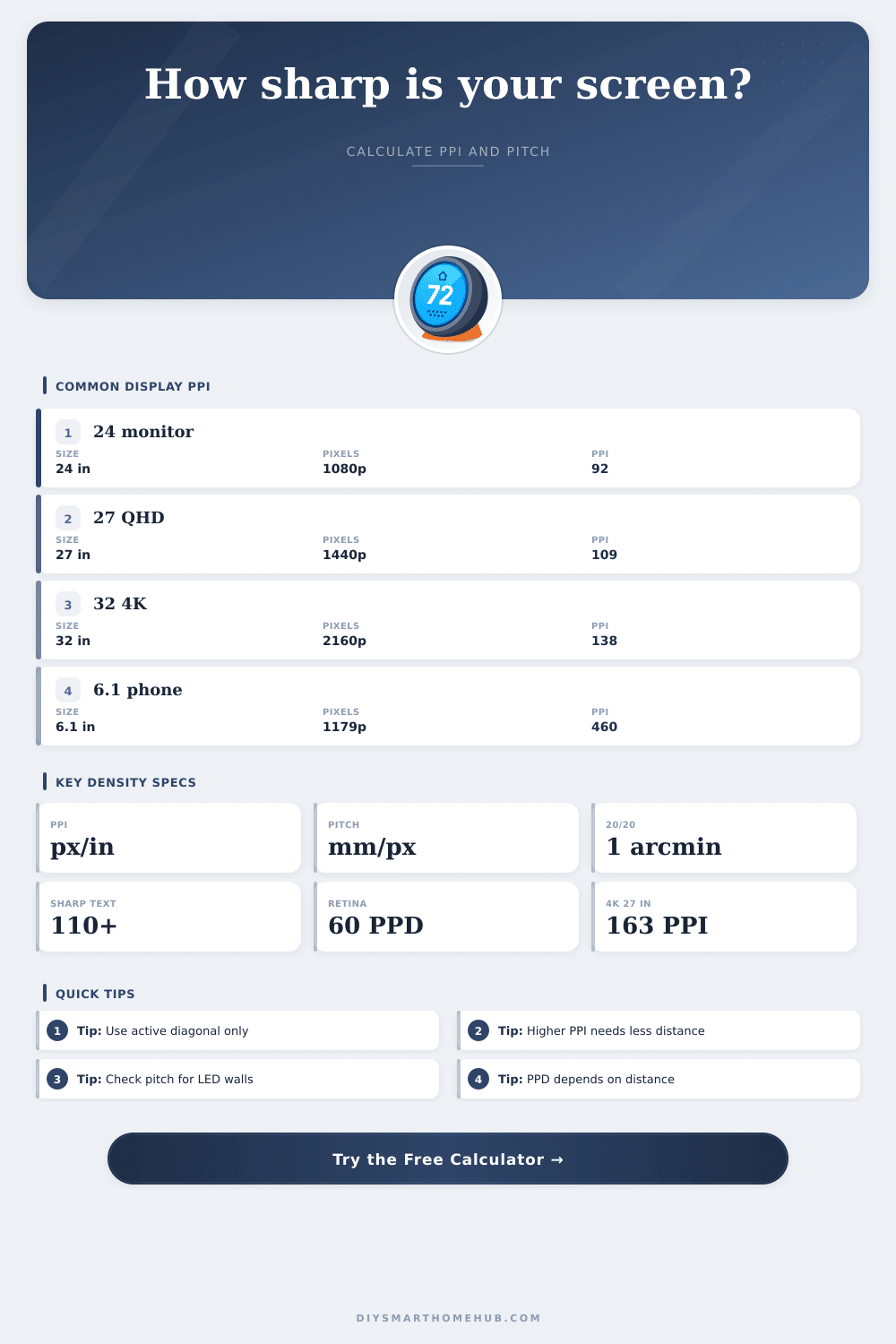
| 24 in Full HD | 24 in | 91.8 PPI | 0.277 mm | 37.4 in / 95.0 cm |
| 27 in QHD | 27 in | 108.8 PPI | 0.233 mm | 31.6 in / 80.2 cm |
| 27 in 4K UHD | 27 in | 163.2 PPI | 0.156 mm | 21.1 in / 53.5 cm |
| 32 in 4K UHD | 32 in | 137.7 PPI | 0.184 mm | 25.0 in / 63.4 cm |
| 34 in UWQHD | 34 in | 109.7 PPI | 0.232 mm | 31.3 in / 79.4 cm |
| 55 in 4K TV | 55 in | 80.1 PPI | 0.317 mm | 42.9 in / 109.0 cm |
| 65 in 4K TV | 65 in | 67.8 PPI | 0.375 mm | 50.7 in / 128.8 cm |
| 110 in Full HD wall | 110 in | 20.0 PPI | 1.269 mm | 171.9 in / 436.7 cm |
| Acuity Target | Angular Pixel Size | Equivalent Vision | Distance Formula | Meaning |
|---|---|---|---|---|
| Extra sharp | 0.67 arcmin | About 20/13 | 5131 / PPI | Stricter than typical 20/20 viewing |
| Sharp | 0.75 arcmin | About 20/15 | 4584 / PPI | Useful for fine text and photo detail |
| Standard | 1.00 arcmin | 20/20 | 3438 / PPI | Common retina-style threshold |
| Relaxed | 1.50 arcmin | About 20/30 | 2292 / PPI | Pixels blend at a shorter distance |
| Soft | 2.00 arcmin | About 20/40 | 1719 / PPI | Useful for distant screens and signage |
| Use Case | Helpful Density | Distance Check | Scaling Note | Best Signal |
|---|---|---|---|---|
| Office monitor | 95 to 140 PPI | 60+ PPD at desk | 100% to 125% | Readable text and spreadsheet grid lines |
| Creative workstation | 130 to 220 PPI | 70+ PPD helpful | 125% to 200% | Fine edges, photos, timelines, and UI clarity |
| Gaming monitor | 90 to 160 PPI | FOV matters too | Usually 100% | Sharpness balanced with performance target |
| Handheld display | 250 to 500 PPI | Close distance | Logical scale high | Text stays smooth at 10 to 18 inches |
| TV or signage | 20 to 110 PPI | Room distance | Native video scale | Pixel structure disappears from the seat |
💡PPI Calculation Tips
Pixel density are a measurement of an amount of pixels within each inch of the screen. Pixel density is an important factor to consider with regards to screens because pixel density help to determine whether text on the screen will look crisp or fuzzy. Higher pixel densities causes the pixels to be small on the screen, which allows for the images on the screen to appearing sharp.
Lower pixel densities cause the pixels to be large on the screen, which can make the images on the screen appear blurry. The calculator can be used to determine the pixel density of a display. To calculate pixel density, the user must enter the diagonal measurement of the display, the pixel count of the display, and the viewing distance for the display into the calculator.
How Pixel Density Affects Screen Sharpness
Based off these three variable, the calculator can output variables relate to the displays pixel density, such as the pixel density of the display, the physical size of each pixel on the screen, the viewing distance at which the pixels begin to blend together for individuals with specific levels of eyesight, and the angular resolution of the screen in pixels per degree. These outputs from the calculator can help individuals to understand whether a monitor is suitable for use on a desk or whether a television is suitable for viewing from across the room. While many individuals believes that the resolution of the display is the only important measurement of that display, pixel density is another important measurement.
Resolution and pixel density are not the same measurements, and each screen will have both resolution and pixel density. Resolution is the number of pixels within the screen, but pixel density is the distribution of those pixels within the screen area. If an individual enters different units for the distance at which the screen is viewed, the calculator will allow for the unit system to be changed between inches and centimeters.
Individuals can change the viewing distance for which the screen is viewed. For example, an individual may find that a 27” screen appear good when viewed from 28 inches, but the same screen may appear blurry if viewed from only 10 inches. By entering the viewing distance into the calculator, the calculator can calculate the number of pixels per degree of view.
If the pixels per degree output of the calculator is 60 or higher, then most individuals with standard eyesight will not notice the pixels on the screen. If the pixels per degree is 60 or less, the text and photographs on the screen may lose its sharpness. Another variable related to the screen is the eyesight of the viewer.
The calculator allows for an individual’s eyesight to be selected from a pre-selected range of eyesight between relaxed and extra sharp. If an individual’s eyesight is to be more focused on specific tasks, the user can change the viewing distance to compensate for that change in eyesight. Finally, another factor to consider for displays is the interface scaling of the operating system for that device.
Operating systems will often utilize interface scaling to ensure that the individual can easily read buttons on the screen when viewing it on a screen with high pixel density. The pixel density of the screen will change due to this interface scaling, and that changed pixel density are the actual pixel density of the screen that will impact how large the text and buttons on the screen appear to the individual with that operating system. Depending upon the tasks that are to be perform with the screen, the pixel density that is used for viewing the screen can change.
For instance, tasks related to offices may require a lower pixel density than tasks related to the creation of visual media. Gaming can fall somewhere in the middle in relation to the other two tasks. Tasks that utilize handheld devices will require high pixel densities for that device to be viewed clearly by the individual that utilizes the device.
Finally, large televisions can have lower pixel densities, as they are to be viewed from distances across the room. While there are a variety of factors related to displays that can impact the viewing experience, there are some factors that is outside of the scope of calculating the pixel density of the screen. Factors like the ambient light in the space in which the screen is viewed can make fine details of the screen hard to view.
The coating that is applied to the screen can impact the sharpness of the display. Finally, the refresh rate and color accuracy of the screen can impact the experience of viewing the screen, but do not have an impact upon the pixel density of the screen. These factors should of been considered after utilizing the calculator to determine pixel density.
Additionally, it may be beneficial for an individual to calculate the pixel density of a screen at two different distance. Calculating the pixel density of a screen at the distance at which the individual normally views the screen with their seated position is important, but calculating the pixel density at the closest distance that the individual may view the screen with their leaning posture is just as important. If the pixels per degree is high at both distances, then the screen will appear sharp at all viewing distances.
If the pixels per degree drops when viewing the screen from close distances, the screen may not maintain the sharpness of its images at close viewing distances. Thus, pixel density is a factor that can help to bridge the gap between the technology of the screen and the technology that the human eye utilize to view the screen. By understanding pixel density, individuals can understand how the technology of a screens pixels can relate to the technology of the eyesight of the individual that views the screen.