Resolution Calculator
Compare screen width, height, diagonal size, pixel density, visual sharpness, UI scaling, and uncompressed signal demand for real display setups.
Full calculation breakdown
| Resolution name | Pixel dimensions | Total pixels | Aspect ratio | Typical display use |
|---|---|---|---|---|
| HD 720p | 1280 × 720 | 0.92 MP | 16:9 | Small cameras, compact screens, low-bandwidth streams |
| Full HD 1080p | 1920 × 1080 | 2.07 MP | 16:9 | 24 inch monitors, projectors, common video sources |
| WUXGA | 1920 × 1200 | 2.30 MP | 16:10 | Productivity monitors with extra vertical workspace |
| QHD 1440p | 2560 × 1440 | 3.69 MP | 16:9 | 27 inch desk displays and high-refresh gaming monitors |
| UWQHD | 3440 × 1440 | 4.95 MP | 43:18 | 34 inch ultrawide monitors for timelines and side-by-side apps |
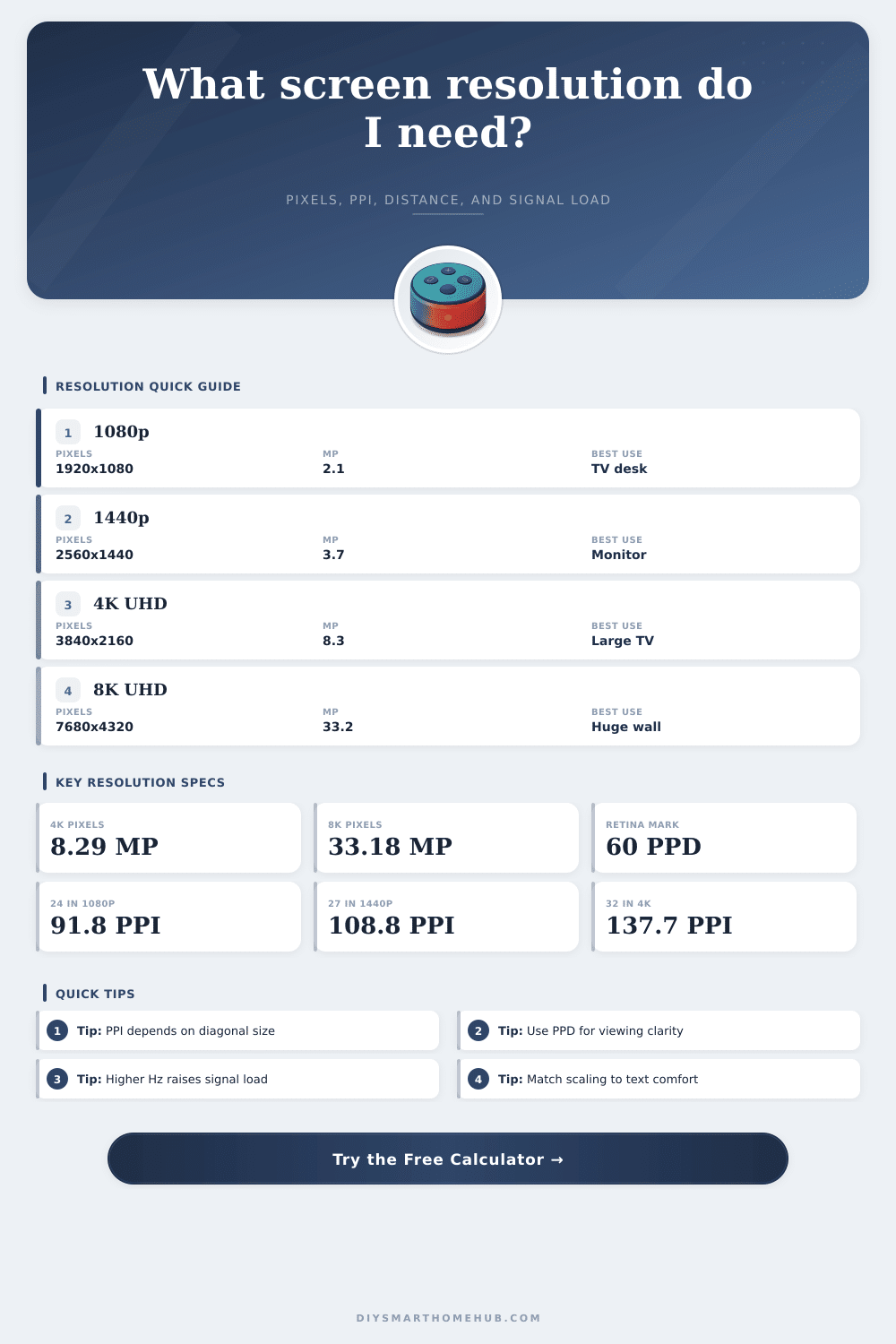
| 4K UHD | 3840 × 2160 | 8.29 MP | 16:9 | TVs, creator monitors, detailed desktop work |
| 5K | 5120 × 2880 | 14.75 MP | 16:9 | 27 inch high-density displays with 2x scaling |
| 8K UHD | 7680 × 4320 | 33.18 MP | 16:9 | Very large screens, close inspection, wall displays |
| Display setup | PPI | Pixel pitch | 60 PPD distance | What it means |
|---|---|---|---|---|
| 24 in 1080p | 91.8 | 0.277 mm | 37 in | Readable at desk range, visible pixels up close |
| 27 in 1440p | 108.8 | 0.233 mm | 31 in | Sharp general desk monitor without heavy scaling |
| 32 in 4K | 137.7 | 0.184 mm | 25 in | Very crisp at normal desk distance with scaling |
| 27 in 5K | 217.6 | 0.117 mm | 16 in | Excellent text density, usually used at 200% scale |
| 65 in 4K TV | 67.8 | 0.375 mm | 50 in | 4K detail becomes useful from common sofa distances |
| 120 in 1080p projector | 18.4 | 1.383 mm | 187 in | Large image size makes individual pixels much easier to see |
| Resolution and refresh | Pixels per frame | 24 bpp RGB | 30 bpp RGB | Frame data |
|---|---|---|---|---|
| 1920 × 1080 at 60 Hz | 2.07 MP | 2.99 Gbps | 3.73 Gbps | 5.93 MB at 24 bpp |
| 2560 × 1440 at 144 Hz | 3.69 MP | 12.74 Gbps | 15.93 Gbps | 10.55 MB at 24 bpp |
| 3440 × 1440 at 100 Hz | 4.95 MP | 11.89 Gbps | 14.86 Gbps | 14.17 MB at 24 bpp |
| 3840 × 2160 at 60 Hz | 8.29 MP | 11.94 Gbps | 14.93 Gbps | 23.73 MB at 24 bpp |
| 3840 × 2160 at 120 Hz | 8.29 MP | 23.89 Gbps | 29.86 Gbps | 23.73 MB at 24 bpp |
| 7680 × 4320 at 60 Hz | 33.18 MP | 47.78 Gbps | 59.72 Gbps | 94.92 MB at 24 bpp |
| Device class | Common native resolution | Typical diagonal | Approx PPI | Best-fit calculation note |
|---|---|---|---|---|
| Basic desk monitor | 1920 × 1080 | 24 in | 91.8 | Works well at 100% scale and 28 to 36 in distance |
| High-refresh gaming monitor | 2560 × 1440 | 27 in | 108.8 | Balances detail, GPU load, and native text size |
| Creator 4K monitor | 3840 × 2160 | 32 in | 137.7 | Benefits from 125% to 150% scaling for text comfort |
| Ultrawide workstation | 3440 × 1440 | 34 in | 109.7 | Similar height density to 27 inch 1440p with extra width |
| High-density laptop | 3024 × 1964 | 14.2 in | 254.0 | Excellent close-view clarity, usually scaled heavily |
| Living room TV | 3840 × 2160 | 65 in | 67.8 | Sharpness depends strongly on sofa distance |
| Home theater projector | 1920 × 1080 | 120 in | 18.4 | Large diagonal makes 4K upgrades more visible |
| Large wall display | 7680 × 4320 | 85 in | 103.7 | High pixel count supports close viewing on a huge panel |
| Native resolution | 100% scale | 125% scale | 150% scale | 200% scale |
|---|---|---|---|---|
| 1920 × 1080 | 1920 × 1080 | 1536 × 864 | 1280 × 720 | 960 × 540 |
| 2560 × 1440 | 2560 × 1440 | 2048 × 1152 | 1707 × 960 | 1280 × 720 |
| 3440 × 1440 | 3440 × 1440 | 2752 × 1152 | 2293 × 960 | 1720 × 720 |
| 3840 × 2160 | 3840 × 2160 | 3072 × 1728 | 2560 × 1440 | 1920 × 1080 |
| 5120 × 2880 | 5120 × 2880 | 4096 × 2304 | 3413 × 1920 | 2560 × 1440 |
| 7680 × 4320 | 7680 × 4320 | 6144 × 3456 | 5120 × 2880 | 3840 × 2160 |
When you are shopping for a monitor or television, there are many factor that will play a role in the sharpness of the image that you will see on the screen. Beyond the resolution of the screen, factor like screen size and viewing distance will affect the sharpness that you experience. A resolution calculator can help to tell you how these three factor interact with each other so that you can purchase a monitor or television that is appropriate for your viewing environment.
One of the factors that every screen include is the pixel count of that screen. The pixel count is the total number of pixels that the screen can display. However, pixel count does not factor in the size of the screen.
How to pick the right screen with a resolution calculator
For instance, a monitor with eight million pixels and a size of 32 inches will have screen that are smaller than those of a television with the same number of pixels but with a size of 65 inches. A resolution calculator can take the dimensions of the screen and its size to calculate the pixel per inch of the screen. The pixels per inch of the screen is a measurement of the screens pixel density, which help to indicate whether the screen will appear to have a sharp image or a grainy image.
Another of the factors that may impact the sharpness of the images on your screen is the viewing distance. A resolution calculator can calculate the number of pixels per degree that your screen will have at your viewing distance. If your pixels per degree is 60 or higher, you will likely not notice the individual pixels on your screen.
With a pixels per degree of less than 60, your eyes may begin to pick up the individual pixels on the screen. A resolution calculator allows you to calculate the viewing distance that you should use with your screen by entering the size of the screen and your viewing distance. Beyond the viewing distance, other factor that may impact the screen include the refresh rate and color depth of the screen.
These factors determine the amount of data that must travel through the screens cable. Higher refresh rates mean that more data will have to move across the cable per second. Higher color depths mean that more data will have to move across the screen each second.
A resolution calculator can calculate the amount of uncompressed bandwidth that these factors require, allowing you to ensure that your graphics card or cable can handle the data. A resolution calculator is not a replacement for checking the standard of your screens cable, but it can provide an estimation of the bandwidth scale of your screen. One additional factor that may influence your screen is operating system scaling.
The operating system scaling factor exist between the screen hardware and the user. Increasing the screen scaling percentage will make all text on the screen appear larger and easier to read. However, increasing the scaling percentage will reduce the amount of screen space that is visible on the screen.
A resolution calculator provides an indication of the size of your desktop space after you apply your screen scaling percentage. Common resolution reference tables exist to indicate some of the more common screen sizes and resolutions. For instance, 27-inch monitors with 1440p resolutions and 65-inch televisions with 4K resolutions are common screens.
These screens, however, may have different pixel densities. These reference tables are helpful in understanding the most common screens, but you can also use a resolution calculator to enter your own screen specifications. Resolution reference tables include a pixel density and viewing distance table that can help you calculate the distance that you need to sit from your screen to reach a desired pixels per degree measurement.
Another factor that you should consider when you are using your screen with heavy performance settings is the signal load of the screen. For instance, a screen with a resolution of 4K that can display 120 frames per second with 10-bit color will require nearly 30 gigabits per second of raw data to move the images across the screen. Such high signal loads mean that a standard HDMI 2.0 cable will not be able to support that screen; instead, an HDMI 2.1 or a DisplayPort 1.4 cable will be required.
A resolution calculator can provide this information to you. Different device require different scaling percentages and viewing distances. For instance, if you are using your laptop screen that is only 14 inches, you may have to use a heavy screen scaling percentage to read the screens.
However, if you are viewing an 85-inch screen that is wall-mounted on the far side of the room, your scaling percentage may be very low. The mathematical principle are the same for each type of device, but the inputs for the mathematics will change based off the device that is being used. A resolution calculator treats each screen as if it is a flat rectangle, which works well for planning your screen and device setup.
Many people may feel the temptation to purchase the screen with the highest resolution. A resolution calculator will help you to avoid this decision. Your resolution calculator will help you to decide if a screen with a high resolution will be beneficial to your viewing space and distance from that screen by considering each of these three factor.
Thus, you should use the resolution, pixel distance, and viewing distance in your calculations to determine if the screen is worth purchasing. You should of checked the resolution before buying.