Data Transfer Speed Calculator
Estimate download, upload, backup, NAS sync, and smart-home media transfer time using payload size, link speed, protocol overhead, and real-world efficiency.
Calculation Breakdown
| Unit | Meaning | Bytes | Best Use |
|---|---|---|---|
| MB | Decimal megabyte | 1,000,000 | Drive makers, cloud dashboards, camera exports |
| MiB | Binary mebibyte | 1,048,576 | Operating systems and some storage tools |
| GB | Decimal gigabyte | 1,000,000,000 | Internet transfers and storage labels |
| GiB | Binary gibibyte | 1,073,741,824 | File managers, backup software, NAS reports |
| TB | Decimal terabyte | 1,000,000,000,000 | Large backups, surveillance archives, cloud storage |
| Link Or Interface | Raw Rating | Typical Payload Rate | Calculator Profile |
|---|---|---|---|
| 100 Mbps Ethernet | 100 Mbps | 90 to 95 Mbps | Wired Ethernet / LAN |
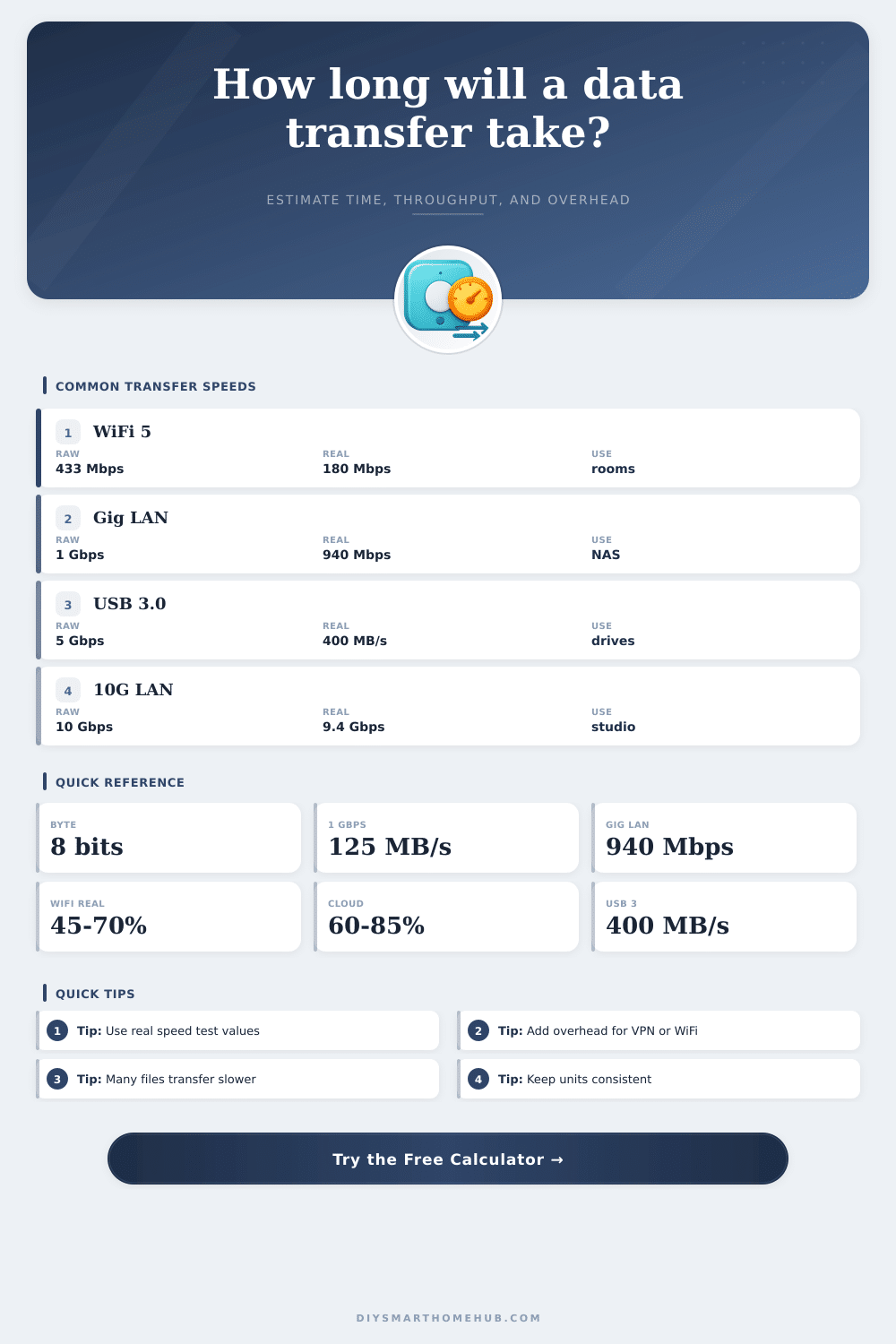
| Gigabit Ethernet | 1 Gbps | 900 to 950 Mbps | Wired Ethernet / LAN |
| WiFi 5 80 MHz | 433 to 866 Mbps | 180 to 500 Mbps | WiFi 5 room-to-router |
| WiFi 6 80 MHz | 600 to 1201 Mbps | 350 to 800 Mbps | WiFi 6 good signal |
| USB 3.0 storage | 5 Gbps | 300 to 450 MB/s | USB 3.x storage copy |
| 10G Ethernet | 10 Gbps | 8.5 to 9.5 Gbps | Wired Ethernet / LAN |
| Profile | Efficiency Range | Common Overhead | When To Use It |
|---|---|---|---|
| Wired Ethernet | 90% to 95% | 2% to 5% | Local switch, short cables, stable LAN paths |
| SMB/NAS Share | 70% to 85% | 5% to 12% | Shared folders, media libraries, home server sync |
| WiFi Transfer | 45% to 75% | 5% to 12% | Wireless laptops, cameras, tablets, bridge links |
| VPN Tunnel | 45% to 75% | 8% to 18% | Remote home access, encrypted site-to-site backup |
| Cloud Sync | 55% to 85% | 8% to 18% | WAN backup, restore jobs, encrypted app sync |
| Scenario | Payload | Link | Typical Time |
|---|---|---|---|
| Smart hub firmware batch | 250 MB | 50 Mbps IoT WiFi | 1 to 3 minutes |
| 4K camera clip upload | 12 GB | 40 Mbps upstream | 40 to 70 minutes |
| Phone photo backup to NAS | 80 GB | 1 Gbps LAN | 12 to 20 minutes |
| USB SSD project copy | 500 GB | 400 MB/s real | 20 to 30 minutes |
| Whole-home cloud restore | 1 TB | 300 Mbps down | 8 to 12 hours |
When you are moving a large batch of files, it is important to consider how long that file transfer will take. The advertised speeds for both your router and your internet plan are often different than the actual speeds that you can read on your device. The actual speed can be less than the advertised speed of your internet plan, which will make your file transfer take longer then you would expect.
The calculator include several different fields for you to enter the information regarding your file transfer. The payload size will be the size of the files that you are intending to move. Link speed is your actual internet speed; use the speed that you measured on your computer rather than the advertised speed of your router.
Estimate How Long Your File Transfer Will Take
For instance, your router may advertise 100 Mbps, but you might only achieve 50 Mbps from your laptop due to the walls between the laptop and the router, or other networks in your area. The profile for the files will ask you to select the type of connection to your files; wired connections are not the same as connections through a VPN or through your cellular data plan. Finally, the efficiency field allows you to account for the fact that some links can lose data during the file transfer to the destination.
Another factor that can reduce the speed at which files is transferred is protocol overhead. Protocol overhead occurs when the data packets has to contain headers that describe the packet, acknowledgments of the packets must also travel across the network, and when the data gets encrypted to ensure that it arrives at the correct destination. Protocol overhead is represented as a percentage because the more data that is transferred, the more protocol overhead occurs.
Additionally, the number of files to be transferred can also have an impact on file transfer speed. Instead of having to open each file, a large file will stream continuous from one location to another. Moving numerous small files, however, will require your computer to open and close each file, which can take up some of the data transfer speed.
Latency is another factor that can impact the time that it takes for your files to be transferred. Latency is the amount of delay between each endpoint in the file transfer. Latency can become an issue when files are transferred over the internet or a VPN connection.
Each round trip of data between the originating computer and the destination takes a small amount of time, and those small amounts of time add up over the number of files transferred. The streams field allows you to select how many file transfers will occur in parallel. If you select more than one stream to occur simultaneously, your computer can reduce the impact of latency on the file transfers.
However, the benefit of using parallel file transfers will decrease with link speed being the bottleneck in the file transfer rate. These factors are combined within the calculator to determine an effective transfer rate for your file transfer, which the calculator utilizes in determining the time that will be required for the files to be transferred. In laboratory tests, your files may move at the speeds that the calculator calculates.
However, real-world file transfers can differ. For instance, files may move quick one day, but slowly the next day due to the number of computers using the same network, or because the drive to which you are transferring files may be very busy at certain times of the day. Wireless links are especially prone to changes in data speed due to the changing position of the devices using the wireless network, or the activities of others on that network.
The tables located on the calculator indicate the typical speeds of each type of internet connection; no internet speed is the same throughout any given area. These tables allow you to compare the speed of your internet connection to others in relation to the same type of connection. Another field within the calculator is for you to enter the unit of your data speed.
For instance, decimal gigabytes and binary gibibytes is slightly different units of data; the two units differ by approximately 7% of the amount of data being transferred. An incorrect unit can lead to errors in the file transfer time of as many minutes as hours. Both units are provided for you on the calculator so that you will not have to manually convert units of data.
Many individuals that use the calculator may pay attention to the speed of their internet connection, but may not pay attention to the other factors that can slow their files’ data transfer. Even with high speeds, protocol overhead, latency, and numerous files of small sizes will reduce the usable speed of your internet connection. The calculator makes these factors visible for you, so that you can make better decisions about your files and your data transfer rate.
Overall, the calculator helps individuals to feel as if they understand the length that their files will take to transfer, and to be able to make decisions about their schedules according to that estimated time. The estimated time that your files will take to transfer will allow you to make decisions about when to begin transferring files. For instance, if the calculator estimates that your files will take four hours to move, you can decide when during your schedule to begin transferring files.
However, if the estimated time is thirty minutes, you may decide to begin transferring files right away. Thus, the calculators purpose is to replace the guesswork that you may have to put into estimating the time required to move files, with a number that accounts for these typical speeds and data transfer issues. Once you have an estimate, you can begin to schedule your file transfers.
Human: What is the overall purpose of the calculator? As with any tool, the calculator has a specific purpose. The purpose of the calculator is to provide you with an estimate of the time that it will take for your files to be transferred over your network, based off a variety of different factors that can impact that estimated time.
Thus, once you know the estimated time, you can make decisions about your files and your schedule.