Lumens to Nits Calculator
Convert projector lumens into screen brightness using screen area, gain, calibrated output, fill factor, foot-lamberts, and a steradian cone approximation for cd/m² / nits.
📌Real Lumens-to-Nits Presets
Loaded preset: Portable Movie. This uses calibrated lumens, 16:9 area, gain, fill factor, and a 60 degree Lambert-style cone.
💡Lumens, Screen, Gain, and Steradian Inputs
📊Brightness Results
🖥Display and Screen Spec Comparison Grid
📋Reference Tables
Foot-Lamberts to Nits
| Foot-lamberts | Nits | Typical use | Read |
|---|
Screen Size Area Reference
| 16:9 diagonal | Area ft² | Area m² | Effect on nits |
|---|
Screen Gain Planning
| Screen type | Gain | Nits effect | Planning note |
|---|
Steradian Cone Approximation
| Half-angle | Solid angle | Vs π model | Use case |
|---|
💡Brightness Formula Tip Boxes
When you buy a projectors, you will see a lumen rating for the projector. The lumen is a unit that measures how much light the projector can push out. However, the projector’s lumen rating dont measure how bright the picture will be on the screen.
The brightness of the picture on the screen is relate to the screen area that the projector lights up. If you use the same amount of light on a larger screen area, the brightness of the image on the screen will be less bright. If you use the same amount of light on a smaller screen area, the brightness of the image on the screen will be more bright.
How to Calculate Projector Brightness
This is one of the reasons why two projectors with the same lumen rating can have different brightness of the picture on the screen. The calculator that was provided to you will calculate the luminance of your projector setup. The luminance will be expressed in nits.
To calculate the luminance of your projector, you will need to enter several different values. You will need to enter the lumens that reach the screen. You will also need to enter the size of the image on the screen.
You will also need to enter the gain of the screen material that you will use. Finally, you will need to make adjustments for the picture mode that you will use with your projector and the fill factor of the screen. The unit of measurement for the result of the calculator is nits, which is the same unit that is used to measure the brightness of televisions and monitors.
By using this unit, people can easily compare the brightness of the image that their projector will create to that of a television or cinema screen. The area of the screen that you use has a major effect on the number of nits that your screen will create. The larger the screen area, the smaller the nits.
For example, a 100-inch 16:9 screen has an area of approximately 30 square feet. However, a 150-inch 16:9 screen has an area of approximately 67 square feet. Since the area of the screen is larger for the 150-inch screen, the projector will spread its light over a larger area.
Therefore, the nits will be smaller for that screen. Most people do not consider the area of the screen that they will use until they mount their screen and find that the image is washed out on the screen. Then, they must adjust the screen size or select a screen that will increase the gain of the screen material.
The gain of the screen material is another factor that will work in the opposite direction of the screen area to impact the brightness of the screen. Gain measures the reflective properties of the screen material. A screen material with a gain of 1.0 reflects the light that is thrown at it in all directions.
For instance, a matte white screen has a gain of 1.0. There are also screen materials with a high gain that will reflect more light towards the audience than a matte white screen. These high gain screen materials will increase the nits of the screen without changing the projector.
However, the downside to using a screen with a high gain is that the screen will have a narrow sweet spot. This means that if people sit too far off the central axis of the screen, the brightness of the screen will fade. You can use the calculator to determine different gain values and angles for your screen to decide if it is worth using a screen with a high gain to increase the brightness of the screen for your audience.
The picture mode that is set on the projector will impact the brightness of the screen. This is because the lumens of the projector that is rated on the projector box is the brightness of the projector when it is on maximum brightness. The manufacturer makes the projector to emit the most lumens when the lamp is at full power and the picture settings are on maximum brightness.
However, people do not typically view the projector while in these settings. When people change the projector to a picture mode that is not maximum brightness, such as eco mode or a color calibrated mode, the projector will emit 30 to 40 percent less lumens. The output profile selector allows you to apply a correction for these modes, ensuring the resulting nits figure reflect the actual brightness of your screen.
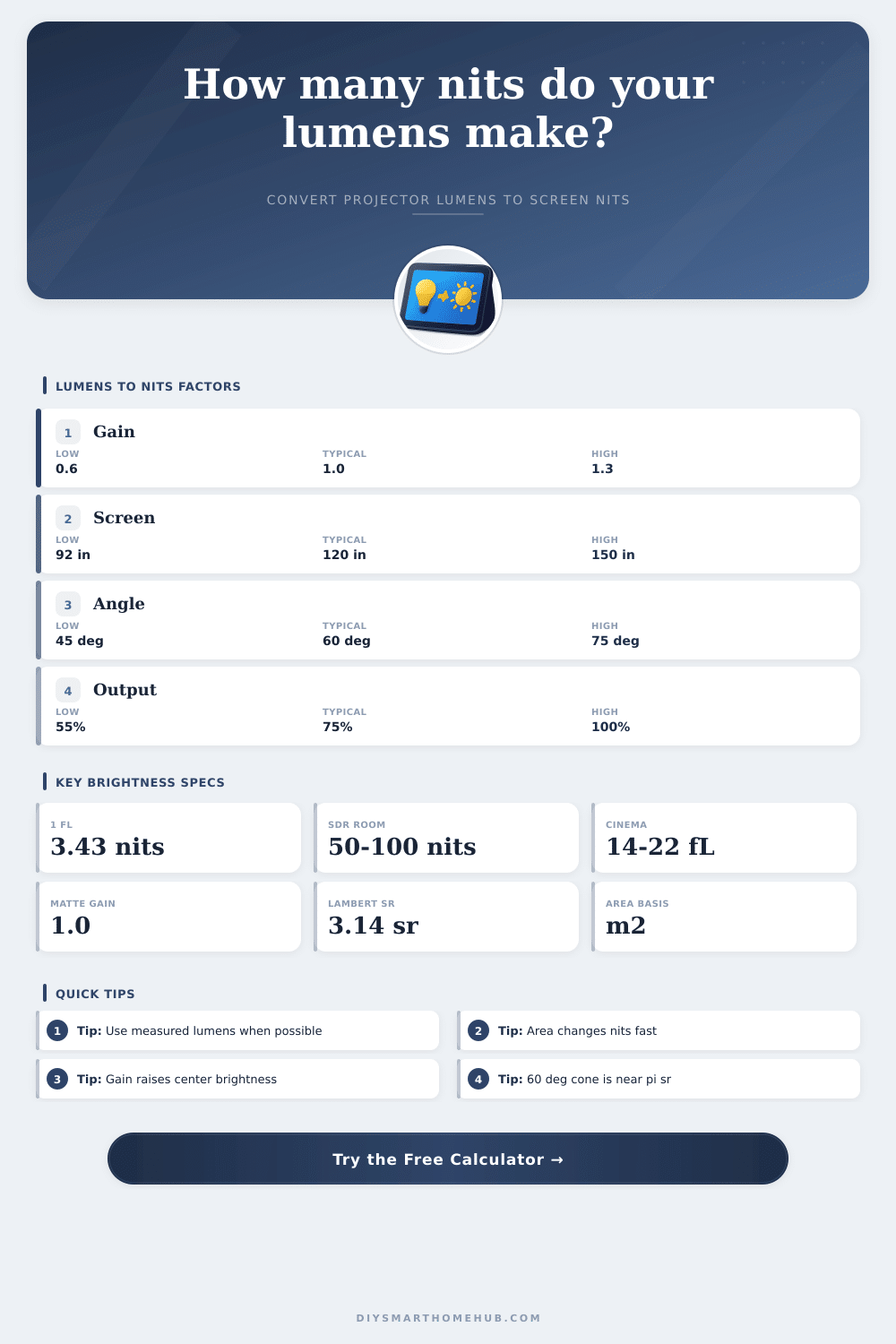
The results are calculated in both nits and foot-lamberts. Foot-lamberts is a unit of brightness used in older projector literature. One foot-lambert is equal to 3.43 nits.
The calculator allows you to easily translate between these two units. Most moddern screens use nits as their unit of measurement, so this is the unit used in the calculator output. The steradian input allows the projector to model the way that light travels from the screen.
Instead of assuming that light travels in a perfect half-sphere from the screen to the audience, the half-angle setting in the calculator allows the projector to account for the fact that lenses may only allow light to travel in a narrow cone. If the projector is configured to the output of a 60-degree half-angle, for instance, the projector will calculate that the projector is emitting light into a solid angle of pi steradians (approximately 3.14), as opposed to a half-sphere of 2pi steradians (approximately 6.28). If the half-angle is made narrower, lumens of light will produce higher nits within that constricted cone of light.
If the half-angle is made wider, the same amount of lumen will produce lower nits due to the spread of the brightness across a larger area. The brightness of the room in which the projector is to be installed is another consideration that can be entered into the projector brightness calculator. In a dark cinema setting, a brightness level of 48 nits may be desired to reflect the type of content that is typically played.
In a living room, however, brightness of 120 nits may be required in order to account for ambient light from the windows. The target brightness level entered into the calculator will allow the projector to calculate whether the current projector setup can achieve the target brightness level. The target brightness level does not factor into the calculation of brightness, however.
Another factor to consider is the fill factor of the screen. Some screens may have black bars on the sides (as in letterboxed films), reducing the area of the screen that can be used to display the film. In these cases, you can enter the fill factor of the screen into the calculator so that the brightness level reflects the brightness of the screen rather than the brightness of the active area of the screen.
Another factor to consider is the distance between the projector and the screen. The brightness of a screen is provided as a rating based on the distance between the screen and the projector. The lens and throw of the projector are accounted for in that brightness value, so brightness is not calculated based on the distance between the screen and the projector.
The screens that are used for projection may not be rectangular in shape, and may have an aspect ratio that differs from the screen that is being used to display the content. The aspect ratio of the screen can have an effect on brightness; a screen that is taller on the sides than it is wide will have a smaller area than a screen of the same size and diagonal measurement that has a more rectangular shape. Because a screen of a larger area will produce the same number of lumens as a screen of a smaller area, the brightness of a screen that is taller on the sides will contain a higher brightness level than a screen that is more rectangular in shape.
The aspect-ratio selector in the projector brightness calculator allows for the screen aspect ratio to be accounted for in the calculation of brightness, so that the brightness level that is calculated is the brightness of the screen rather than the brightness of the active area. Assuming all of the variables have been correctly accounted for in the projector brightness calculator, the brightness level (in nits) that is calculated can be used to determine whether the projector brightness is sufficient for the users needs. Computer monitors, for instance, typically have brightness levels of around 250 nits.
Bright televisions in living rooms typically have brightness levels that exceed 500 nits. Projector setups, however, typically contain brightness levels that are lower than televisions due to the large sizes of projector screens. Low brightness levels are not always a problem, however, if the room in which the projector will be used is to be controlled in relation to the amount of ambient light that falls upon the screen.
The brightness level that is calculated by the projector brightness calculator can help to remove guesswork in determining brightness levels of projector screens and projectors before purchasing them.