Computer Monitor Size Calculator
Calculate screen width, height, PPI, pixel pitch, viewing distance fit, field of view, and multi-monitor desk span from diagonal size, aspect ratio, and resolution.
🖥Real Monitor Presets
⚙Monitor Inputs
Full Calculation Breakdown
📊Device And Spec Comparison Grid
📏Common Monitor Size And Pixel Density Table
| Monitor class | Resolution | Approx PPI | Pixel pitch | Best fit |
|---|---|---|---|---|
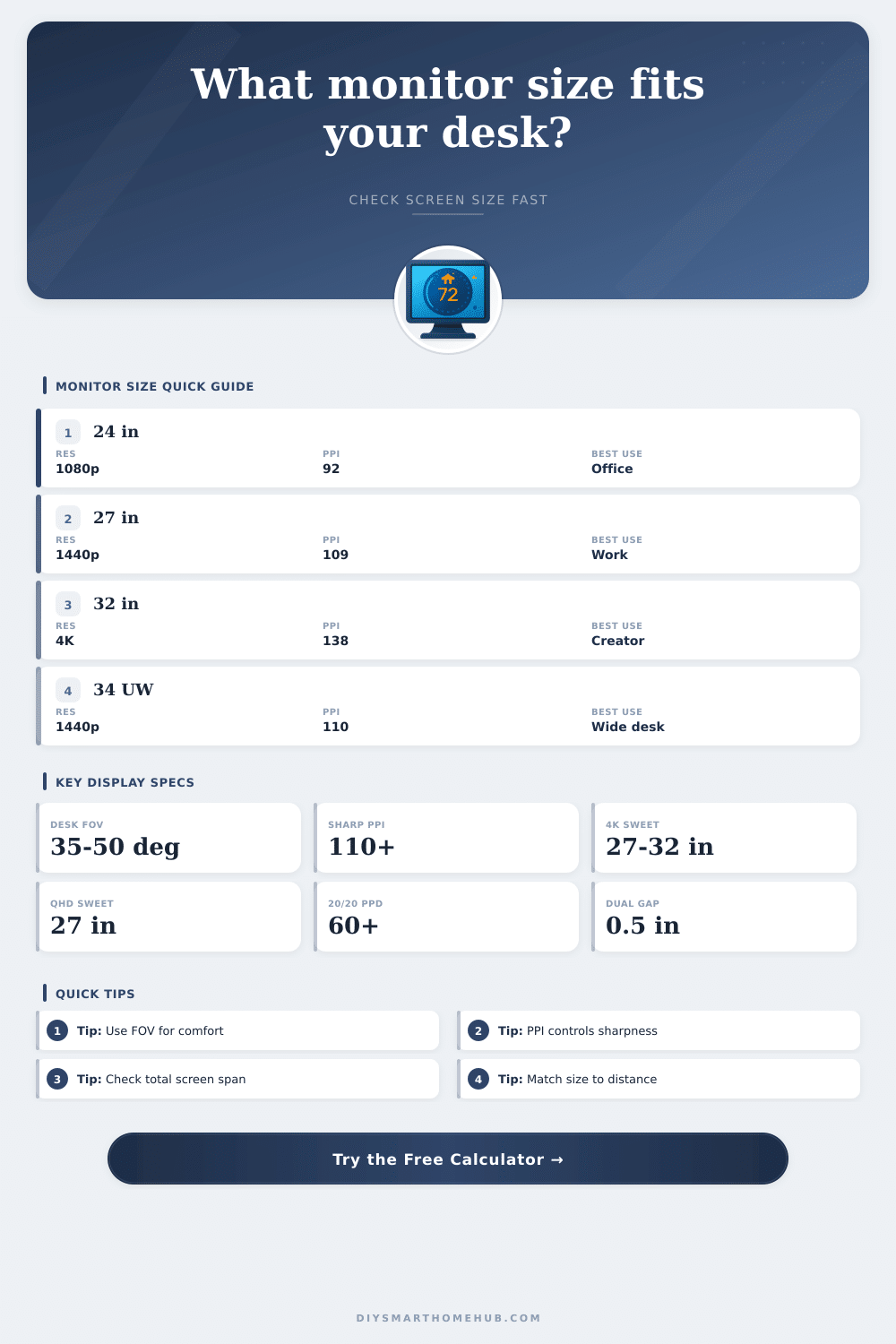
| 24 in 16:9 | 1920 × 1080 | 91.8 PPI | 0.277 mm | General office, esports, compact desks |
| 27 in 16:9 | 2560 × 1440 | 108.8 PPI | 0.233 mm | Balanced productivity and sharp text |
| 27 in 16:9 | 3840 × 2160 | 163.2 PPI | 0.156 mm | High-density coding and fine UI scaling |
| 32 in 16:9 | 3840 × 2160 | 137.7 PPI | 0.184 mm | Creative work, 4K timelines, large canvases |
| 34 in 21:9 | 3440 × 1440 | 109.7 PPI | 0.232 mm | Wide timelines and two app columns |
| 49 in 32:9 | 5120 × 1440 | 108.5 PPI | 0.234 mm | Dual-QHD replacement and dashboards |
👁Viewing Distance Reference Table
| Display setup | Width | 35° FOV distance | 50° FOV distance | 20/20 pixel distance |
|---|---|---|---|---|
| 24 in 16:9 1080p | 20.9 in / 53.1 cm | 33.1 in / 84.1 cm | 22.4 in / 56.9 cm | 37.4 in / 95.0 cm |
| 27 in 16:9 1440p | 23.5 in / 59.8 cm | 37.3 in / 94.7 cm | 25.2 in / 64.0 cm | 31.6 in / 80.2 cm |
| 32 in 16:9 4K | 27.9 in / 70.8 cm | 44.2 in / 112.3 cm | 29.9 in / 75.9 cm | 25.0 in / 63.5 cm |
| 34 in 21:9 ultrawide | 31.3 in / 79.5 cm | 49.6 in / 126.0 cm | 33.5 in / 85.1 cm | 31.3 in / 79.5 cm |
| 49 in 32:9 superwide | 47.2 in / 119.9 cm | 74.8 in / 190.0 cm | 50.6 in / 128.5 cm | 31.7 in / 80.5 cm |
🖼Aspect Ratio Dimension Table
| Aspect ratio | 27 in width | 27 in height | Shape notes | Typical monitors |
|---|---|---|---|---|
| 16:9 | 23.5 in / 59.8 cm | 13.2 in / 33.6 cm | Standard widescreen | 1080p, QHD, 4K panels |
| 16:10 | 22.9 in / 58.2 cm | 14.3 in / 36.4 cm | Taller workspace | Office and creator displays |
| 21:9 | 24.8 in / 63.0 cm | 10.6 in / 26.9 cm | Wider, shorter image | Ultrawide monitors |
| 32:9 | 26.0 in / 66.0 cm | 7.3 in / 18.6 cm | Very wide image | Super ultrawide monitors |
| 3:2 | 22.5 in / 57.2 cm | 15.0 in / 38.1 cm | More vertical room | Laptop-style productivity panels |
💻Setup Comparison Table
| Setup | Total span | Total pixels | Strength | Watch point |
|---|---|---|---|---|
| Single 27 in QHD | 23.5 in / 59.8 cm | 3.7 million | Balanced text and desk fit | Less side-by-side canvas than ultrawide |
| Single 32 in 4K | 27.9 in / 70.8 cm | 8.3 million | Large sharp workspace | Needs enough viewing distance |
| 34 in ultrawide | 31.3 in / 79.5 cm | 5.0 million | Seamless two-column layout | Lower height than 32 in 4K |
| Dual 27 in QHD | 47.5 in / 120.7 cm | 7.4 million | Strong multitasking separation | Wide field of view at short distances |
| 49 in super ultrawide | 47.2 in / 119.9 cm | 7.4 million | Dual-QHD canvas without center bezel | Benefits from deeper desk placement |
ℹCalculation Tips
Buying an monitor involves understanding the physical dimension of the monitor and the visual requirement of that monitor. Even if a monitor look good on the specification sheet, it may be too large or too small when the monitor is actualy on the desk. To find the physical dimensions and viewing requirement for a monitor of a certain size and resolution, you can use a monitor calculator.
The monitor calculator will calculate the basic geometry of the monitor. You will enter the diagonal size of the monitor that you are interested in and the aspect ratio of the monitor. The calculator will return the actual width and the actual height of the monitor.
Find Monitor Size, Resolution and Best Viewing Distance
A 27-inch monitor is not necessarily going to be the same physical size as another 27-inch monitor; for instance, a monitor with a 16:9 aspect ratio will have different dimension than a monitor with a 21:9 aspect ratio. Thus, by knowing these actual dimensions, you can avoid any mistake in purchasing a monitor that would take up too much space on your desk. The resolution of the monitor is another calculation that the monitor calculator can make.
You will input the horizontal and vertical resolution of your monitor of interest. Based on the diagonal size of the monitor, the calculator will determine the number of pixels per inch of the screen. This will allow you to understand if the text will be sharply on the screen at your desired viewing distance from the monitor.
Although a higher number of pixels per inch is not necessarily a better specification for all monitors, a higher number mean that you can sit closer to the screen without the text beginning to appear pixelated. Another viewing distance to consider is the distance from your eyes to the screen. This is a different measurement to the depth of your desk.
Your posture, monitor stand, and chair may change the distance between your eyes and the screen. By entering this distance into the calculator, you will be able to understand the field of view of the screen (how much of your vision the monitor take up) and the number of pixels per degree that your monitor will exhibit. These two specifications will tell you if the size of the monitor is immersive or if it is too large for your space.
For desktops with multiple monitors, the calculator will allow you to select the number of monitors that you would like to use (one, two or three monitor). Additionally, the calculator will allow you to account for the gaps between the monitors. By entering these specifications, you will understand the total span of the monitors and the total area of the screens.
This is important to consider for those who would like to utilize two monitors but whose desktop may not allow for screens that wide. The field of view will update automaticly should you select additional monitors for your desktop. The aspect ratio of the monitor will also affect the design of your monitor.
Monitors with a 16:10 aspect ratio allow more screen real estate for documents, while monitors with a 32:9 aspect ratio allow for more screen real estate for individuals who wish to replace two monitor with one. The calculator will provide the width and height measurement of your monitor for each aspect ratio. Thus, you can test different aspect ratio to find the best fit for your workspace.
Additionally, the monitor calculator will calculate the pixel pitch and the 20/20 distance for you. The pixel pitch is the distance in millimeters between the center of the pixels. The 20/20 distance is the distance at which you should sit from your screen for individuals with normal vision.
If you sit closer than the 20/20 distance, you may begin to see individual pixels on your screen. If you sit farther from the screen than the 20/20 distance, the high resolution of the monitor will not provide you with additional benefit to sitting farther from the screen. The calculator will return both of these specification so that you can decide whether the sharpness of your monitor is beneficial at your viewing distance.
There are other consideration for your monitor beyond the calculations performed by the calculator. Factors like monitor arms, the lighting in your workspace, and your chair height may affect your vision of the monitor and your comfort while viewing it. Thus, while the monitor calculator may show all of the number you need to know about the geometry of your monitor, you may need to use your judgment to determine if your monitor would be comfortable and correctly in your specific workspace.
To use the calculator, begin with the specifications that you cannot change. For instance, you should measure the distance from your eyes to your desk and determine how many monitor will fit on your desk. After you have entered these two specification, you may begin to experiment with the other specifications.
Finally, there are table on the calculator that provide a comparison between your chosen monitor and common classes of monitors. These tables will allow you to compare your desired size and resolution for your monitors to common desktop with monitors. This can help to make your decision of which monitor to purchase.
Thus, while the monitor calculator can remove the guesswork of the geometry of your monitor, you must still make a decision of whether the monitor will be comfortable in your workspace during the workday.