Network Speed Calculator
Estimate real smart home throughput, file transfer time, active device capacity, and streaming headroom after Wi-Fi, protocol, and household load losses.
⚡Real Smart Home Presets
📶Network Inputs
Calculated Network Capacity
📊Spec Snapshot
📡Wi-Fi PHY Reference
| Standard | Common 2x2 PHY Rate | Best Band | Calculator Meaning |
|---|---|---|---|
| Wi-Fi 4, 802.11n | 300 Mbps at 40 MHz | 2.4 or 5 GHz | Older IoT links, good range, lower real throughput. |
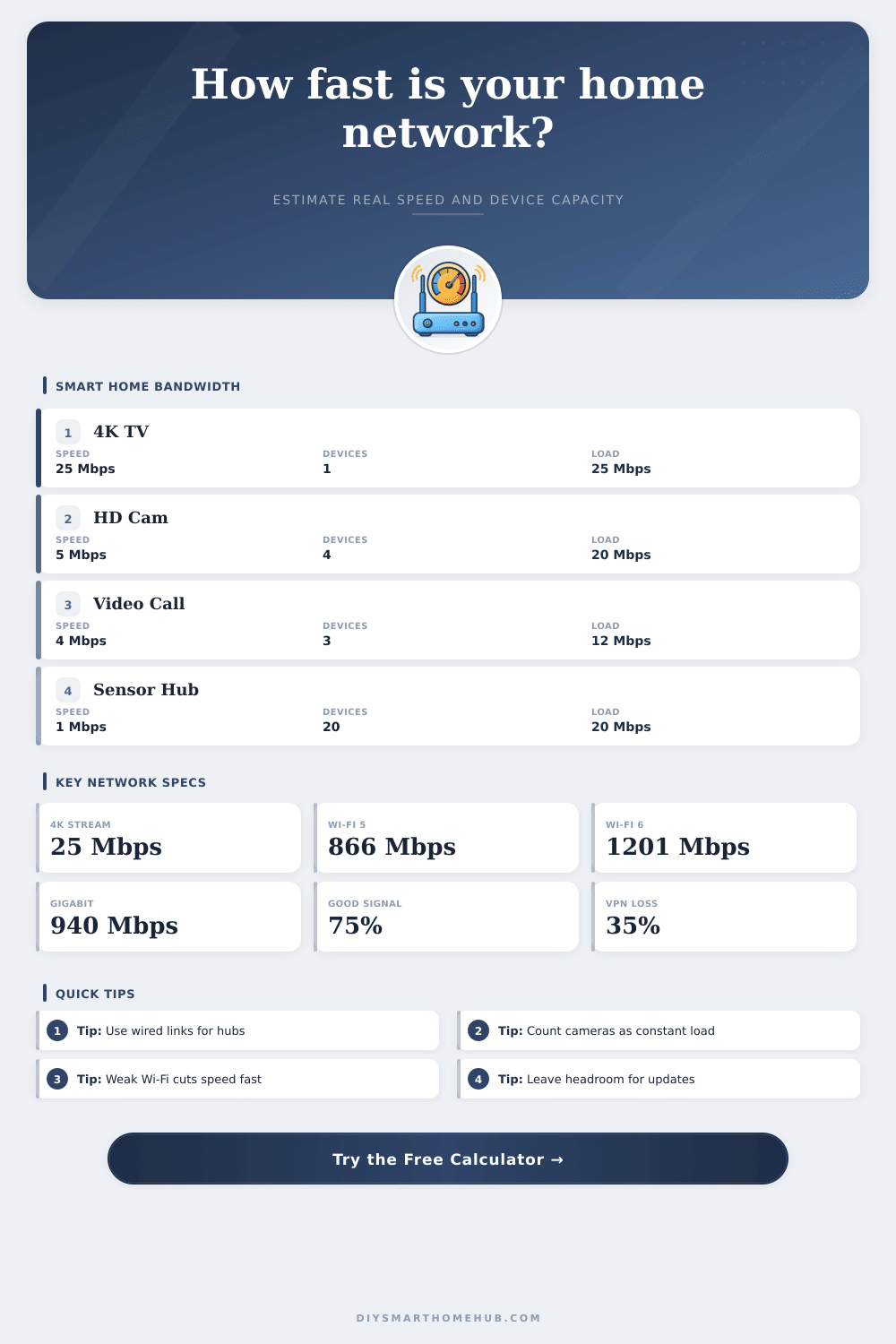
| Wi-Fi 5, 802.11ac | 866.7 Mbps at 80 MHz | 5 GHz | Common smart TVs, laptops, cameras, and mesh nodes. |
| Wi-Fi 6, 802.11ax | 1201 Mbps at 80 MHz | 5 GHz | Better multi-device efficiency for busy homes. |
| Wi-Fi 6E, 802.11ax | 2402 Mbps at 160 MHz | 6 GHz | Cleaner spectrum, shorter range, strong for same-room devices. |
| Wi-Fi 7, 802.11be | 5765 Mbps at 320 MHz | 6 GHz | Very high local speed when both client and router support it. |
🔧Connection Comparison Grid
| Connection Type | Typical Efficiency | Useful Ceiling | Best Smart Home Use |
|---|---|---|---|
| Gigabit Ethernet | About 94% | 940 Mbps usable | Hubs, network storage, camera recorders, and access points. |
| 2.5G Ethernet | About 94% | 2350 Mbps usable | Fast NAS backups, multi-gig access points, and media servers. |
| Cable Internet | About 88% | Plan dependent | General household internet with shared neighborhood capacity. |
| 5G Home Internet | About 76% | Signal dependent | Flexible placement where wired broadband is limited. |
| VPN Tunnel | About 65% | CPU dependent | Remote smart home access and encrypted monitoring links. |
🏠Smart Home Bandwidth Reference
| Device or Task | Typical Mbps Each | Latency Sensitivity | How to Count It |
|---|---|---|---|
| 4K video stream | 15 to 25 Mbps | Medium | Use 25 Mbps for conservative headroom. |
| 1080p camera stream | 2 to 5 Mbps | Medium | Count cameras as steady upstream or local recording load. |
| Video call | 3 to 4 Mbps | High | Use higher demand when several calls overlap. |
| Smart speaker or display | 0.5 to 2 Mbps | Medium | Only count active audio, video, or update traffic. |
| Sensor, switch, or hub | Under 1 Mbps | Low | Count many tiny devices as a small combined load. |
📋Common Project Size Examples
| Scenario | Starting Link | Active Load | Expected Planning Result |
|---|---|---|---|
| Single media room | Wi-Fi 6, 80 MHz | TV plus 6 devices | Usually enough for multiple 4K streams if signal is good. |
| Apartment with mesh | Wi-Fi 5, 80 MHz | 18 mixed devices | Plan for lower speed when backhaul and clients share airtime. |
| Camera-heavy home | Gigabit Ethernet | 8 HD cameras | Local wired recording leaves broad headroom for other tasks. |
| Remote work household | Cable 500 Mbps | Calls, backups, TVs | Upload and latency may matter more than download speed. |
| NAS backup night | 2.5G Ethernet | Low device load | Large transfers finish much faster than on gigabit links. |
💡Calculation Tips
When a mobile application experience a stall in video playback, many people jump to the conclusion that the mobile device is the cause of the issue. However, the problem typically begin at the home network with the traffic from the various device connected to the home network. The speed of the internet plan as displayed on the router box often differs from the actual internet speed experienced by the individual at home due to protocol overhead and the number of smart home gadgets connected to the network.
The inputs on the calculator allow individuals to select the variables that impact the throughput of their home network so that these variables dont come as surprises to the individuals at a later date. The connection profile allow individuals to select the limits that their service provider imposes on the data speed that they can deliver to their home. For example, the theoretical speed of the fiber optic internet plan at the home may be 1,000 Mbps, but the actual throughput can be less if the individual is using a Virtual Private Network (VPN) to secure their internet connection.
Find and Fix Slow Home Internet
By selecting the appropriate connection profile for their internet connection, the calculator can determine the actual efficiency of the internet connection at their home instead of the advertised speed of the internet plan. The Wi-Fi standards and the channel widths allow individuals to determine the speed limit of the Wi-Fi network at their home. The Wi-Fi 5 standard, for example, can theoretically deliver data speeds up to 800 Mbps.
However, the signal quality between the router and the device can play the most critical role in determining the actual data speed. If the signal quality declines from excellent to fair, the data speed can drop to half of the theoretical maximum data speed of the Wi-Fi network. The calculator takes into account the efficiency of the Wi-Fi protocol and the signal quality of the network to calculate the actual throughput of the Wi-Fi network.
The number of active devices and the average data demand of the devices on the network can affect the actual data speed of the individual’s network. Devices such as security cameras and video calling devices require a high amount of data demand from the network, while devices such as sensors require a very low amount of data demand. The total amount of data that all the devices on the network demand can be deducted from the actual throughput to determine how many simultaneous data stream of a particular quality can operate on the network without slowing down other devices on the network.
The size of the data to be transferred and the unit in which the data is measure allow individuals to test whether the spare data speed calculated by the calculator is enough to perform a particular data task on the network. For example, an individual can accomplish backing up a large amount of data on a network attached storage (NAS) device quickly on a wired gigabit network but it can take much longer on a mesh network with a weak signal. By watching the time that the data takes to be transferred when adjusting the parameters on the calculator, individuals can determine what changes to their home network will lead to the best result.
The comparison between the wired and wireless network segments within the home can be tested using the calculator. Wired internet connections using Ethernet cables have a high degree of efficiency because the data signal does not have to contend with obstructions or interference from other devices. Wireless networks, on the other hand, have a much lower data throughput because the signal strength between routers or access points can be an obstacle in the movement of data.
Many individuals discover that the bottleneck in their network is not the internet plan that they have selected but the wireless segment between their router and access point. Individuals’ homes are not the same as the laboratory settings in which network speeds are tested. The presence of walls in the home, other wireless networks in the vicinity, and the software update of the devices on the network can all reduce the throughput of the network.
A calculator that determines the throughput of data on the network allows the individual to factor in these variables to determine the actual throughput at their home. It is a common mistake to consider all the devices in the home to be equal in their data demand on the network. A smart plug that controls a home appliance once per hour will use less data than a smart plug that streams a video feed from the device to the smartphone application of the individual that owns the smart plug.
Therefore, the average data demand of the devices on the network should be adjusted to reflect this. Another common mistake is to think that buying newer network equipment will automatically resolve any data speed issue on the network. For example, a router that utilizes the Wi-Fi 7 standard can deliver very high data speeds to the devices on the network under ideal conditions.
However, if the signal between the mesh router and the access point utilizes a different and an older standard for Wi-Fi networks, the slower segment of the network will limit the data speed. By selecting different options for the Wi-Fi standards on the calculator, individuals can test whether purchasing new networking equipment will provide the expected data throughput at the individual’s home. The reference tables included with the calculator allow the individual to choose the values for any variables that the calculator does not directly ask for.
For example, the reference tables can include the typical data rates for Wi-Fi configurations, the efficiency of different types of network connections, and the amount of bandwidth that tasks of the smart home devices require. By learning the values for these variables, the individual can adjust the variables of the calculator with more confidence. Signal quality between the router and the device on the network is one of the variables that most individuals underestimate when determining the throughput on their network.
For example, moving the router closer to the device or installing a mesh network that backs hauls the signal to the device can increase the signal quality. The calculator allows the individual to see the impact of signal quality on the network’s throughput. By changing the signal quality, the data speed calculation can increase dramatic.
By using the calculator to determine that the data speed of the network has enough headroom for the current devices on the network, the individual can be confident that they can add additional devices such as cameras or video calling devices to the network without causing any data speed issues. The headroom for the devices on the network ensures that the individual has a reliable internet connection.