Due to a spate of break-ins in my neighborhood, I decided that it would be wise to put up some external Blink cameras around my house.
I also purchased the Blink Sync Module 2 as it enables you to control your cameras using the Blink app. If you also have a Blink doorbell or floodlights, it enables you to control these as well.
However, your Blink Sync Module needs to connect to your Wi-Fi.
What I have frustratingly encountered is that often it does not connect to the Wi-Fi stating that the Wi-Fi password is wrong, even when I know that the password is correct.
But before you can continue reading this article, you may first watch the short video I made about this topic. You can watch the video below.
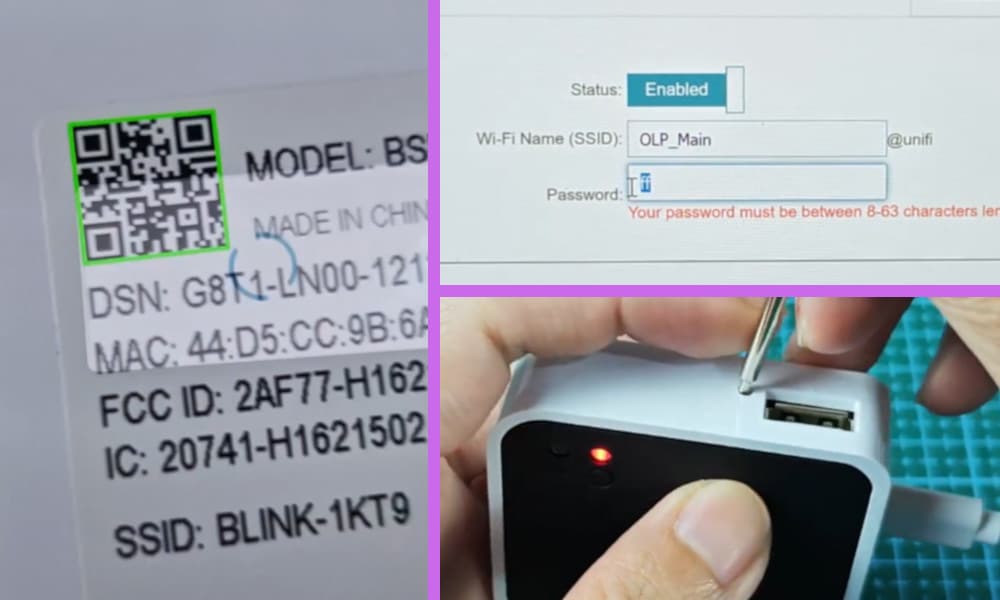
In my video, I showed the things you can do to fix this issue like pressing and holding the “reset” button on the Sync Module and changing your Wi-Fi password.
What to Do if Blink Sync Module 2 Keeps Saying Wi-Fi Password is Wrong
To try and rectify such a problem, on your smartphone open the Blink app and click on the ‘Add Device’ option. From the ‘Add Device’ screen click select ‘Sync Module’.
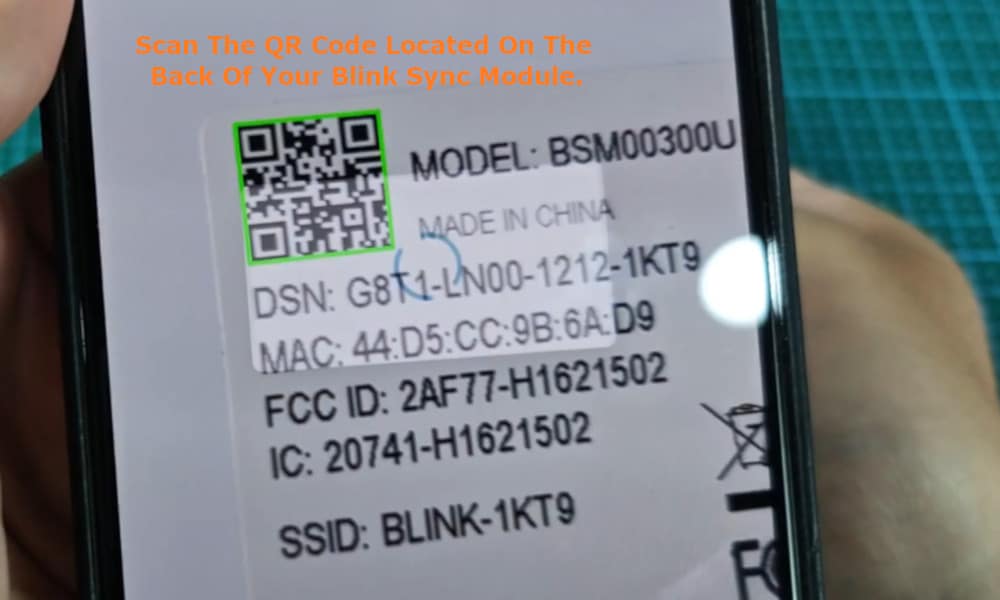
This will take you to the ‘Scan QR Code’ screen and you then need to scan in the QR code located on the back of your Blink Sync Module. You will then see the screen titled ‘Select a System’.
At the bottom of the screen check the option ‘Create a new system’ and then press ‘Continue’. You will be taken to the next screen where you will need to enter a name for the system.
Once you have done this you will then be taken to the ‘Add Device’ screen which will advise you to plug in your Sync Module and to wait for the lights to display.
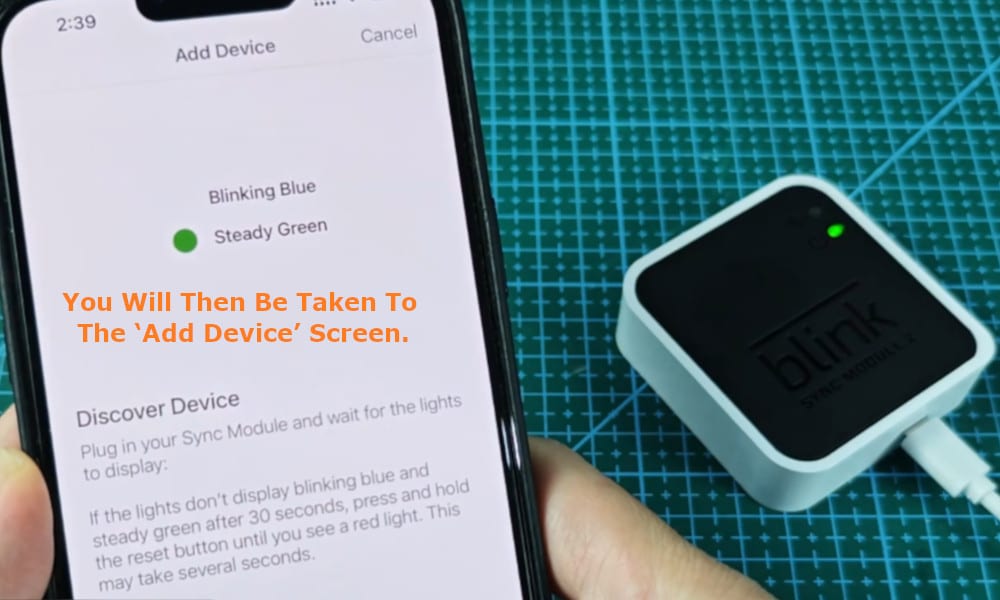
Additionally, it tells you that if the lights do not display a blinking blue and a steady green light within 30 seconds that you should press and hold in the reset button until you see a red light, and that this can take several seconds.
Once the lights display blinking blue and steady green on both your app and Sync Module, select ‘Discover Device’ located at the bottom of the screen of your smart device.
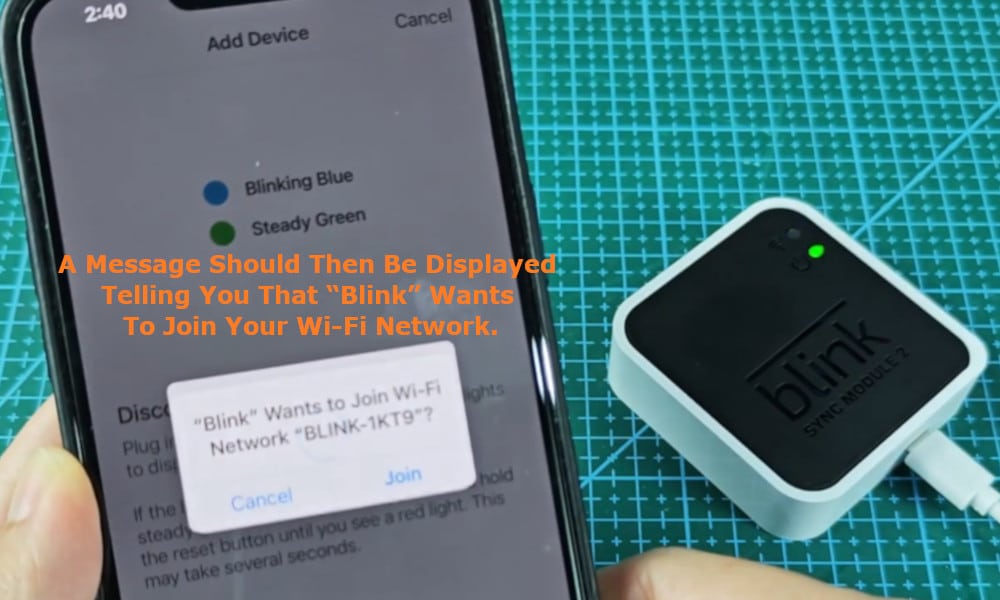
A message should then be displayed telling you that “Blink” wants to join your Wi-Fi network. Select the ‘Join’ option’.
This will take you to a list of available Wi-Fi networks where you should select the one which you want to connect to. You will then be prompted to enter the password for the Wi-Fi network and which will then be sent to your Sync Module 2.
This is where it can get very frustrating.
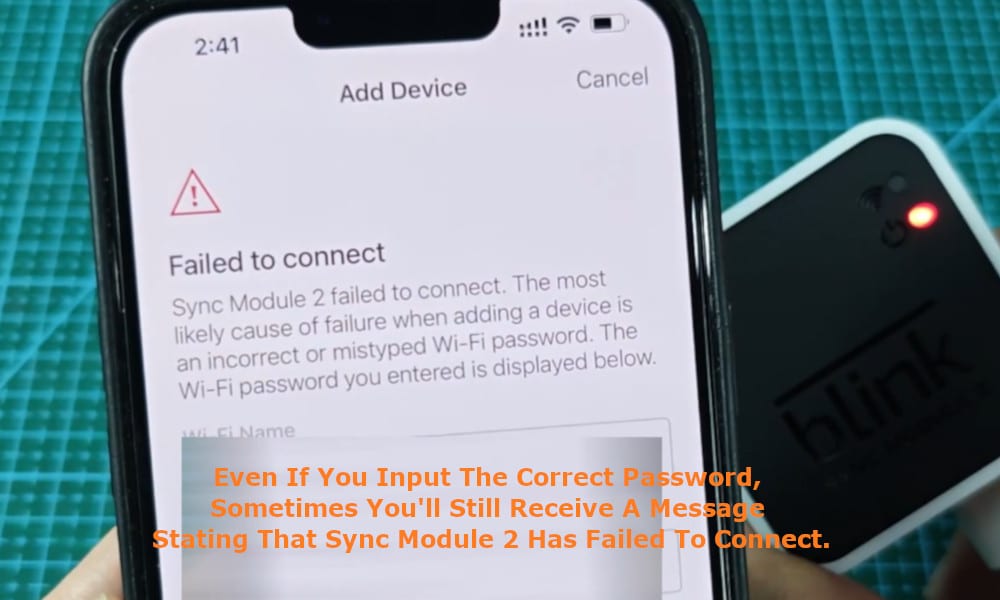
Having selected the Wi-Fi and input the correct password, sometimes you will receive a message stating that Sync Module 2 has failed to connect and the Sync Module will display a red light even though you know you have selected the correct Wi-Fi and password combination.
As a result of this failure to connect, it can be necessary to try a couple of other things to attempt to rectify this problem.
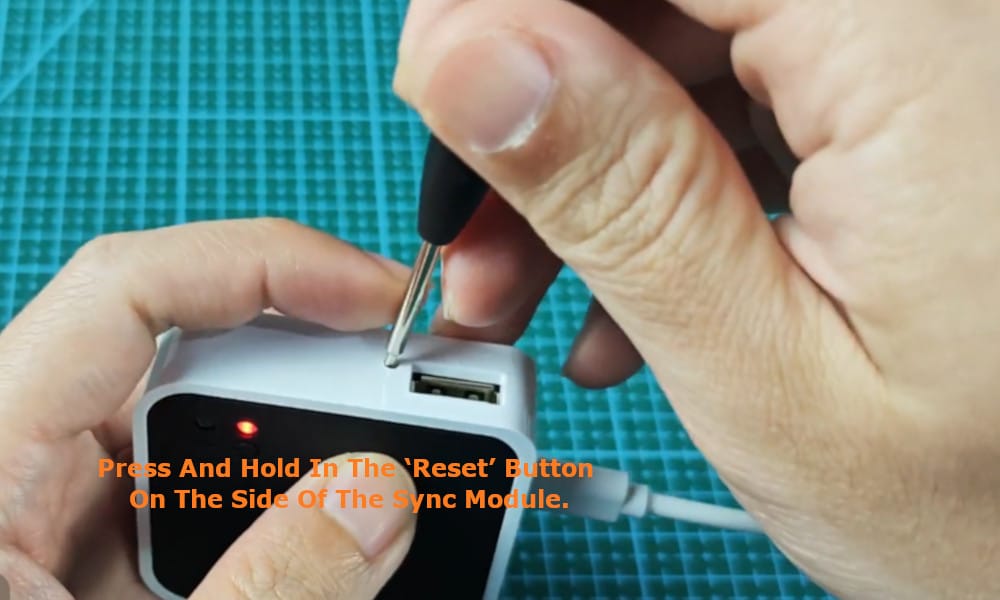
The first thing to try is to press and hold in the ‘reset’ button on the side of the Sync Module for a few seconds whilst also removing the USB cable.
While still holding in the reset button, wait for about twenty seconds, and then reconnect the power cable. The blue light should come on and the red light should flash for a few seconds before disappearing.
Then put your smart device on which your Blink app located next to the Sync Module 2 and wait for them to pair.
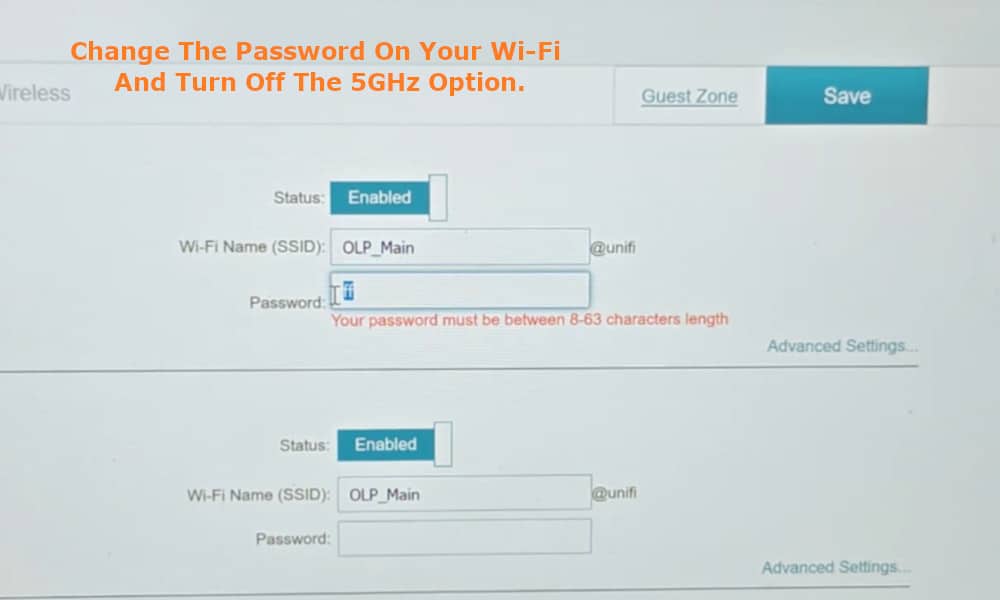
Another option is to change the password of your Wi-Fi. It is advisable to only use upper and lower-case letters – avoid using special characters like $, % and &.
Also, if it is possible to do so on your Wi-Fi, turn off the 5GHz option because Sync Module 2 does not support 5GHz Wi-Fi.
Once you have done this your Sync Module should now be working.