Do you have an Echo? I do, but occasionally Alexa tells me that it is having trouble connecting to the internet which can be very frustrating and irritating!
But before you go on reading this article, you may also first watch the short video about this topic. You can watch it below.
On my video, I showed the most simple method solution to this problem. I just reboot the Echo, or reconnect it to the WiFi in order to give it a fresh start.
Read: Alexa – How to Fix “Device Not Discovered” Issue on Echo: The Solution I Highly Recommend
A Simple Fix to Alexa I Am Having Trouble Connecting to the Internet
The best advice I would give you when encountering this problem is to wait a while. Often the problem is actually due to the internet not your Echo.
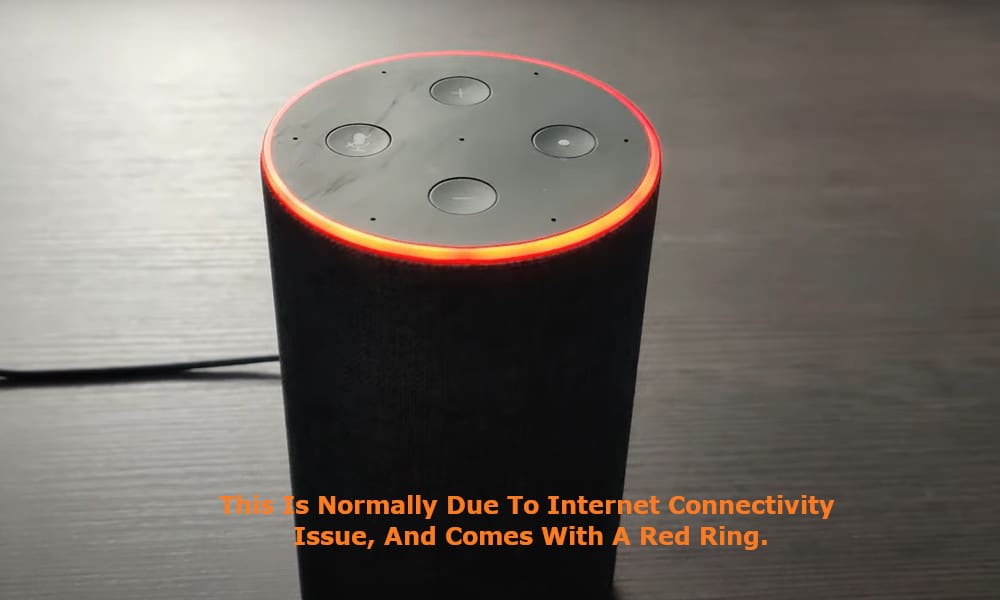
Therefore, give your Echo time to reconnect to your Wi-Fi which can take up to one minute from turning your Echo from ‘off’ to ‘on’. If the problem persists, and you are sure that your internet is working, then these are the steps that I find work for me when wanting to reboot my Alexa.
Firstly, open up the Alexa app on your phone and go to the ‘Help’ section. At the bottom of the screen for Alexa you will see ‘Quick Actions’. Select the ‘More’ option followed by ‘Settings’ and then ‘Device Settings’.
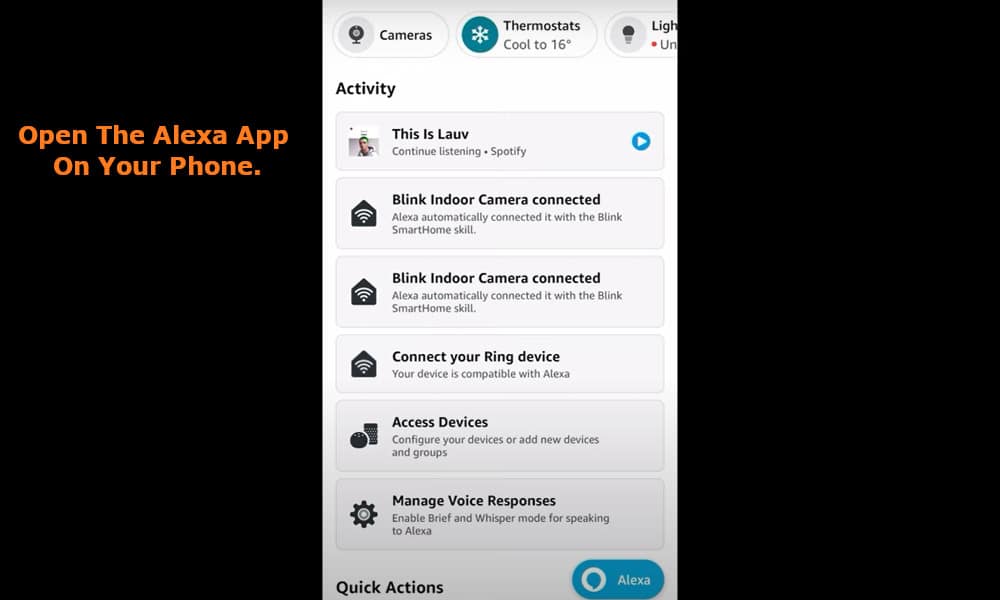
You will be presented with the ‘All Devices’ screen. Select ‘Echo’ and navigate to the ‘Wi-Fi Network’ option and click on ‘change’. Make sure that the Wi-Fi network displayed is connected and that it is connected to the correct network.
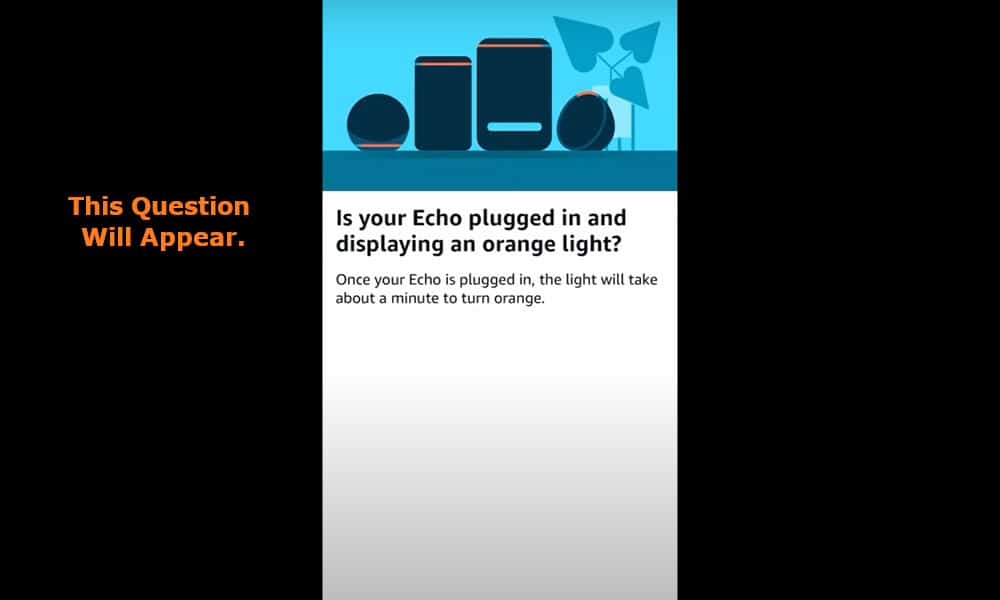
A message asking if your device is displaying an orange light or not will be displayed. Click ‘Continue’ which will take you to the next screen advising you what to do next.
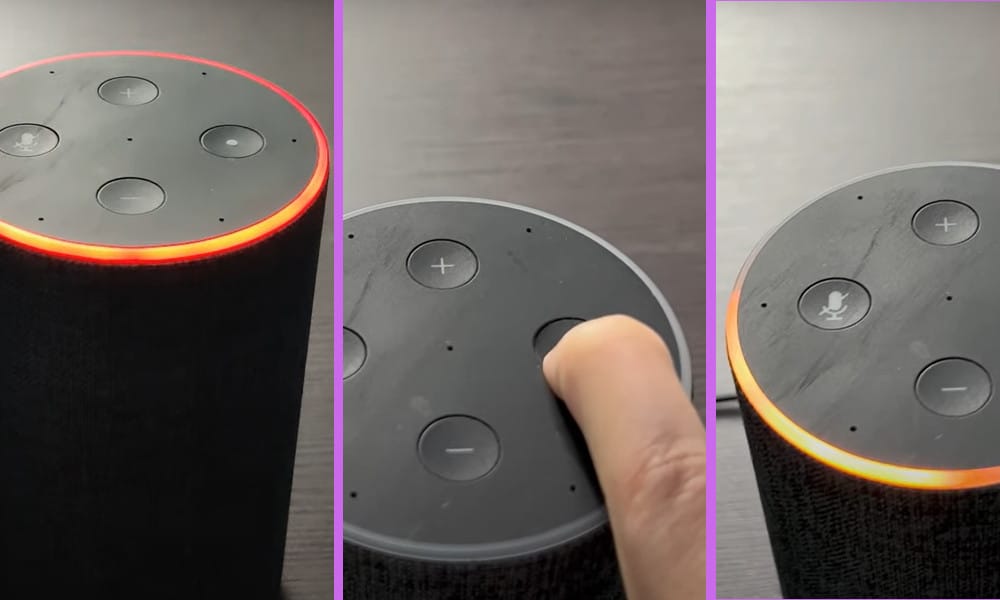
If no orange light is being displayed on your Echo device, and your device has the round ‘Action’ button. Press and hold in the button for approximately fifteen seconds, after which the light on your Echo should have turned orange.
Alternatively, if your Echo does not have an ‘Action’ button, then press the ‘volume+’ and the ‘volume-’ buttons simultaneously. Again, do this for approximately fifteen seconds or so until the light on your Echo has turned orange and then click on the ‘Continue’ button.
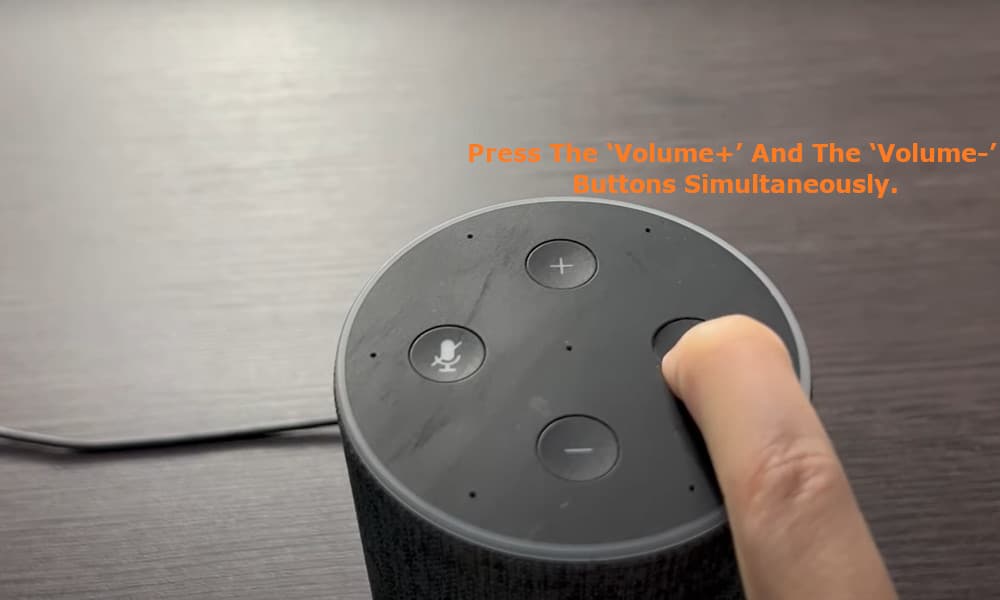
If you receive a message asking if your Echo is plugged in, check that it is, and then click the ‘Yes’ option displayed on the screen. If it was unplugged it can take up to a minute for the orange light to come on.
Once the orange light has illuminated Alexa will advise you that it is now in setup mode and that you should follow the instructions displayed in your Alexa app.
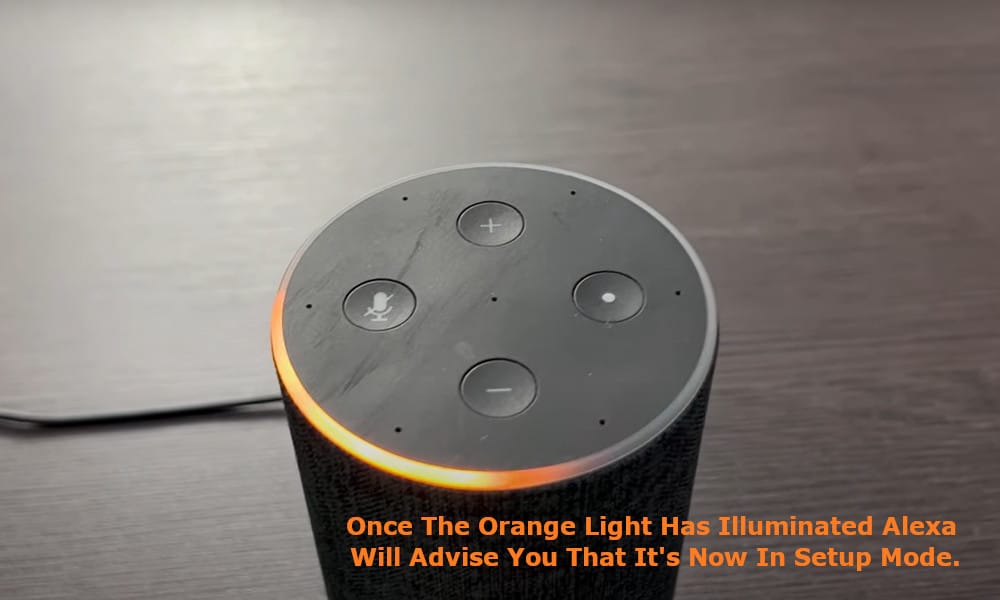
Your Alexa app will display a series of messages and instructions for you to follow, and advise you when the setup process has been completed and your Echo is ready.
You should be now be good to go, and normal service from Alexa will resume.