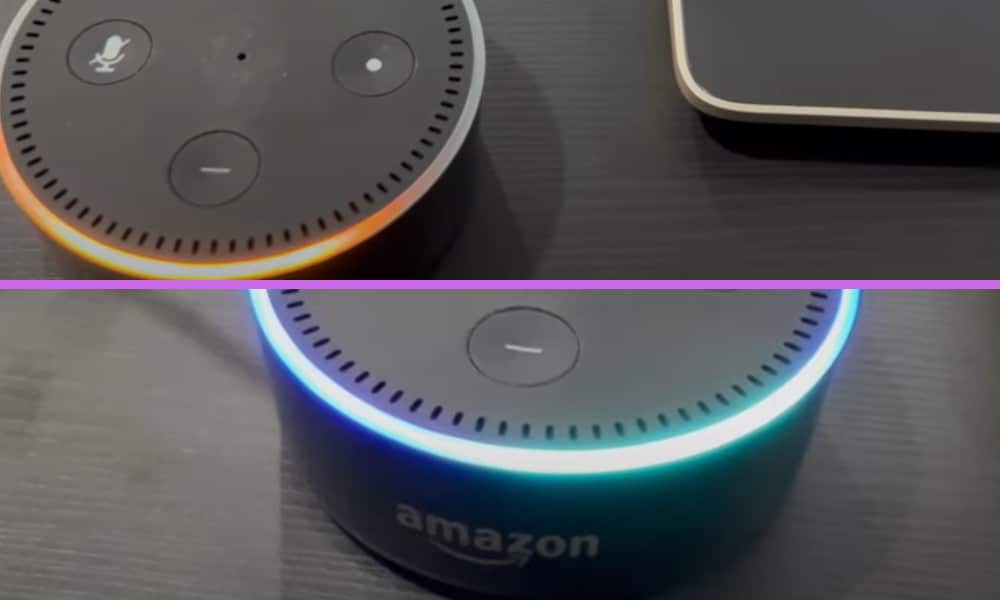
If you have an Amazon Echo device as I do, and which I find to be so useful, you will from time to time encounter the odd problem. One of the problems that I have found is that Alexa informs me that a certain device I want to use cannot be found.
This can be annoying, but the problem is actually easy to resolve.
I also made a short video about this topic and if you want, you can watch it first before you continue reading this article. You can watch the video below.
On the video, I turned off my phone’s Bluetooth and force the Alexa app to re-discover the Echo Dot. Then, I did the usuaal process of adding Echo to the Alexa app.
How to Fix Alexa’s “Device Not Discovered” Issue on Echo
With your device in setup mode, on your app go to “Devices” and select “Add Device”. Select the device that you want to set up. You will then be prompted to select a device from the list displayed on your screen.
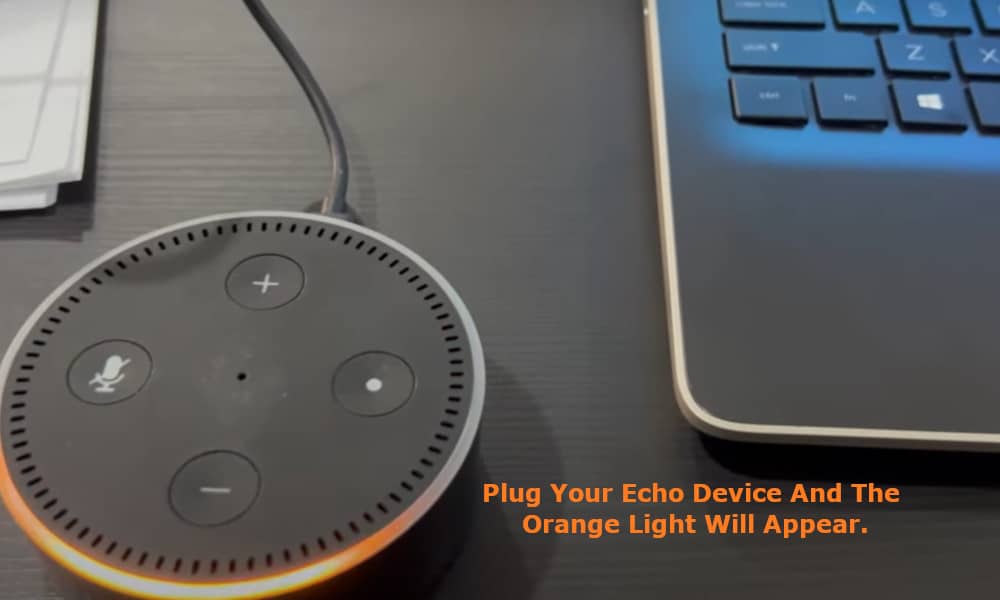
Select Amazon Echo. This will then take you to the next screen asking you if your Echo is plugged in and displaying an orange light? If your device is not plugged in, plug it in and the orange light will appear after a minute or so.
Once the orange light is showing on your Echo device, click “yes”. A message will then appear telling you that your Echo is searching for the device.
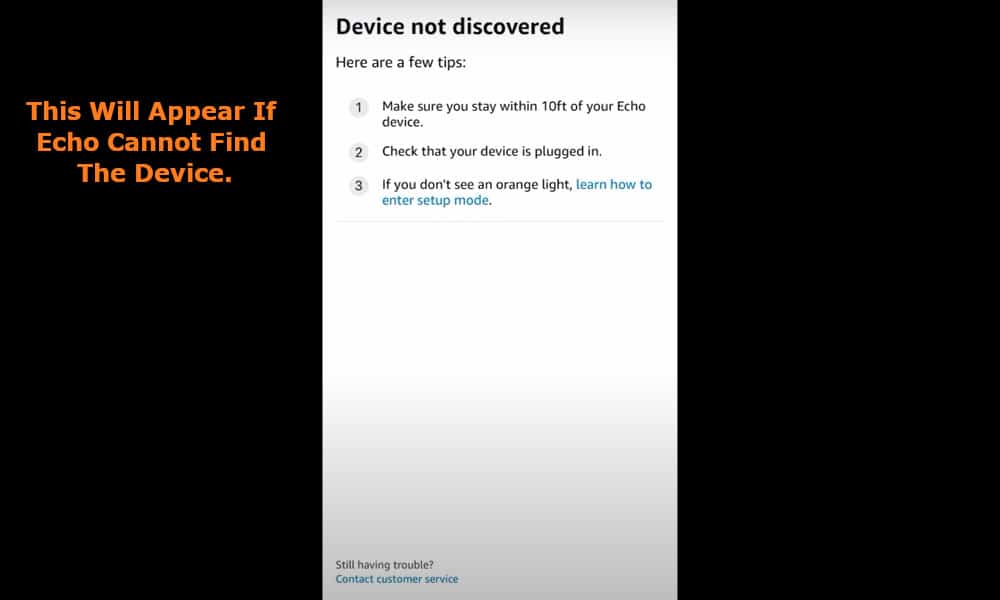
If Echo cannot find the device in question, then it will display a message telling you this, and advising you to make sure that you stay withing ten feet of your Echo, to ensure that your Echo is plugged in, and that if you do not see an orange light displayed, that you should select “learn how to enter setup mode”.
Alternatively, you can select the “Try again” option at the bottom of the screen.
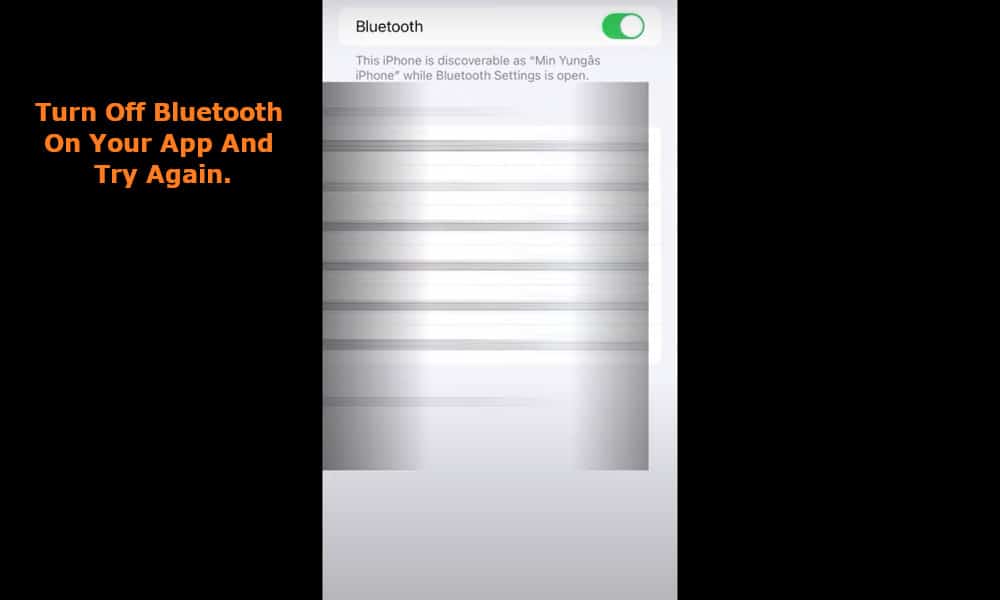
So, what is the best solution to this problem? Firstly, turn off Bluetooth on your app and try again, and then open the Alexa app to readd the device from the “Devices” screen.
Click on the “Add device” option and you will be taken through the same screens as before.
As you did previously, select the device that you want to set up. And again, you will be prompted to select a device from the list displayed on your screen.
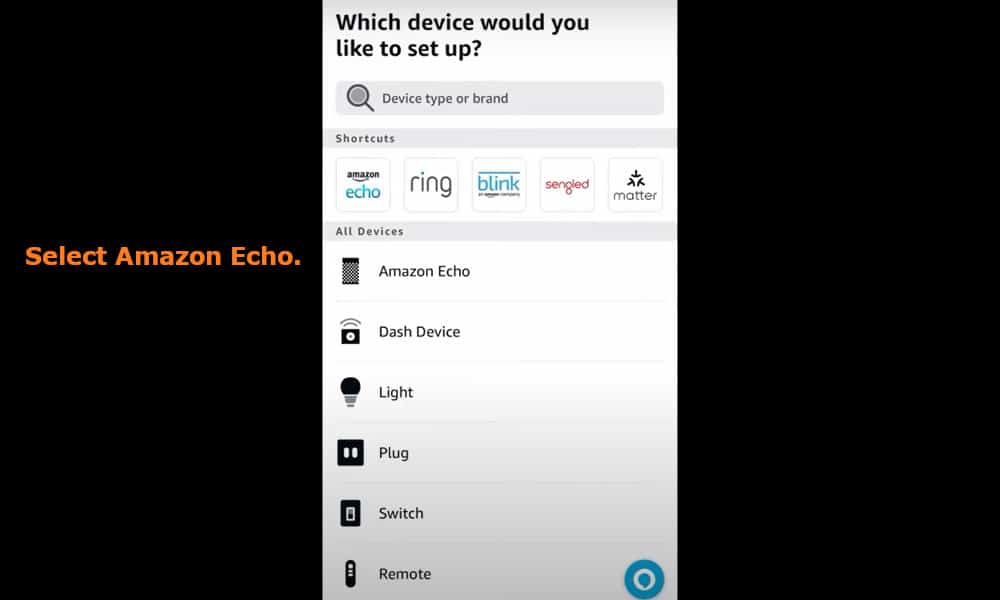
Select Amazon Echo. This time the next screen message that you will encounter will be to turn on Bluetooth. Select the option NOT to turn on Bluetooth.
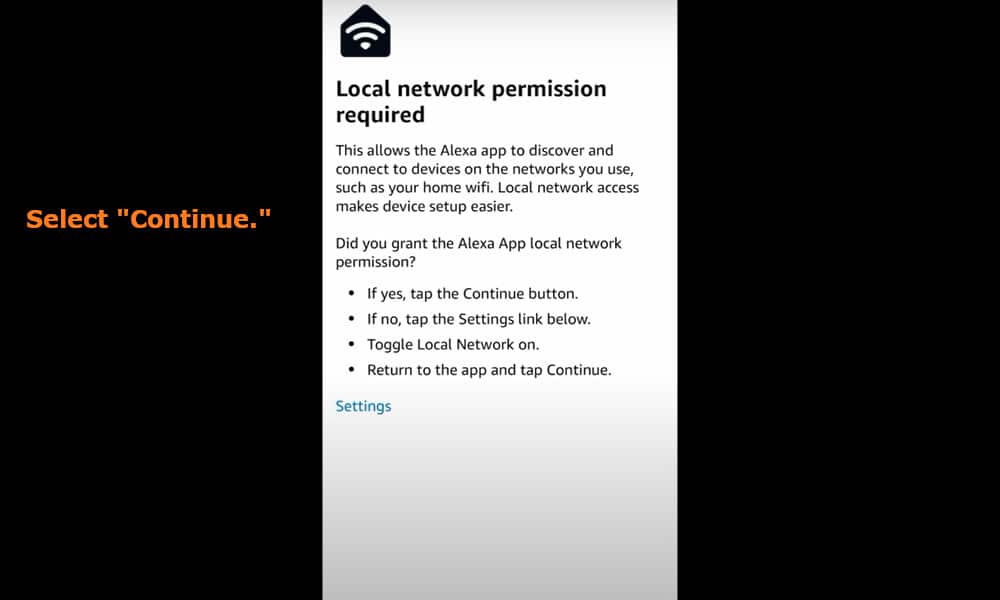
On the “Setup” screen you will be advised that “Local network permissions are required”. Select “Continue”, and on the next screen you will be asked if your Echo is plugged in and in Setup mode?
Select “Yes” and your device will show that it is trying to connect to your Echo, and further display that it is trying to connect to your Wi-Fi network. Select the “join” option and you will then receive a message telling you that it is attempting to connect to your Echo.
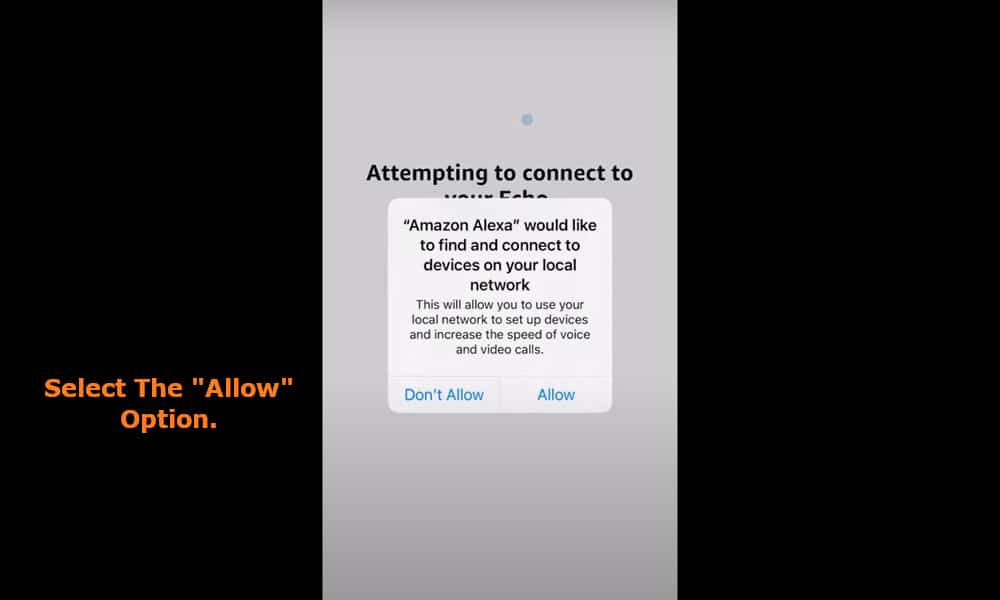
The next message that will be displayed will be that “Amazon Alexa” would like to find and connect to devices on your local network. Select the “Allow” option, and a message will be displayed stating “Attempting to connect to your Echo”, followed by a “Searching for your Wi-Fi” message.
From the “Setup” screen select the Wi-Fi you want your Echo to connect to. Enter the password for your Wi-Fi and check the “Save password to Amazon” check box and click “Connect” at the bottom of the screen.
A message will follow advising that you that your Echo is being prepared and that it may take a few minutes to connect to the Internet.
Related: How to Solve Alexa I Am Having Trouble Connecting to the Internet
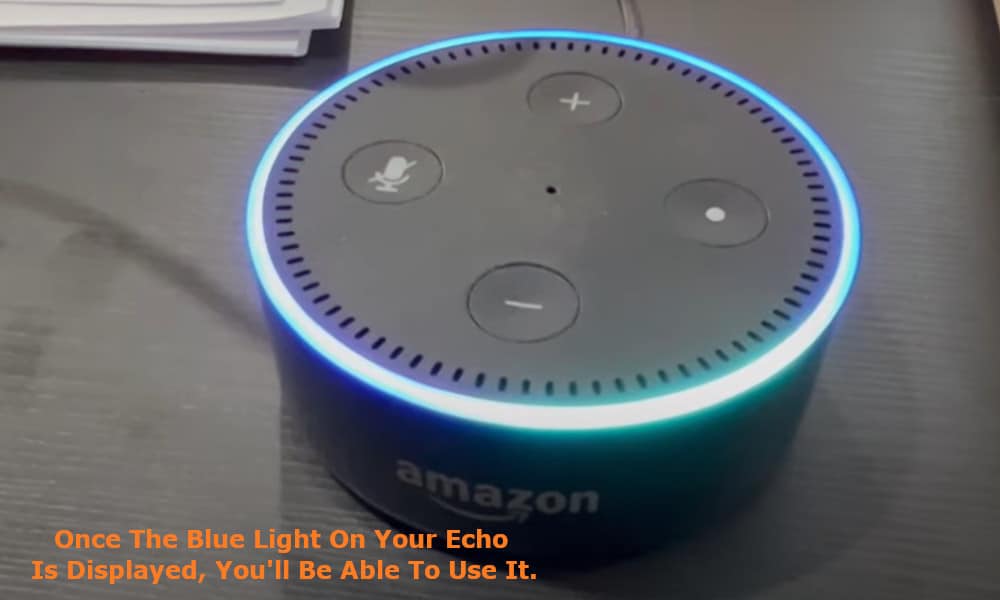
Once the blue light on your Echo is displayed, you should now be able to proceed and use your Echo as normal.
If you are still encountering problems, you should contact Amazon Support.
Thanks turning off bluetooth appeared to be key in getting up and running again which was not mentioned by Amazon support