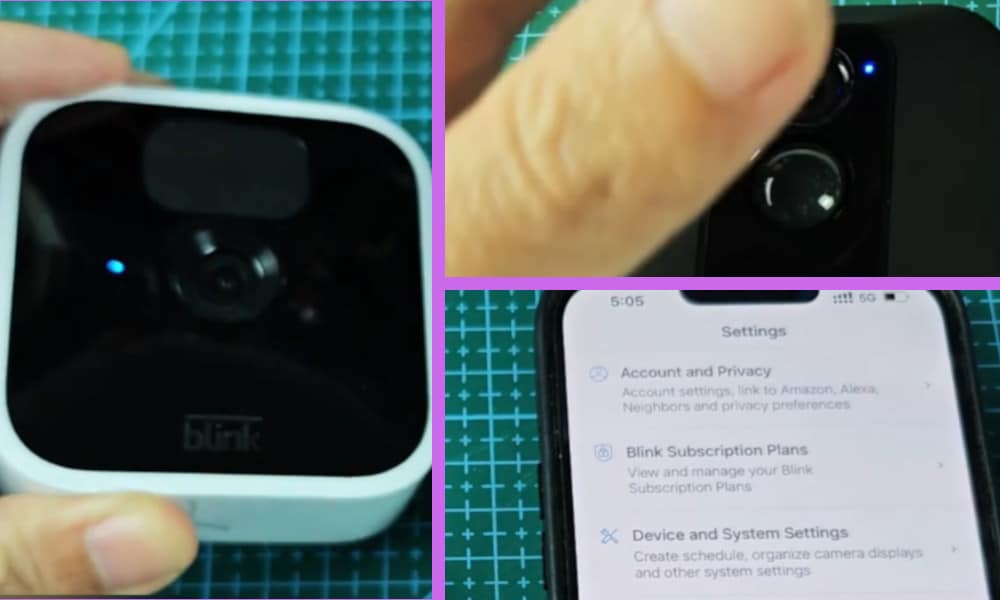
I recently purchased some Blink security cameras for my property as they are known to be easy to use and are not overly expensive.
Having installed them in and around my property, I did notice that on the front of the cameras a blue light is sometimes displayed and I didn’t know why.
By the way, I also made a short video about this topic and you can watch it below.
On the video, I showed the 2 reasons why the blue light is displayed. First is when the “live view” is in progress and second when it detected a motion.
2 Reasons Why Blink Camera Displaying Blue Light
So, what does it mean when your Blink camera is displaying a blue light?
Well, there can be two reasons for this occurring. The first reason is because ‘Live View’ is in progress. You will see this if you go to the Blink app on your smart device and select the ‘Monitor’ option.
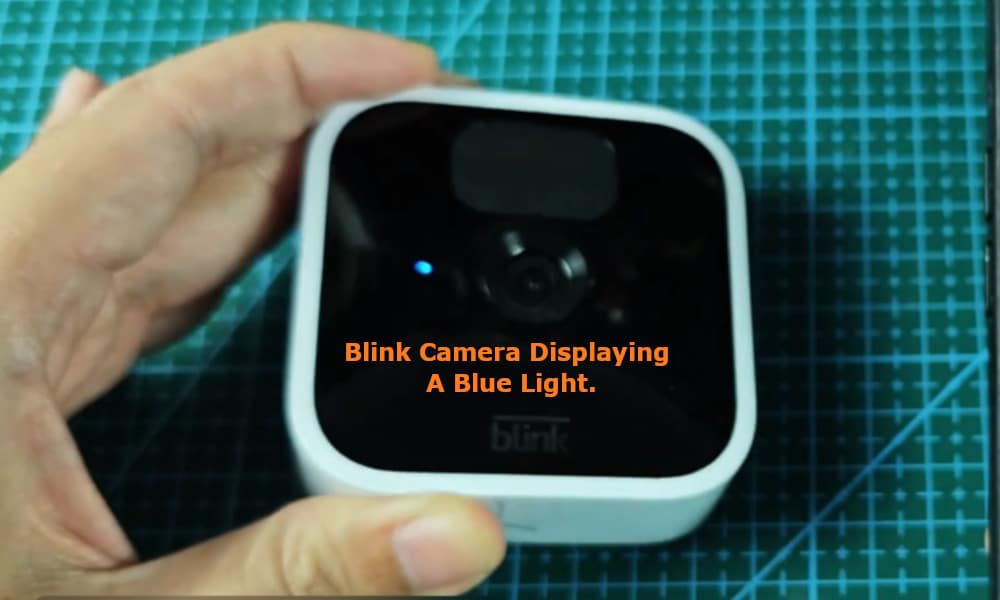
You will then see that the blue LED light on your Blink camera turns itself on. If you then press ‘Close’ on your app you will immediately see that the blue light on the camera switches off.
The second reason for the blue light to be displayed on the front of the camera is because your Blink camera has detected some motion in the area that it is covering, and that it is recording a video of what it is sensing.
For indoor cameras especially, this can be rather annoying and distracting, and a good reason why you would want to disable the blue LED light from constantly flashing on and off when you move around the room.
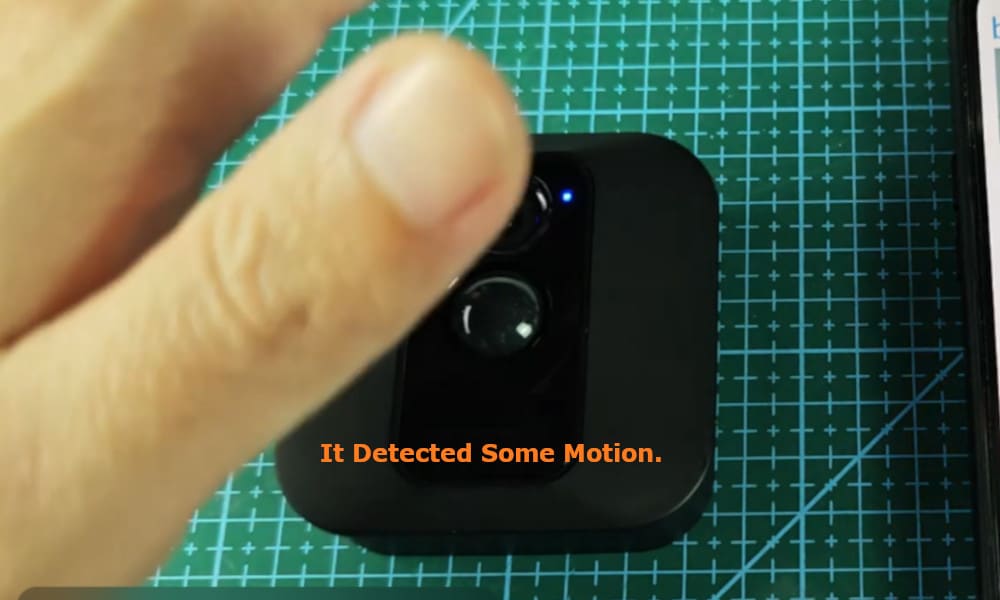
It will also show a message on your Blink app advising you that motion has been detected, and on which camera if you have more than one.
Therefore, there is no reason to worry when the blue light is being displayed on a Blink camera. The camera is working exactly as it should be.
In fact, it is working like this due to privacy issues and legal requirements that are in place in certain countries where it is necessary to let people know that they are being recorded, or when live streaming is taking place via your Blink camera.
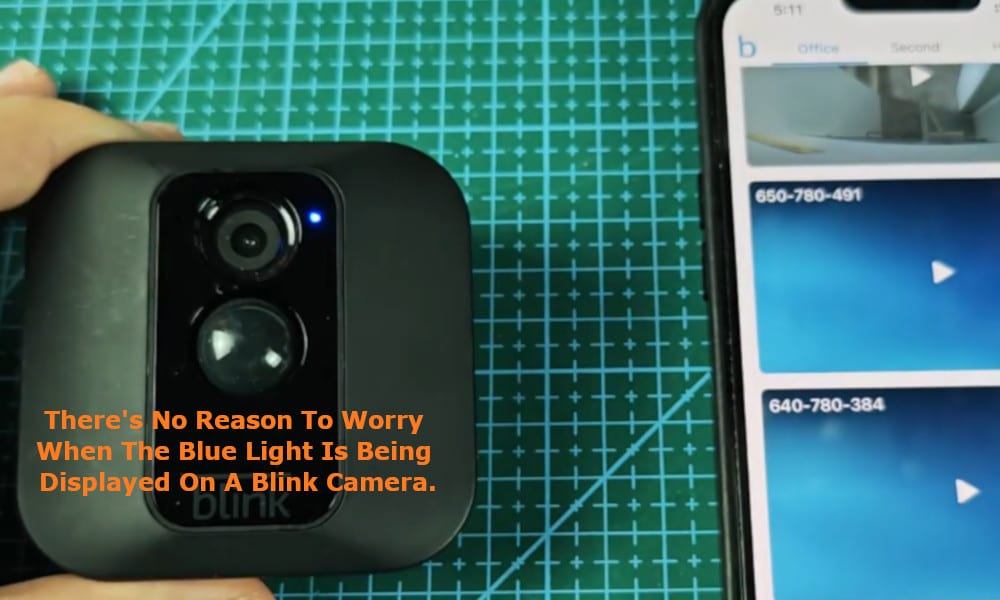
If it is legal to do so wherever you reside, it is possible to turn off the blue LED light when recording is taking place. Also, you might not want potential intruders to be aware that they are being watched or recorded.
To stop the blue light from displaying, all you need to do is to turn it off using the Blink app.
To turn off the blue light, through the blink app you need to go to ‘Settings’. From there select ‘Device and System Settings’ followed by ‘Select System’.
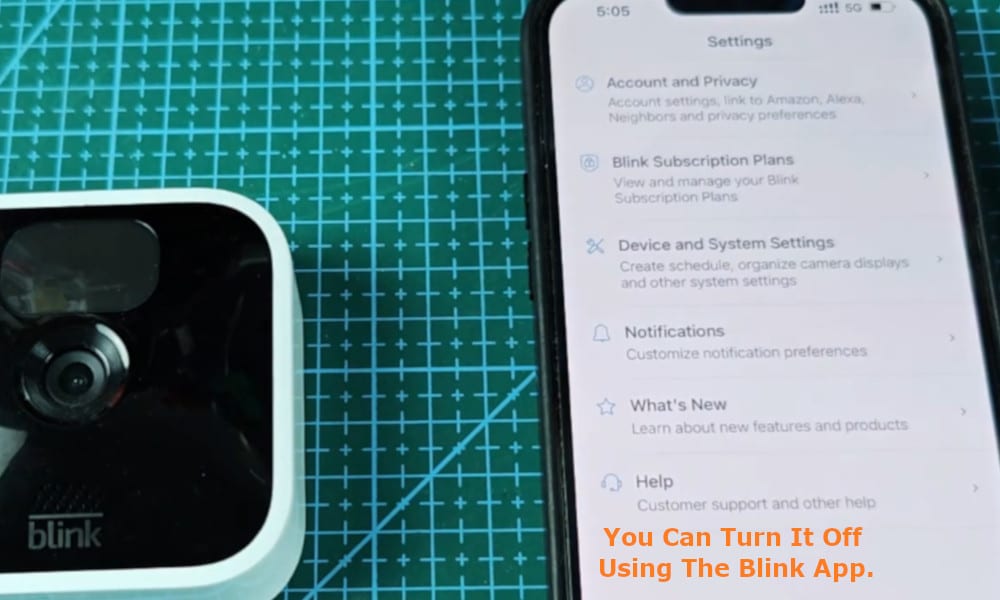
Select the area for the cameras that you do not want the blue light to be displayed. This will then take you to the ‘Devices’ screen where you will see the list of cameras covering that area.
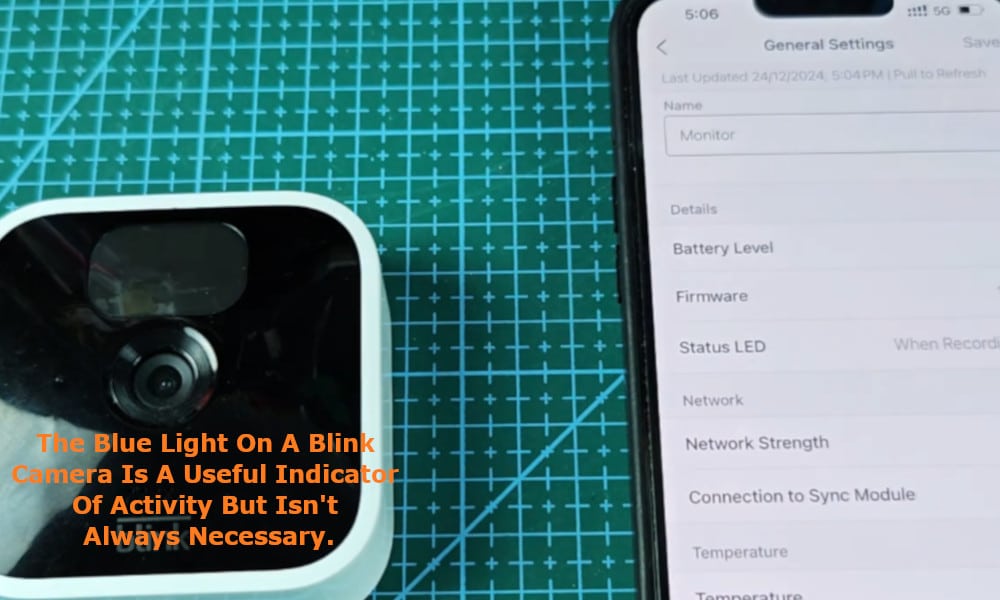
From here, you can click on a specific camera to turn off and this will then take you to the ‘General Settings’ screen where you will find the option ‘Status LED’.
When you tap on ‘Status LED’ you have the option to select either ‘Always on’, ‘When Recording’ or ‘Always Off’. Select ‘Always Off’ and the blue LED light on the camera will no longer be displayed in either mentioned above.
Note that on some models, especially the Blink Outdoor and Indoor (2nd Gen), the blue light does flash briefly when the device is first powered on or when it is reconnecting to your Wi-Fi.
Related: How to Fix Blink Camera Flashing Red: 2 Tips
The blue light on a Blink camera is a useful indicator of activity but isn’t always necessary. If you prefer a more discreet surveillance setup, you can easily turn off the blue LED using the Blink app.
Just be aware of any local regulations regarding hidden cameras or recording without notification, as disabling visual indicators may not be allowed in some regions.