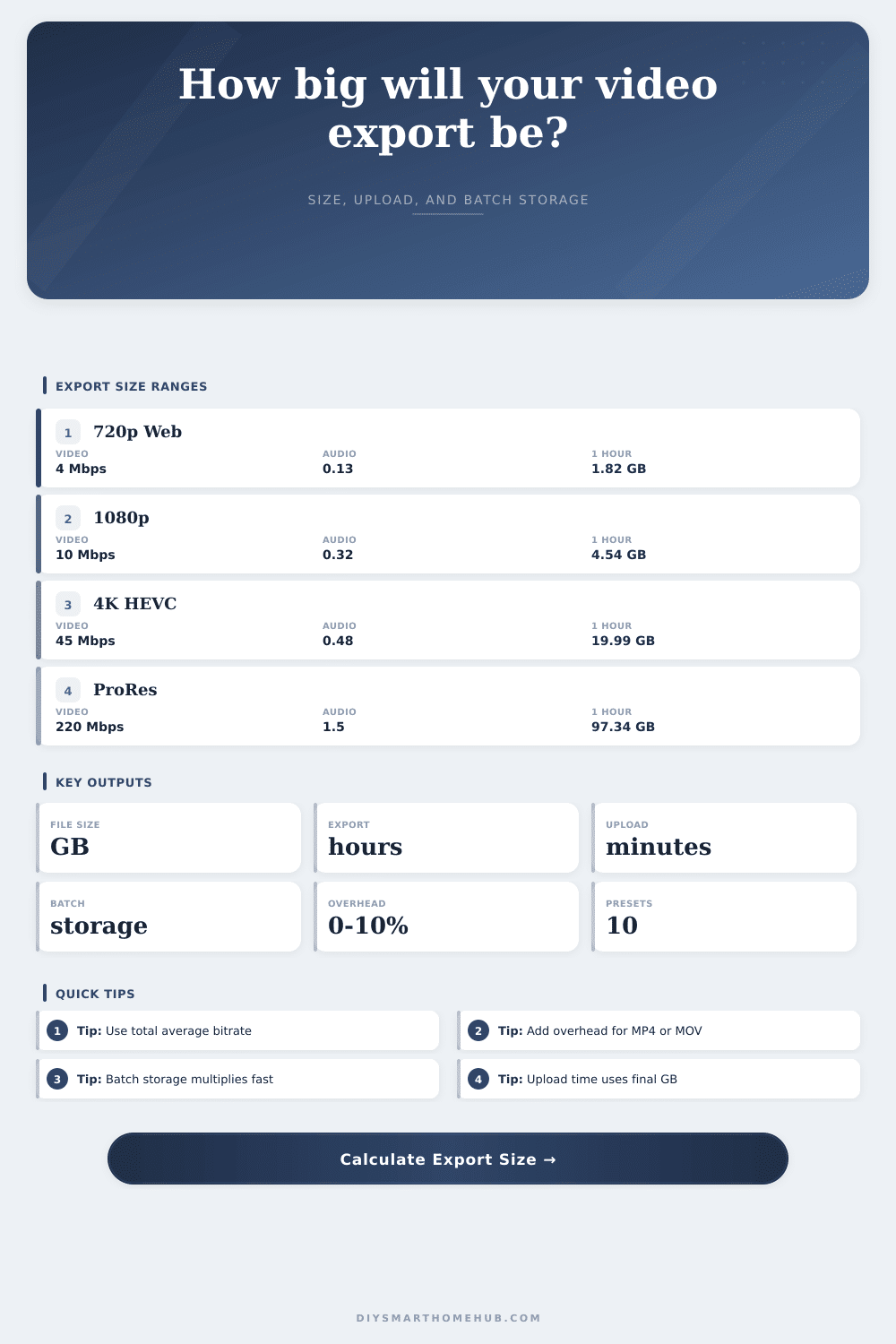
Video Export File Size Calculator
Estimate final export size, render time, upload time, and total batch storage from duration, video bitrate, audio bitrate, container overhead, realtime speed, passes, complexity, and upload bandwidth.
Video Export Results
H.264 MP4
Use for broad device support. File size follows the same bitrate formula, but it usually needs more Mbps than HEVC or AV1 for the same detail.
H.265 / HEVC
Use for compact 4K exports when playback support is known. It commonly targets lower bitrate than H.264, with slower encoding on some hardware.
AV1 / VP9
Use for efficient web delivery when encoding time is acceptable. Upload size can drop, but export time may rise sharply on CPU-only systems.
ProRes / DNxHR
Use for editing masters and handoff files. These are intentionally large, so batch storage and upload time become the limiting outputs.
| Total Bitrate | 10 Minute Export | 30 Minute Export | 1 Hour Export | Typical Use |
|---|
| Codec / Container | Common Bitrate Pattern | Overhead Range | Export Speed Note | Best Fit |
|---|---|---|---|---|
| H.264 MP4 | Moderate to high Mbps | 1% to 4% | Fast on most CPUs and GPUs | Universal upload and review files |
| H.265 MP4 | Lower Mbps than H.264 | 1% to 4% | Fast with hardware, slower in software | 4K archive and smaller masters |
| AV1 MP4/WebM | Low Mbps for final delivery | 2% to 5% | Can be slow without modern hardware | Efficient web copies |
| VP9 WebM | Low to moderate Mbps | 2% to 5% | Often slower than H.264 | Browser-first delivery |
| ProRes MOV | Very high Mbps | 1% to 3% | Often fast, but writes huge files | Editing masters and round trips |
| DNxHR MOV/MXF | Very high Mbps | 1% to 4% | Fast intraframe workflows | Post-production handoff |
| Resolution | H.264 Web | HEVC / AV1 | Mezzanine | Planning Note |
|---|---|---|---|---|
| 720p HD | 3 to 6 Mbps | 2 to 4 Mbps | 35 to 75 Mbps | Small uploads and webinar replays |
| 1080p Full HD | 8 to 16 Mbps | 5 to 10 Mbps | 80 to 145 Mbps | Most home studio and review exports |
| 1440p QHD | 16 to 28 Mbps | 10 to 18 Mbps | 140 to 220 Mbps | Useful for crisp UI and tutorial footage |
| 2160p 4K UHD | 35 to 80 Mbps | 24 to 55 Mbps | 220 to 520 Mbps | Watch both storage and upload time |
| 4320p 8K UHD | 100 to 240 Mbps | 70 to 160 Mbps | 650 to 1400 Mbps | Batch storage grows very quickly |
| Preset | Duration | Total Mbps | File Size | Export Time | Upload Time | Batch Storage | Status |
|---|
| Final File | 10 Mbps Upload | 25 Mbps Upload | 100 Mbps Upload | 500 Mbps Upload |
|---|
A video’s size is a combination of its data rate, duration and container overhead. Once you know how long it is and what bit rate it will be encoded at, the calculator do the work for you (above). No more guesswork with conversions and coefficients: it converts those abstract Mbps into concrete gigabytes to help you plan your workflow.
Bitrate vs. Resolution: The most common metric that most people cares about is resolution. But then what are you doing with all those pixels? Bitrate is amount of data, and it’s the data that matters more than the canvas size (resolution). Sure, you might have a 4K file, but if it has a low bitrate, it will still be small. You might have a 720p file, but if quality is high, it could end up being large. File size = Total bits ÷ 8. So when exporting for the web, you need a lot of bits to look good while not bloating the file. When archiving for future editing, you want as many bits as you can afford to store.
How to Plan Your Video File Size
There are hidden expenses. The tool also takes into account cost of container format. When you save an MP4 or MOV file, it contain overhead such as thumbnails, metadata, chapter markers, and headers. It’s a few percent. It is not much. But that adds up when you’re multiplying by the number of exports. If you don’t pay attention to the container tax, then you could blow a gigabyte (or two) in a batch of client deliverable.
Creators is also surprised by how much time it take to export. If you’re going for higher quality with a two pass encode, then having a quick machine won’t make any difference. That’s because the render process will be double the length. This shows in how complex the tool is. Something like simple cuts won’t impact the processor nearly as much as heavy motion graphics or some type of AI cleanup. Knowing this tradeoff allow you to determine whether to ship something quickly or wait for more quality. Often times quality are the first thing sacrificed for speed.
Your Internet service provider (ISP) rarely delivers on upload speeds. To calculate how long it will take to send that file to a client, or up to the cloud, use your real sustained upload bandwidth. This is why projects comes to a screeching halt. Sending up a big ol’ ProRes master can take hours across a typical residential internet connection. And you know that in advance, so there is no panicked “what happened?” moment. Why did my transfer stop?” moment. If you’re on a tight timeline, you know ahead of time so you have options: Compress it more or schedule the upload for the weekend.
Then it spirals into batch storage. A single hour of 4K is fine. Ten hours of 4K plus three backup copies? That’s another story. You can export that stuff as many times as you want and make as many copies as you want. However, the calculator show you how much space it will take up. You will no longer run out of space on your drive halfway through a project. It makes you consider the life cycle of the file, not only at its start.
The codec makes all the difference here. HEVC and newer codecs like AV1 compress video better, with lower filesize at equivalent quality. They requires more horsepower to process. Older codecs like H.264 produce bigger files and process faster. The page’s reference table explains it well. This lets you see how much time versus how much file-size you get back. Compression doesn’t give you a free lunch, you always trade one for the other.
Preparation is what makes for a smooth post or a chaotic one. Before you press that render button, estimate your needs in terms of time, size, and storage. Remove those variables. Know how long it will take to upload your files. Know when to clear out some disk space. Know whether you have the time to complete this project. Manage expectations before you begin working. Yes, the render bar is going to creep along at the same pace, but now you can watch it with a sense of confidence rather than dread. And the ability to not worry is always worth the minutes spent running the numbers.