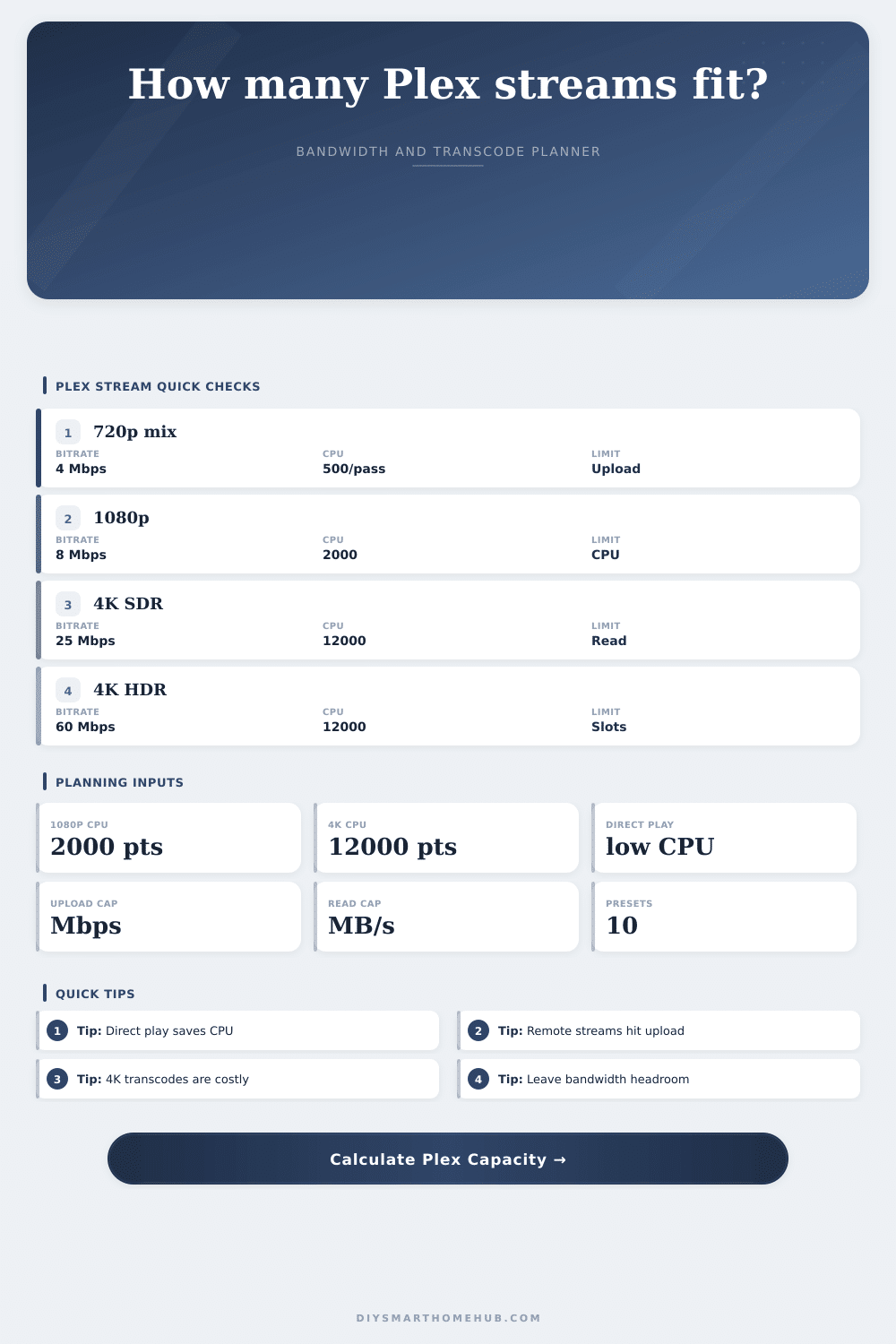
Plex Concurrent Stream Calculator
Estimate how many Plex streams your home server can support from stream bitrates, CPU PassMark budget, hardware transcode slots, RAM cache, internet upload, and storage read throughput.
All active direct bitrates plus transcode output bitrates are added together.
Rough software transcode rule uses about 2000 PassMark per 1080p stream.
Rough software transcode rule uses about 12000 PassMark per 4K stream.
Disk read capacity is compared against source bitrate demand divided by 8.
Current stream mix
| Stream class | Count | Network Mbps | Source read | CPU points |
|---|
Resource limit comparison
| Resource | Available | Needed | Usage | Status |
|---|
Bitrate reference
| Quality | Typical Mbps | Local read | Remote note |
|---|---|---|---|
| 720p mobile | 2 to 4 Mbps | 0.25 to 0.50 MB/s | Usually upload-friendly. |
| 1080p HD | 6 to 12 Mbps | 0.75 to 1.50 MB/s | Common remote stream size. |
| 1080p high | 12 to 20 Mbps | 1.50 to 2.50 MB/s | Needs more upload headroom. |
| 4K compressed | 20 to 35 Mbps | 2.50 to 4.38 MB/s | Often direct play only. |
| 4K remux | 50 to 90 Mbps | 6.25 to 11.25 MB/s | Remote use is upload-heavy. |
Preset comparison
| Preset | Streams | Bandwidth | Transcodes | Main limit |
|---|
It’s movie night at your house, you’ve invited some pals and everyone connects to your home server. The streams is starting to stutter. Your smart TV is buffering. One pal are streaming in 4K HDR. Someone else is using their phone from the backyard. And the frustration begins.
But it’s not always just your internet speed at issue. More often then not, this involve your hard drive’s storage speed. It also involves your upload bandwidth and your CPU power.
How to Fix Buffering on Your Media Server
Plex, most people think, just works. In reality, it’s a resource management puzzle that becomes something different once you add a new client in the mix. As you can see from the breakdown above (which our calculator does for you), the math will run differntly depending on what you do.
The point here is that you can fall into trap of replacing the wrong thing. For example, you might upgrade your internet plan to gigabit speeds and discover that your server still choke because its processor can’t transcode two 1080p streams simultaneously. That’s where people go wrong. They mistake bandwidth for being the sole limiting factor without considering what goes on behind the scenes.
If a client can’t direct play a file, then the server has to transcode and re-encode the video on the fly. Transcoding a 1080p stream consume a large number of CPU cycles, while a 4K transcode are big enough to bring even a modest processor to a crawl.
Here, the solution is to go straight to direct play. The server just pushes it over to whatever device want to watch it (assuming that the format aligns with what your phone or TV supports). No burning of transcode slots, no burning of CPU. This may seem like nothing, but it give headroom back to all the other users.
That’s where the visualization comes in. The tool separate transcoded streams from direct play streams. This shows you that while your network is wide open, adding just one transcode stream could be enough to shove your CPU over the edge. It turns an abstract feeling of slowness into a concrete bottleneck.
And then we have storage wall. Streaming 4K usually means streaming at bitrates much higher than normal HD. Those 4K remux files stream at bitrates that dwarf standard HD. That’s a huge amount of data coming off your hard drive (faster than leaving your house).
If more than one 4K stream is pulling from the same drive, the server can gets throttled by the mechanical limits of the disk before your internet has a chance to complain (especially if it is spinning hard disks or USB attached drive in a NAS). The read throughput on your storage are checked against the total bitrate demand and it tells you if your storage is the weak link. A little thing, but man does it matter when you’re trying to watch a high bitrate 4K file.
There’s also the supporting cast of RAM. Memory caches data and handles stream buffers. When you’re short on available RAM, things slows down as the system begins swapping to disk. The cache per stream and RAM inputs allows you to estimate how much headroom you have. You don’t want the operating system getting squeezed out.
Then there’s upload bandwidth, the final factor to consider when you stream remotely. Chances are your home internet has a higher download speed versus upload. When half your streams is remote, that means all those streams battle for a finite amount of upload pipe.
To account for this, the tool applies a headroom percentage. It also makes sure you don’t max out your connection entirely. Some bandwidth left open won’t cause packet loss, and will keep other devices in your house happy too. You want to have a smooth experience, not a network war.
Avoiding the embarrassing movie night with buffering takes some planning. Set up the presets and try different scenarios; how about a quiet evening on your own versus a group watch party? Know your limits so you don’t go over them. Is it time for a faster storage drive? A better CPU? More direct play client? Knowing the constraint helps you plan for it. Guesswork becomes strategy.
Create a server suited for your lifestyle rather than for your hardware specifications. Ultimately, a good media server is one that balance its components. That doesn’t mean it needs to be the absolute best at everything, but rather that nothing fails when put through the exact workload you need from it. When you figure out how each component relate to another, it’s smooth sailing. The movie plays, the streams flow, and you get to chill and enjoy what you should of shelled out for.