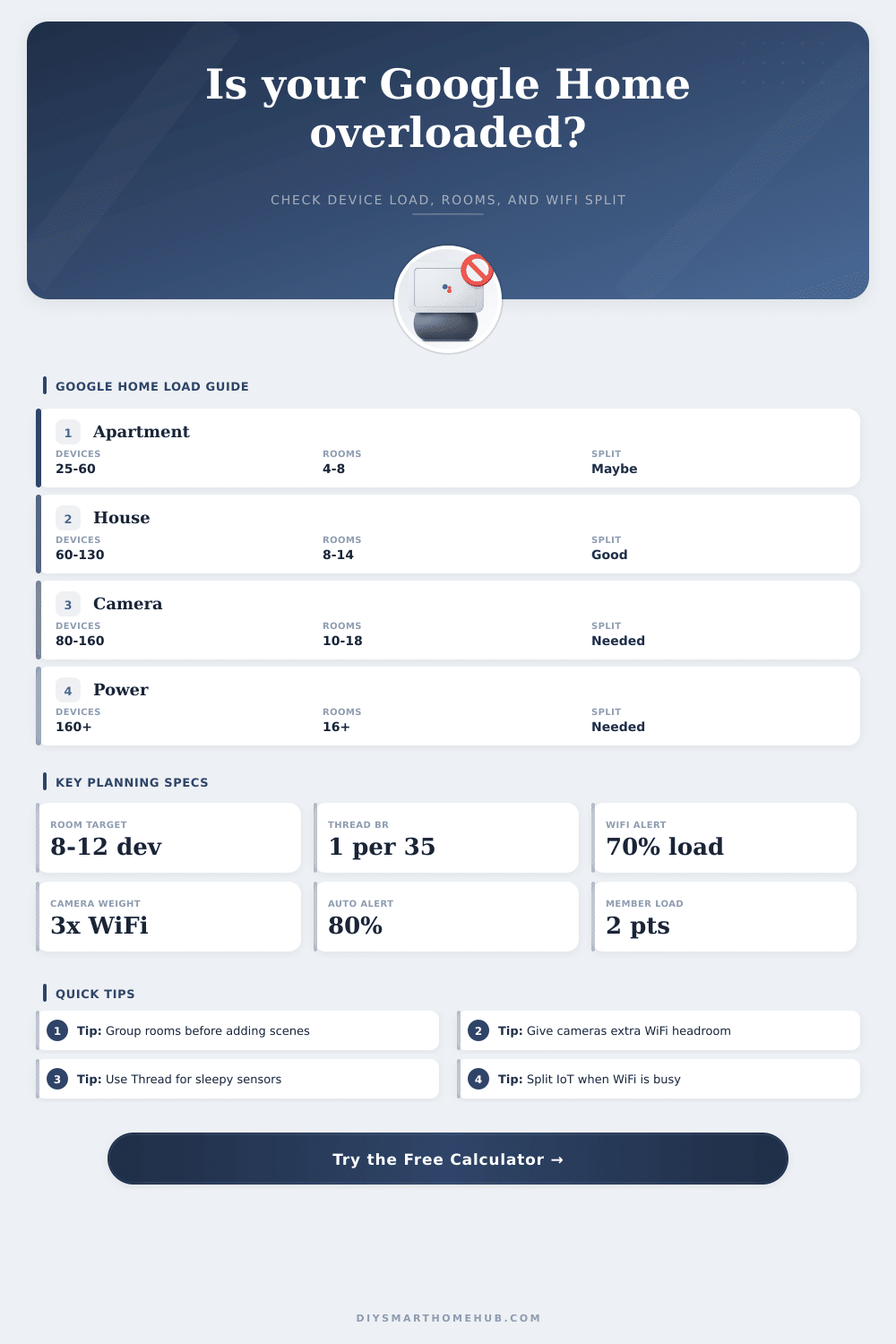
Google Home Device Limit Checker
Estimate practical Google Home load from Nest speakers and displays, Matter and Thread devices, WiFi accessories, rooms, household members, cameras, bridges, and automations.
⚙Home presets
⌂Home layout and Google Home structure
📶Device counts
⚡Automation and network pressure
📊Device load comparison grid
🗃Reference tables
| Device class | Counts toward | Practical comfort check | Planning note |
|---|---|---|---|
| Nest speaker or display | Controller surfaces, room targets, WiFi | 1 per busy room or zone | More displays help control, but also add WiFi and voice targets. |
| Matter over Thread sensor or plug | Google Home device list, Thread mesh | About 35 per border router | Thread is efficient for sleepy sensors and low-bandwidth controls. |
| Matter over WiFi device | Device list, WiFi clients, local control | Watch router client count | Good for powered devices, but each one still joins WiFi. |
| Camera or doorbell | WiFi airtime, app tiles, automations | Treat as 3 normal WiFi clients | Video devices are usually the first smart-home load to separate. |
| Bridge or partner hub | Linked service load, child devices | Keep bridge groups tidy | Bridge children appear in rooms and can amplify grouping pressure. |
| Load band | Device mix | Room pressure | Typical action |
|---|---|---|---|
| Light | Under 40 visible devices | Under 8 devices per room | One Google Home structure is usually simple. |
| Normal | 40 to 100 visible devices | 8 to 12 devices per room | Name rooms carefully and avoid duplicate bridge names. |
| Dense | 100 to 180 visible devices | 12 to 18 devices per room | Use more zones, review automations, and split WiFi if needed. |
| Heavy | More than 180 visible devices | More than 18 devices per room | Consider separate structures for guest units, studios, or labs. |
| Automation level | Count | Action fan-out | Pressure signal |
|---|---|---|---|
| Simple | 0 to 20 | 1 to 3 actions each | Usually easy to audit and stable. |
| Layered | 21 to 60 | 3 to 5 actions each | Check duplicate starters and all-room commands. |
| Advanced | 61 to 120 | 5 to 8 actions each | Use room-by-room names and keep bridge states clean. |
| Script-heavy | 120 plus | 8 plus actions each | Separate tests from daily routines and document intent. |
| Network pattern | Best for | Watch out for | Checker threshold |
|---|---|---|---|
| Combined WiFi | Small homes and simple mixes | Camera traffic sharing airtime | Fine below 60% WiFi pressure. |
| Guest or IoT SSID | Moderate device counts | Device discovery across isolation | Helpful from 60% to 75% pressure. |
| Dedicated IoT VLAN | Large homes and many cameras | Multicast and local control rules | Recommended above 75% pressure. |
| Multi-AP mesh | Large floor plans | Band steering sleepy devices | Useful when area density is high. |
💡Practical tips
When you begin a smart home project, it begins like this: One speaker sits on your counter. Music play through it. Timers is set from it. Then you purchase a door sensor or a plug for your coffee maker. Before long, you’re controlling a lot of connected devices from your Google Home account. And the system doesn’t crash in an apocalyptic fashion. Instead, it simply slows to a crawl. Your commands lag, your automations comes up late or don’t work at all. More time is spent fixing things than reaping the convenience.
That’s the issue: it’s not a hard published limit. There is no error message saying “you cannot add your one hundredth light bulb.” That limit are practical. It varies with router load, traffic from your automations, and traffic for voice commands. Our calculator above try to estimate the load based off the type of devices. A low-weight device is a standard WiFi plug. A high-weight device is something like a security camera that send video back.
How to Keep Your Smart Home Fast
Networks typically get congested with cameras. Cameras are always-on devices that require lots of bandwidth and connect back to the cloud. In the planning tool, a camera weigh three times more than a typical WiFi device. Why? Because a single bad actor can choke the bandwidth of all others. Twelve smart plugs use as much airtime as four cameras pulling live view.
To deal with this, the tool prompt you for details on your existing network layout. Avoid congestion with a split network. Running smart bulbs, phones and a gaming PC on the same wifi network means they’re all vying for attention. By creating an IoT or guest SSID, you’ll push smart home traffic off of high priority devices. Splitting your network becomes valuable once you’ve reached the point where the calculator says it’s worth it. For really good video calls, use a dedicated VLAN instead.
Poor room grouping leads to delayed processing. Create one room called Main Floor and drop all your lights into it. Voice assistants don’t handle large groups well. Yelling “Turn off all the lights” means giving commands to dozens of device at once. This creates pressure in the system. It measures size of your biggest room group. If too large, commands will be slow. Splitting Main Floor into Hallway, Living Room and Kitchen reduces its size. Fewer devices per command means faster response.
It measures the size of your biggest room group. If too large, commands will be slow. Splitting Main Floor into Hallway, Living Room and Kitchen reduces it’s size. Fewer devices per command means faster response.
WiFi is less crowded because both Thread and Matter take the load off of WiFi by letting devices communicate directly between themselves rather than hogging your primary router. Thread is a good fit for sleepy sensors such as motion detectors that only wake occasionally. It also considers Thread border routers (a.k.a. It also considers Thread border routers (also known as gateways) in its calculations. To maintain a healthy mesh, you want several of them. If you have only a single border router but have fifty Thread sensors, it flag strain on the border router. Add another hub with Thread support and that eases strain.
It also gets complicated with bridges and partner hubs. You can manage up to twenty bulbs on a single Hue bridge, but it still count as one link in your Google Home account. But if that bridge doesn’t connect properly with the cloud or even just fails, those twenty lights are hidden from the assistant. Bridges weigh the tool down because they’re a single point of failure for a bunch of devices. Better to have lots of light with a couple of bridges rather than lots of bridges with not so many lights.
Load can be added by automations as well. This applies to simple automations. No problem with that. Load is added by complex scripts that kick off several actions on several protocols. Because if you have hundreds of automations running in the background, it means that the system evaluate conditions all the time. The number of automations you have and what they do (average action per routine) is factored into the calculator. Having lots of rules isn’t the issue. It’s about having lots of heavy rules.
Next up: You can use the reference tables on the page for a quick sanity check (there’s a tab for that). Does a 50 device apt. Does it feel tight? How about one hundred fifty devices in a big house? That could work if it is spread across several Thread networks. But context is key. The tool can help you determine where your comfort zone is (but not necessarily a hard stop). As long as the load meter remains in the green, you’re probably good to buy more.
When it goes red, breathe. Get rid of some things, break down large room groups, put a camera on its own network, or get another Thread router. Add devices once more. It’s not a race, it’s a balancing act. You should of checked the load first.