Data Transfer Time Calculator
Estimate smart home camera uploads, NAS backups, firmware batches, and cloud syncs using real byte, bit, overhead, and shared-link math.
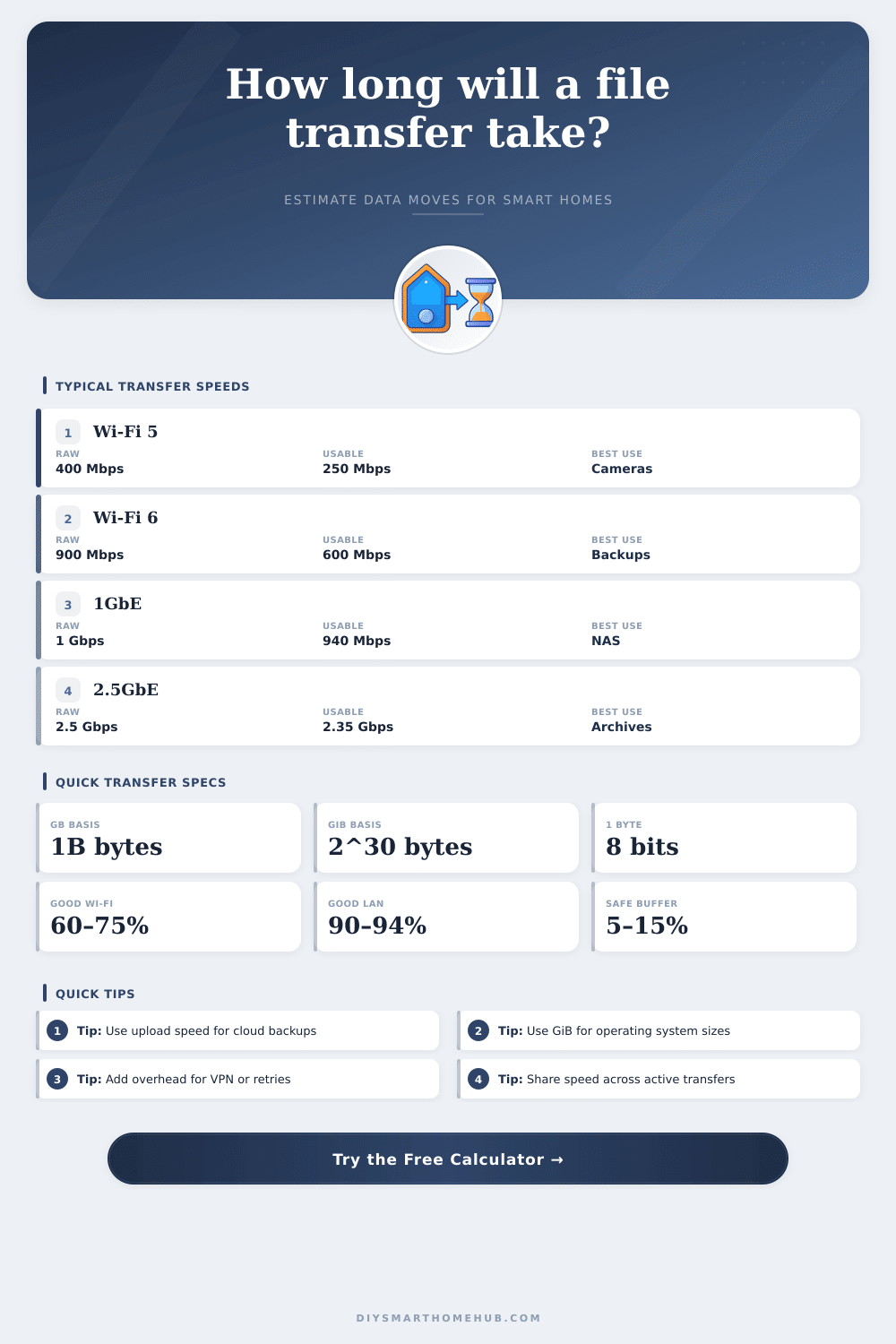
| Connection | Nominal Rate | Typical Sustained Rate | Best Smart Home Transfer Use |
|---|---|---|---|
| 2.4 GHz Wi-Fi 4 | 72 to 150 Mbps link | 25 to 80 Mbps usable | Small firmware files, logs, low-bitrate camera clips |
| 5 GHz Wi-Fi 5 | 433 to 866 Mbps link | 200 to 500 Mbps usable | Phone-to-NAS photos, short NVR exports, media cache refreshes |
| Wi-Fi 6 client | 600 Mbps to 1.2 Gbps link | 400 to 900 Mbps usable | Large camera libraries and laptop backups near the access point |
| Gigabit Ethernet | 1 Gbps | 900 to 940 Mbps usable | NAS backups, NVR archive exports, local server copies |
| 2.5 Gigabit Ethernet | 2.5 Gbps | 2.2 to 2.35 Gbps usable | Multi-camera archive moves and workstation-to-NAS transfers |
| USB 3.2 Gen 1 storage | 5 Gbps bus | 200 to 450 MB/s typical drive-limited | Local image restores, offline backups, appliance exports |
| Smart Home File Set | Common Size | Approximate Bits | Why It Matters |
|---|---|---|---|
| Router configuration export | 10 to 200 MB | 80 Mb to 1.6 Gb | Usually finishes quickly, but cloud upload speed still matters |
| Smart camera event folder | 500 MB to 25 GB | 4 Gb to 200 Gb | Higher resolution and longer retention increase transfer windows |
| Phone photo library sync | 50 to 250 GB | 400 Gb to 2 Tb | Often limited by upload speed and background app throttling |
| Home Assistant full backup | 1 to 20 GB | 8 Gb to 160 Gb | Add overhead when backups are encrypted or compressed remotely |
| Multi-camera NVR archive | 500 GB to 8 TB | 4 Tb to 64 Tb | Large exports are best planned around sustained wired throughput |
| Transfer Path | Reasonable Overhead | Throughput Input | Notes for Accurate Estimates |
|---|---|---|---|
| Clean wired LAN copy | 3% to 8% | 88% to 94% | Good for SMB or NFS when drives can keep up |
| Wi-Fi camera upload | 8% to 20% | 45% to 75% | Use lower values when signal is weak or airtime is busy |
| VPN or encrypted tunnel | 10% to 25% | 35% to 80% | Small routers may be CPU-limited before the link is full |
| Cloud backup over internet | 5% to 15% | 50% to 90% | Use your real upload speed, not the download speed |
| Many small files | 15% to 40% | 25% to 70% | Metadata operations and app throttling often dominate |
| Scenario | Payload | Example Effective Rate | Estimated Duration |
|---|---|---|---|
| 512 MB camera clip to cloud | 512 MB | 7.4 Mbps after overhead | About 9 min 13 sec |
| 8 GB Raspberry Pi image to NAS | 8 GB | 342 Mbps after overhead | About 3 min 18 sec |
| 120 GB photo library upload | 120 GB | 28.4 Mbps after overhead | About 9 hr 23 min |
| 500 GB home NAS backup | 500 GB | 813 Mbps after overhead | About 1 hr 22 min |
| 2 TB 4K NVR archive over 1GbE | 2 TB | 810 Mbps after overhead | About 5 hr 29 min |
File transfer times is determined by several different factors that affect the file transfer times. The file transfer times for a file will not be equal to the theoretical speed that the device can achieve. Even if the connection speed is very fast, the file may take longer to move due to inefficiency in the network.
These inefficiencies can include the amount of data used for protocol headers, encryption, and data retries that occur during file transfer. All of these factor can reduce the actual speed at which files are transferred over a network. To calculate the time that it will take for a file to be transferred over a network, it is necessary to input the size of the file, the connection speed, and the percentage of network efficiency into a calculator.
What Affects File Transfer Time
Not only will using such a calculator help to determine the length of time that a file transfer will take, but it will also prevent the user from guess at the time that may be required for the transfer of that file. The user must input the size of the file that is to be transferred into the calculator. However, the size of files can be measured in two different system.
Many operating systems use the binary system for file sizes, but the speed of internet connections are reported in decimal measurements. Because these two measurements are not the same, the size of the file may appear to be more or less than it actualy is when reported using these two different measurement systems. In order to ensure that the file size is correctly entered into the calculator, it is important for the user to account for these different measurement systems.
Additionally, the user should account for the direction of the files that will be transferred when selecting the connection speed within the calculator. For example, if the files will be uploaded to a cloud, the upload speed for the connection should be chosen rather than the speed at which the files can be transferred within the local network. The local network connection speed is dependent upon the slowest device that will be transferring the files.
Another set of settings within the calculator are the efficiency and overhead percentages. These percentages account for the number of bits of data that is lost during the file transfer process. For instance, files that are transferred over a wired network may have high efficiency and low overhead because a wired connection has very little interference with the signal.
In contrast, files that are transferred over a wireless network will have low efficiency because other electronic devices using that same frequency, or the distance between the device and the router that emit the wireless signal, can interfere with a wireless signal. If many device are accessing the same network, the bandwidth can be divided among each device, which will slow the transfer speed of each devices files. The type of files that are to be transferred can impact the file transfer time.
Moving a large file from one device to another will create less overhead for that network than if there were many small files moved. Many small files requires the network and the devices to send acknowledgments to each other to confirm that the files have been successfully received. These acknowledgments create additional data that travel over the network, which increases the overhead for file transfers.
Therefore, transferring many small files can result in a longer file transfer time then transferring a few large files of the same total size. In order to adjust for the increased overhead created by many small files, the user can adjust the percentage for network overhead within the calculator. This adjustment will result in the time to transfer the files being more accurateley calculated.
Finally, a user can use the file transfer time calculator to determine if a user has a fast enough connection to meet the deadline for transferring files. If a user has a limited amount of time to move files, the calculator will indicate the data transfer speed that is required to complete the move within that time frame. For example, if the users files are taking too long to move, they may have to upgrade their network switch or move the device that is transferring files closer to the access point in there network.
By understanding each of these factor, users can better understand how long it will take to transfer files from one device to another. Additionally, by understanding each of these factors, users can ensure that the estimates for file transfer time will match the time that it actualy takes for files to transfer on their network.