Camera Timelapse Frame Count Calculator
Estimate captured frames, final playback length, still-photo storage, encoded video size, upload data, and battery draw from duration, interval, FPS, image size, bitrate, and camera count.
🎯Timelapse presetsPick a scene, then tune the exact interval and storage mode.
⚙Capture and output inputsFrame count uses duration seconds divided by interval seconds.
📊Scenario comparisonSame project with useful alternate choices.
Timelapse results
📌Timelapse planning metricsImportant secondary results from the same inputs.
📐Formula reference tablesCore checks for frames, playback, storage, data, and battery.
| Result | Formula | Meaning | Planning note |
|---|---|---|---|
| Frame count | duration seconds / interval seconds | Total captured stills per camera | Partial frames depend on camera behavior. |
| Playback length | frames / playback FPS | Rendered clip duration in seconds | Higher FPS makes the final clip shorter. |
| Still storage | frames x image MB | Source-photo archive size | JPEG size varies by scene detail. |
| Encoded storage | bitrate Mbps x playback sec / 8 | Rendered video size before overhead | Bitrate, not capture interval, drives encoded clip size. |
| Upload data | selected storage x upload percent | Data leaving the home network | Cloud sync can be the limiting factor. |
| Capture type | Typical interval | Useful FPS | Main constraint |
|---|---|---|---|
| Sunrise or sunset | 2 to 10 sec | 24 to 30 | Playback length and exposure changes |
| Room activity | 10 to 60 sec | 24 to 30 | Cloud upload and privacy settings |
| Plant growth | 5 to 30 min | 24 to 30 | Battery sleep current and still archive |
| Construction view | 1 to 15 min | 24 to 30 | Multi-camera storage and data plan |
| Weather overview | 5 to 30 min | 24 | Long duration and outdoor power |
| Example | Duration | Interval | Frames |
|---|---|---|---|
| Fast event | 2 hours | 3 sec | 2,400 |
| Workday | 8 hours | 15 sec | 1,920 |
| One day | 24 hours | 30 sec | 2,880 |
| One week | 7 days | 5 min | 2,016 |
| One month | 30 days | 10 min | 4,320 |
| Power item | Formula | Implication | What changes it |
|---|---|---|---|
| Capture energy | frames x mWh per frame / 1000 | Wake and capture load | Interval, focus, Wi-Fi wake time |
| Idle energy | idle W x duration hours | Power between frames | Sleep mode and radio behavior |
| Total energy | capture Wh + idle Wh | Battery needed for the shoot | Camera count and recharge input |
| Runtime days | battery Wh / net Wh per day | Battery-life estimate | Solar offset and standby power |
| Data cap share | monthly upload GB / cap GB | Network planning check | Upload percent and retained file mode |
💡Calculation notes
This calculator estimates planning values from average file sizes and entered energy values. Camera firmware, exposure, compression quality, night mode, Wi-Fi signal, retries, and thumbnails can change real results.
If you’ve attempted to do a timelapse before, you likely know that experience, you start out well-intentioned, only to become frustrated when you finally render everything out. After leaving the camera on for three days, what you get back is a giant file that crashes your backup hard drive, or maybe it’s just a janky, jerky mess. Most newbies fall into this trap: they think it’s as simple as snapping photos every X seconds. Nope! That’s just half the story.
That’s the math of balancing time and power and storage. That’s where things are fuzzy. Until you translate duration into frames, it feels abstract. “Geez,” you think, “I’ve got this week to grow my plant.” How many images will be represented by that period of time? What will the math show?
How to Plan Your Timelapse Shot
Enter the calculator above. Plug in your total number of shooting days and your desired interval, and let the calculator do the math (no more dividing things out wrong). Better yet, it forces you to face the tradeoff before you record anything. You aren’t going to have all three: battery longevity, small file size, and smooth playback at the same time.
First, consider the interval. That’s the heartbeat of your timelapse. Every five seconds during sunset captures the subtle shift in light, which plays like a movie at 30 frames per second. However, it also kills battery life: the camera turns on, focuses and writes data repeatedly. Long interval save space (and batteries), yet risks chopping the visual rhythm, or missing key moments.
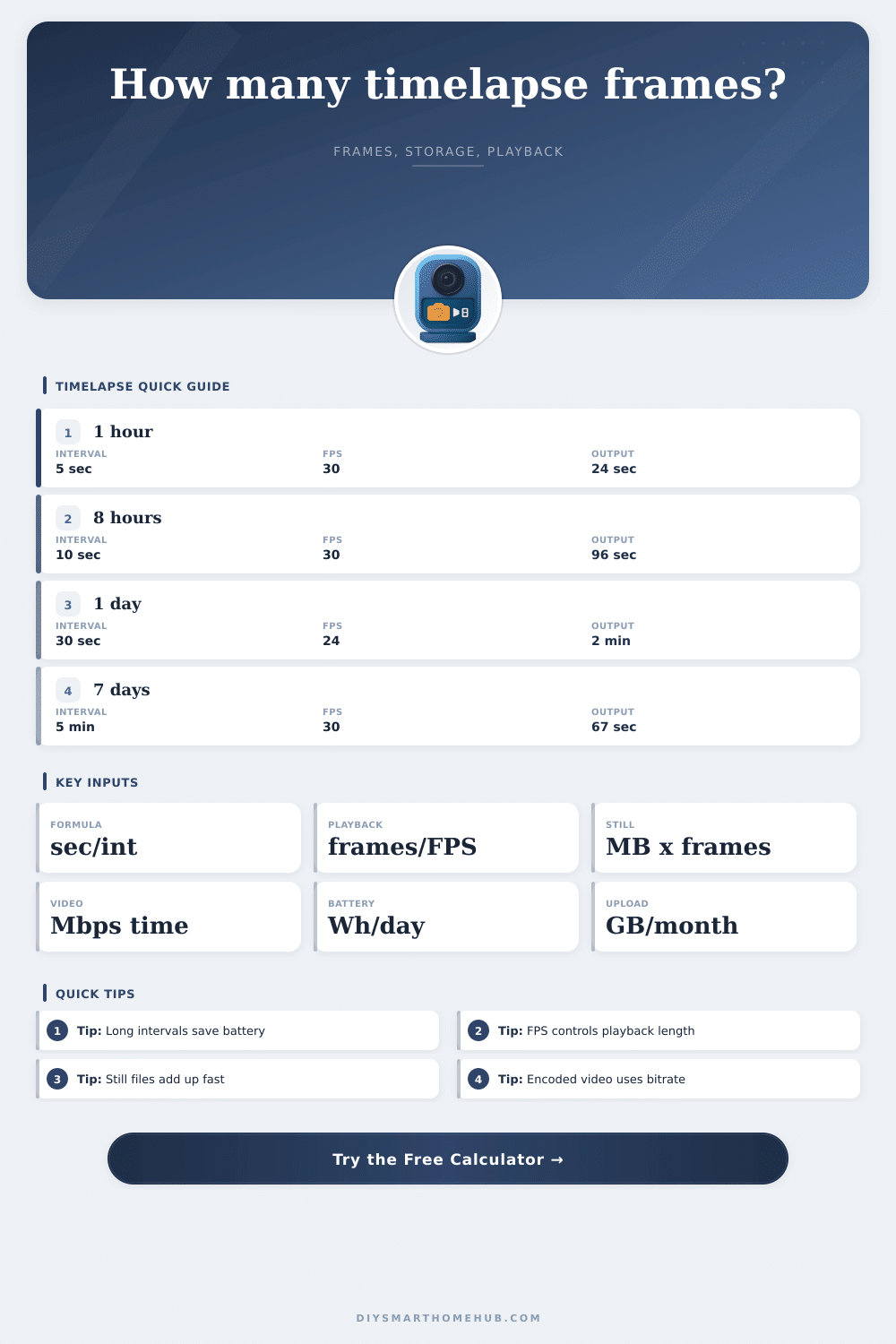
To show this, the reference table on the page shows range of subjects that require differing pace. Minutes between shots are fine for a construction site, which changes gradually. Seconds for a bustling street corner retain its flow coherently.
Storage is another trap. Timelapse videos are short, so people think they’ll have tiny final video files. This is true for the encoded video clips themselves (length times bitrate). But what about the source stills, in case you want to edit later? The math gets real ugly here. Even a hi-res JPEG is two megabytes. You will have thousands of those per day over multiple days, and soon you can fill up a memory card.
Do you want the rendered clip, or do you want the raw archives as well? If you take the archives, you will roughly double your storage needs.
Another problem is battery life, especially in a remote setup that lacks an outlet. Each shot require a burst of energy as the camera wakes to snap the photo. And then there’s the idle draw between photos, which matters particularly if Wi-Fi stays active. Know what that load is before deploying to solar/battery pack so you don’t have your project die on you at midnight half-way through. Disable wireless transmission while capturing, and make sure to space out shots far enough apart to balance the high energy cost of waking up.
And that’s where the creative lever comes in, the playback speed. At 60 frames per second it’s a blur of fast forward; at 12, it’s a slow, meditative drift. With proper frame rate you can turn a brief shoot into a longer story without shooting any more images. You transform what could be a technical limitation into an artistic one.
You might forget about your network limitations when it is time to upload to the cloud, which can lead to problems like exceeding your data cap. It can be slow and/or costly to sync lots of large photos via your metered internet connection. Sharing (or remotely monitoring) an encoded video file will almost always be much faster and cheaper than syncing all those photos. Keep in mind how much data you’re expected to upload before you start. This will help you avoid slow transfers, which can kill the process, or unexpected charges from exceeding your data limit.
When you plan based off these metrics, it becomes strategy rather than guesswork. Instead of wondering if you have enough space on your memory card, you think about the experience you want viewers to have when watching the finished product. The numbers are just there to protect you from technical problems so you can trust that your creative vision isn’t at risk.
Set the interval, confirm the battery estimate, make sure there’s plenty of headroom left on your storage cards…then sit back and let the camera handle the rest. It’s that prep time which makes a painful experiment into a polished act of visual storytelling.