Camera Bitrate To Storage Calculator
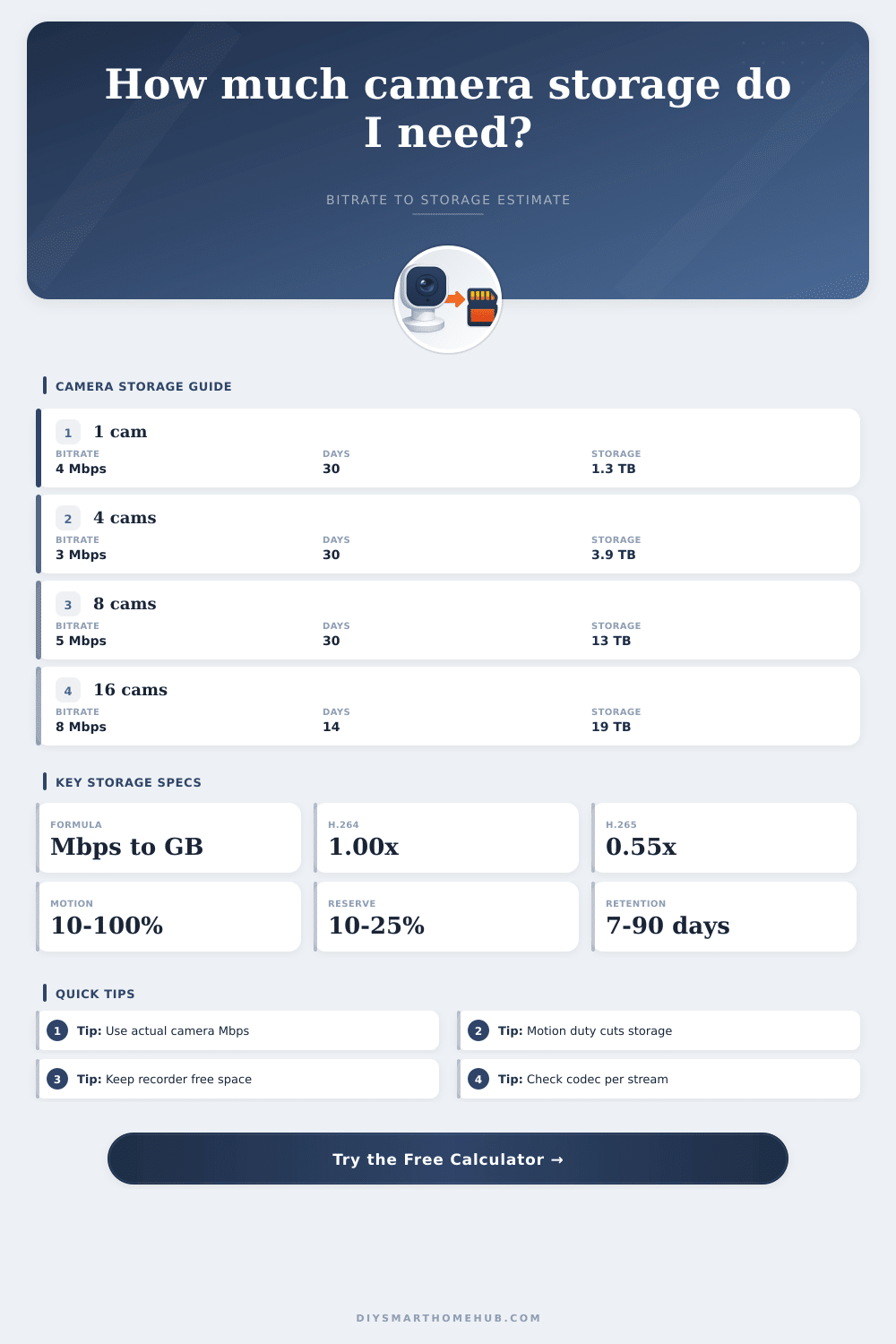
Estimate NVR, DVR, NAS, or microSD storage from camera count, Mbps, codec, recording schedule, motion duty cycle, retention days, overhead, and usable drive space.
🎯Camera Storage Presets
📹Bitrate And Retention Inputs
Camera storage estimate
Calculation breakdown
📊Storage Spec Grid
⚖Recording Mode Comparison
📋Camera Bitrate Reference Tables
| Resolution | H.264 typical range | H.265 typical range | Best planning use |
|---|---|---|---|
| 720p HD | 1-3 Mbps | 0.6-1.5 Mbps | Low-detail indoor views or low-bandwidth remote sites. |
| 1080p Full HD | 2-6 Mbps | 1-3 Mbps | Doorbell, entry, hallway, and normal home monitoring. |
| 2K / 1440p | 4-10 Mbps | 2-5 Mbps | Driveway, porch, garage, or wider scene coverage. |
| 4MP | 5-12 Mbps | 2.5-6 Mbps | Balanced detail for PoE NVR systems. |
| 5MP | 6-14 Mbps | 3-7 Mbps | Higher detail outdoor views with moderate retention. |
| 4K / 8MP | 12-25 Mbps | 6-12 Mbps | License plate zones, wide yards, and high-detail review. |
| Codec | Storage factor | Typical reduction | Planning note |
|---|
| Single camera bitrate | GB per day at 24/7 | 30 day storage | 90 day storage |
|---|
| Usable storage | 100 GB/day | 250 GB/day | 500 GB/day |
|---|
📐Common System Size Examples
| Camera system | Stream profile | Recording pattern | Storage note |
|---|---|---|---|
| Single doorbell or porch camera | 1080p, H.265, 1-2 Mbps | Motion events, 10-30% duty | Often fits small local storage when clips are short. |
| Four camera home NVR | 2K, H.265, 2-5 Mbps each | Continuous or mixed schedule | Drive size changes quickly when motion duty rises. |
| Eight camera PoE system | 4MP, H.265, 2.5-6 Mbps each | 24/7 recording | Plan several TB for 30 day retention. |
| Sixteen camera DVR/NVR | 1080p, H.264, 2-6 Mbps each | Continuous recording | H.265 upgrades can nearly halve storage needs. |
| 4K perimeter monitoring | 4K, H.265, 6-12 Mbps each | High detail, high activity | Retention is usually storage-limited before bandwidth-limited. |
🔧Camera Storage Tips
This results in quick filling up of storage as most consumers purchases hard drive sizes according to what’s printed on the box, not what comes out of their cameras. For example, you pick 8 terabytes because that sounds big, only to find all your previous video are gone after one month.
This problem arise from a lack of knowledge around bitrate. Video storage size depends on number of cameras and the resolution. It also depends on calculations involving the data rate, how the video is compressed, and type of moving objects in the video. Knowing this variable will save you money and keep your security camera covered.
Why You Need to Calculate Your Storage Needs
The calculator convert megabits per second into gigabytes of actual disk space required for your target retention period. It points out three aspects of shopping that consumer often neglect. One is codec efficiency, the newer H.265 (or “HEVC“) video streams is twice as efficient in terms of space than older H.264, since they do better at stripping out redundant visual information. For instance, an upgrade from H.264 to H.265 halves storage requirement, providing a massive leverage point for existing system that are struggling with retention limits without needing to change the camera itself. This is especially helpful if you’re looking to expand the lifetime of previous-generation cameras.
Second is motion duty cycle, or percent of time that cameras is recording something useful (i.e., not just a static scene). For instance, a busy store front with people constantly moving around have an active duty cycle of nearly 100%. Meanwhile, a quiet backyard at night might have a small duty cycle as no one move around much. If your system triggers on motion, but you’ve assumed it’s continuously recording, you’ll overbuy storage. On the other hand, if you’ve got camera pointed down a busy highway for their perimeter, and you’re only recording on motion, you’ll run out of room fast.
The other factor influencing the storage need is scene complexity. While the video files look the same to the system, as in, they’re all pixels, motion detection also gets triggered by leaves blowing about. High contrast light conditions and rain or snow also increases data amount since the harder working encoder try to maintain detail in chaotic scenes. Location of the camera makes two identical cameras have differing storage needs. Quality settings reflecting the demanding nature of the visual environment adjust the baseline estimate for that.
Because recording systems requires some free space for storing database entries, audio metadata, and file indexes, you should of also consider reserved storage when determining your drive size. This is not wasted space, it’s insurance against system instability that can cause dropped frames at critical times. Full disks becomes fragmented and will slow down writes. Therefore, leaving at least fifteen to twenty percent free space ensures stable performance without requiring mental math for drive selection.
The amount of data to keep is a function of how much you can afford and how little you are willing to risk losing. You’ll pay more for 90 days of video than seven days, but having it will mean your insurance claim have proof rather than a black screen.
Before typing in your figures, familiarize yourself with what’s normal using the reference tables as guidepost. Planning ahead avoids the sticker shock of a $200 upgrade after your eight-terabyte drive actualy behaves like a four-terabyte one.