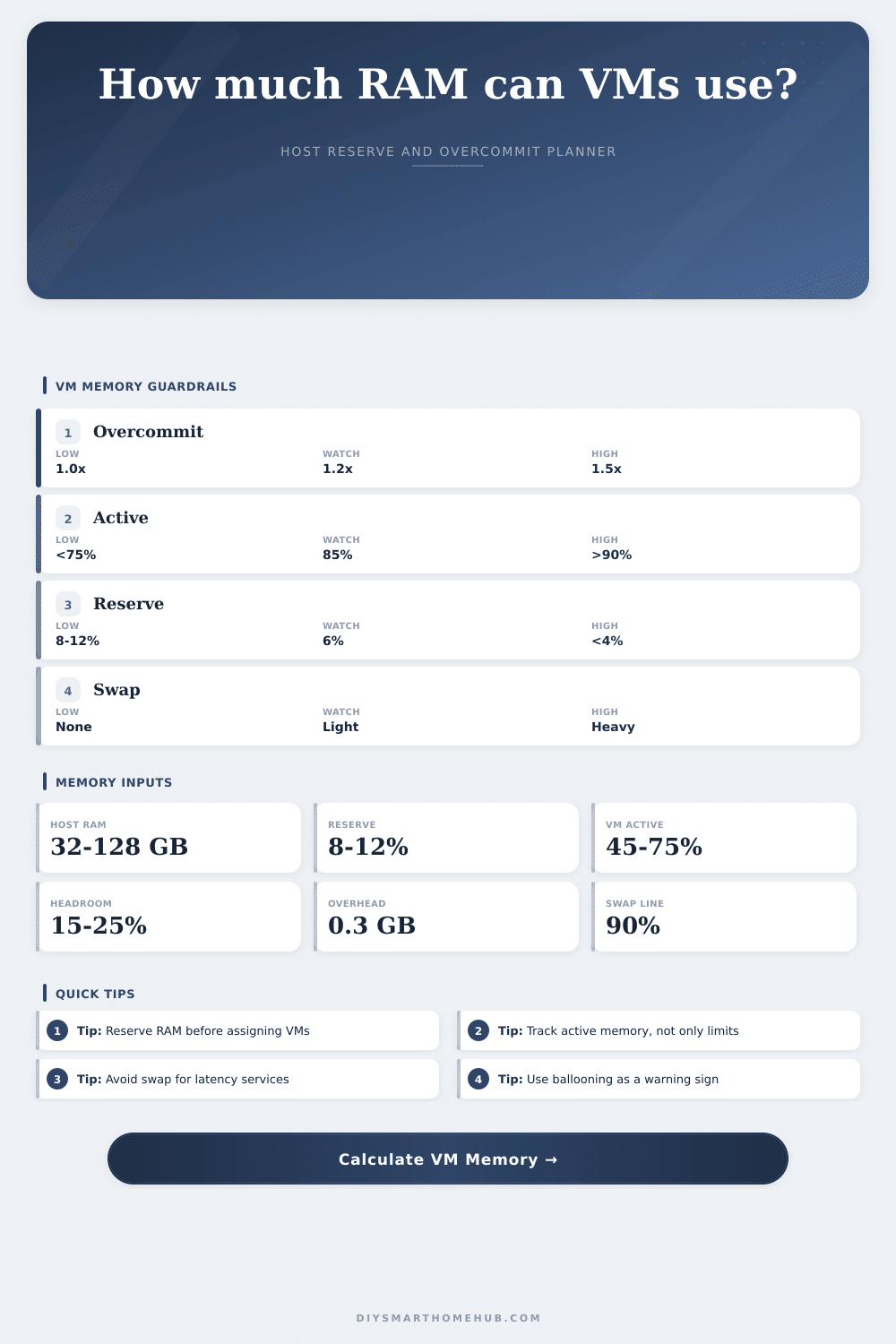
VM Memory Allocation Calculator
Estimate how much host RAM is truly available for virtual machines after hypervisor reserve, then compare VM committed memory, active memory, overcommit ratio, ballooning pressure, swap threshold, and safe per-VM allocation.
Fixed plus percent reserve, before VM allocation.
Active memory above the free-headroom line.
Active memory above the swap threshold.
Burst working set including VM overhead.
Overcommit interpretation
| Ratio | Meaning | Balloon signal | Best fit |
|---|---|---|---|
| 0.80x-1.00x | No real overcommit | Low | Critical services |
| 1.01x-1.20x | Mild commit cushion | Normal | Home lab mix |
| 1.21x-1.50x | Watch active peaks | Watch | Bursty test VMs |
| 1.51x+ | Needs tight monitoring | High | Short labs only |
Common VM memory profiles
| VM type | Commit | Active range | Planning note |
|---|---|---|---|
| Linux service | 1-4 GB | 35-60% | Good overcommit candidate |
| Home Assistant | 2-6 GB | 45-70% | Keep latency steady |
| Windows desktop | 8-16 GB | 60-90% | Avoid heavy ballooning |
| Database or NVR | 8-32 GB | 70-100% | Reserve more headroom |
Per-VM allocation grid
| VM group | Count | Committed | Active estimate |
|---|---|---|---|
| Current VMs | 0 | 0 GB | 0 GB |
Host reserve starting points
| Host role | Reserve | Cache reserve | Pressure target |
|---|---|---|---|
| Mini hypervisor | 3-5 GB | 0-2 GB | 80% active |
| ZFS NAS host | 4-8 GB | 4-16 GB | 75% active |
| VM lab node | 6-10% | 2-6 GB | 85% active |
| Critical services | 10-15% | 4-8 GB | 70% active |
Adding sixty-four gigabytes of RAM to your home server often seem like purchasing a case of soda; it’s no big deal, but then suddenly you has space for a Windows desktop, a Linux VM, and maybe even a little Kubernetes cluster too. Then you flip that switch and realize that, well, it’s thrashing. Nothing is loading and the lights are flashing on the disks. What gives? You didn’t run out of RAM. Virtual memory doesn’t work that way.
Everyone splits up all of their host’s RAM into however many VMs they have, and they’re done with it. This is ignoring tax paid to the hypervisor in terms of page tables, driver caches and other hypervisor processes. It also fails to account for safety buffer the hypervisor requires to handle spikes from index rebuilds or backups. If you don’t have any slack, it’ll begin swapping memory out to disk, killing performance and turning your responsive system into a slideshow.
How to Manage RAM in Your Home Server
To save you from guessing at coefficients, the page’s calculator does this math for you. The secret is knowing what that number means. The ceiling is committed memory, i.e., how much total RAM your VM could grab, assuming it accessed each byte. The floor is active memory, i.e., how much your guest OS touches while running normally. That’s your efficient range. The difference between these two numbers.
If all your VMs were running at full active usage (which rarely happens), you’d have to pony up big-time hardware-wise. But most Linux services just sit around doing nothing for hours on end, and home automation agents only spike whenever some sensor triggers. Because of this mismatch, you can safely overcommit: promise more memory then you literal have, as long as you assume that no single guest will be demanding it at the exact same second.
Of course, there’s the matter of trust. To maintain it, monitor the active memory percentage. Generally speaking, if you’re at or below 75 percent total host RAM being used actively among all your VMs, then you should of be okay. Above that is where things gets dicey. For illustration, the page has a handy reference table showing risk versus overcommit ratios. One-to-one is safe, but wasteful; two-to-one are aggressive and must be monitored very carefully. In most cases, middle ground is where home labs excel.
However, this acts like a safety valve, a way for the hypervisor to try to prevent you from shooting yourself in the foot. This is known as ballooning: The hypervisor asks a VM to return memory pages it isn’t using. That’s great in theory, but if host is constantly ballooning, you have too many guests running on machine. The guest OS has to fight for resources, which causes application to become sluggish and introduce latency. Instead of treating ballooning as a feature, treat it as a warning sign. If you notice consistent pressure, decrease your active guests or add some more headroom.
But what about latency sensitive services? Never let your voice assistant, your camera’s NVR, or even your firewall swap or balloon. Reserve some memory for that VM and pin it there. It will always get its portion of resources. Dynamically share whatever is left with the other VMs. You want flexibility for experiments, but stability for critical tasks, this is a hybrid solution that gets you both.
First, be conservative in your assumptions. Then see how much you actualy use things after one week. Tweak the inputs with actual data vs desired data. The memory will strike you without warning and you’ll realize it once you are slowed down, but by then it is too late.
Plan for the storm (not sunshine). Monitor active stats; maintain your safety buffer; honor your machine’s limitations. You will have a quiet, fast, and robust system for years.