DIYSmartHomeHub storage planner
NAS Drive Count Calculator
Estimate NAS usable capacity by RAID 0, RAID 1, RAID 5, RAID 6, RAID 10, or SHR, then include parity overhead, hot spares, growth years, fault tolerance, reserve space, and total drive cost.
Drive count multiplied by per-drive size before RAID math.
Capacity reserved by the selected redundancy layout.
Modeled drive failures tolerated before data is at risk.
Current data plus growth, snapshots, and free reserve.
RAID formula guide
| Layout | Minimum drives | Usable capacity formula | Fault tolerance |
|---|---|---|---|
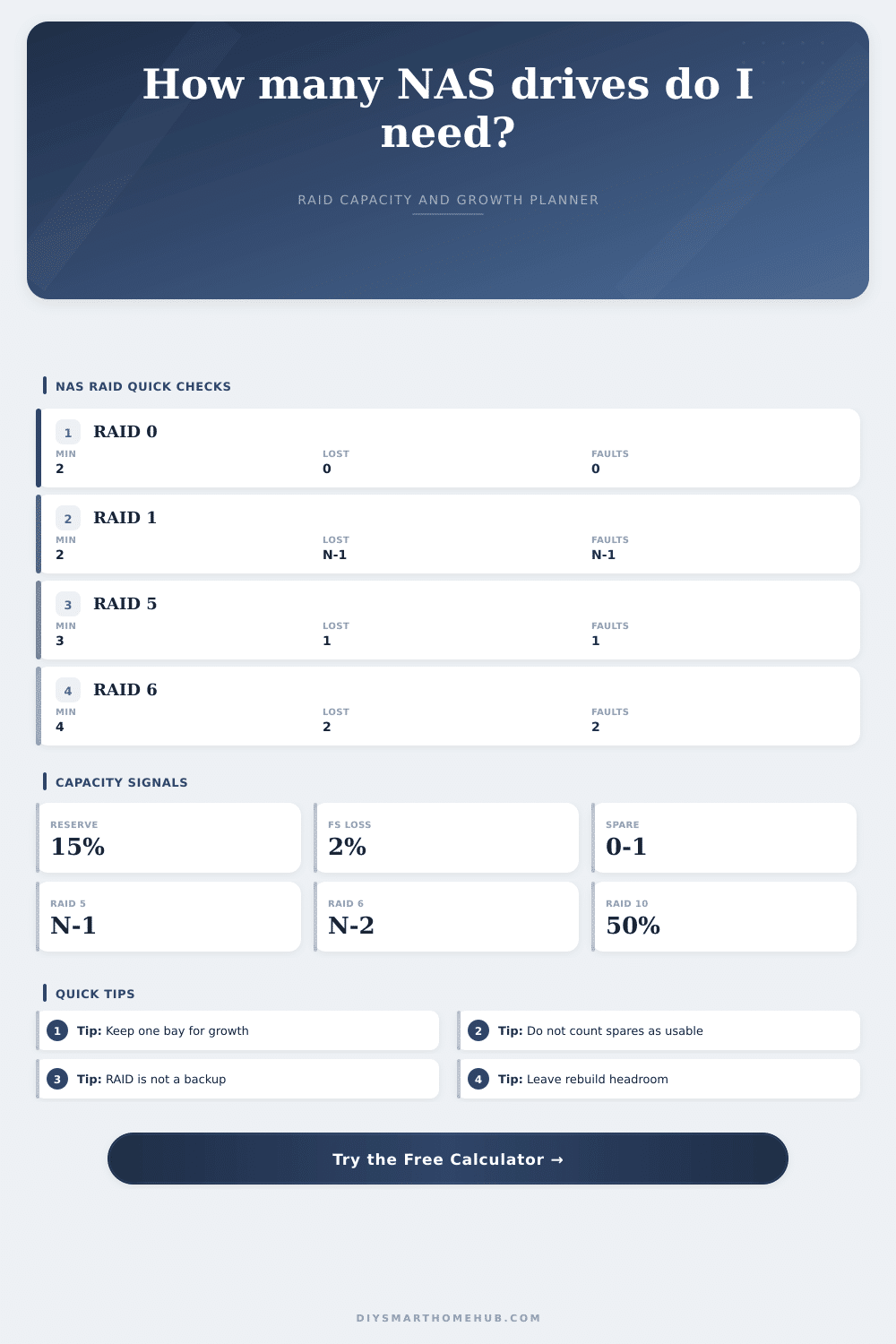
| RAID 0 | 2 | Active drives × drive size | 0 drive failures |
| RAID 1 | 2 | 1 × drive size | Active drives - 1 |
| RAID 5 | 3 | (Active drives - 1) × drive size | 1 drive failure |
| RAID 6 | 4 | (Active drives - 2) × drive size | 2 drive failures |
| RAID 10 | 4 | floor(active drives / 2) × drive size | 1 per mirror pair |
| SHR | 2 | (Active drives - 1) × drive size | 1 drive failure |
Current input comparison
| Layout | Active drives | Usable before reserve | Overhead | Status |
|---|
NAS project examples
| Project | Typical layout | Growth signal | Planning note |
|---|---|---|---|
| Documents and photos | 2-bay RAID 1 | 0.5 to 2 TB/yr | Mirror is simple, but capacity is limited. |
| Family media NAS | 4-bay RAID 5 or SHR | 2 to 6 TB/yr | One parity disk gives efficient capacity. |
| Camera recording | 5 to 6 bays RAID 6 | 4 to 12 TB/yr | Dual parity helps during long rebuilds. |
| VM datastore | 6 to 8 bays RAID 10 | 1 to 5 TB/yr | Half capacity traded for mirror performance. |
| Backup target | RAID 6 or SHR | 2 to 8 TB/yr | Reserve room for versions and snapshots. |
Drive count recommendation grid
| Target usable | RAID 5 | RAID 6 | RAID 10 | SHR |
|---|
How many drives should I buy? That sounds easy: you look at all those vacant drive bays on that new NAS chassis you have sitting there. Well… Not so fast.
What you get with your disks isn’t necessarily how much disk you bought (raw vs usable). Leave it up to the calculator to work out growth targets and drive count. Forget how much space to reserve and what overhead is needed for parity. The majority don’t realize that you only gets X-1 capacity when building in RAID. For example, if you want a RAID 5 configuration, then you are throwing away a drive worth of space for parity info. That’s a huge price to pay on a two-drive solution. As you grow your disks the percentage overhead goes down. A four-drive RAID 5 solution use twenty-five percent of total capacity for the protection layer. On an eight disk system, the number shrinks to twelve percent. Even though there is still a lot of parity data, larger arrays appears more effective because of this.
How Many Drives Do You Need?
Many customers are confused about hot spares. Many people confuse spares with another type of storage. Spares are idle drives in the chassis waiting to replace an active drive should one fail. They aren’t storage; they’re insurance. The calculator assumes spares get you no additional usable space. You pay for it. You pay for the drive and you pay for the electricity to spin it, yet you don’t get any more storage quota. So if money is tight, you can do without a spare and fall back to backups. If it’s mission critical and you can’t tolerate downtime then you need a spare. This is a tradeoff the tool assists with presenting: how much total hardware cost vs. It shows how much actual storage time you’ll get.
But storage plans tend to break on growth. A person buys a NAS to hold today’s photos and forgets about tomorrow’s terabytes of system backups, security footage, and 4K video. To plan out future requirements, the planner will ask how fast you expect your data volume to grow annualy over a certain period. And it accounts for a free-space reserve (which is essential for good performance). When file systems get too full, they becomes slow. Fifteen to twenty percent of the pool can remain unfilled without wasting any space. That creates headroom for heavy I/O operations. These include rebuilds, snapshot copies, and temporary files. Without this breathing room, the NAS crawls at exactly the wrong moment.
You might be going bigger than that, maybe with some of those huge moddern drives. Many hold anywhere from sixteen to twenty-two terabytes. You might consider RAID 6. Because today’s drives are so big, rebuilding your RAID 5 could takes days (and if one drive fails while it’s rebuilding, poof, all gone). Using two drives for parity, RAID 6 will withstand up to two failed drives at once. This comes at a cost: slower writing speeds. But in an archive situation where losing any data would be intolerable, the extra security may be worth it. For a guide to how many drives you need for a given level of protection, see reference table on page.
Last, don’t think of RAID as your backup. RAID is about availability, not disaster recovery. RAID won’t protect you from ransomware that encrypts your files, or against accidental deletion of a file. For that, you need a true backup solution, ideally one that’s offsite (offline) or at least in the cloud. The calculator can help determine the size of that initial storage, but remember that you’ll also need some plan to recover beyond complete failure of that storage itself. Plan for today’s data, future expected growth, a buffer for efficiency, and the RAID level based off your comfort level. That’s where the math kicks in, it will clearly show you the number of bays required to protect yourself digitaly.