Container Count per Host Calculator
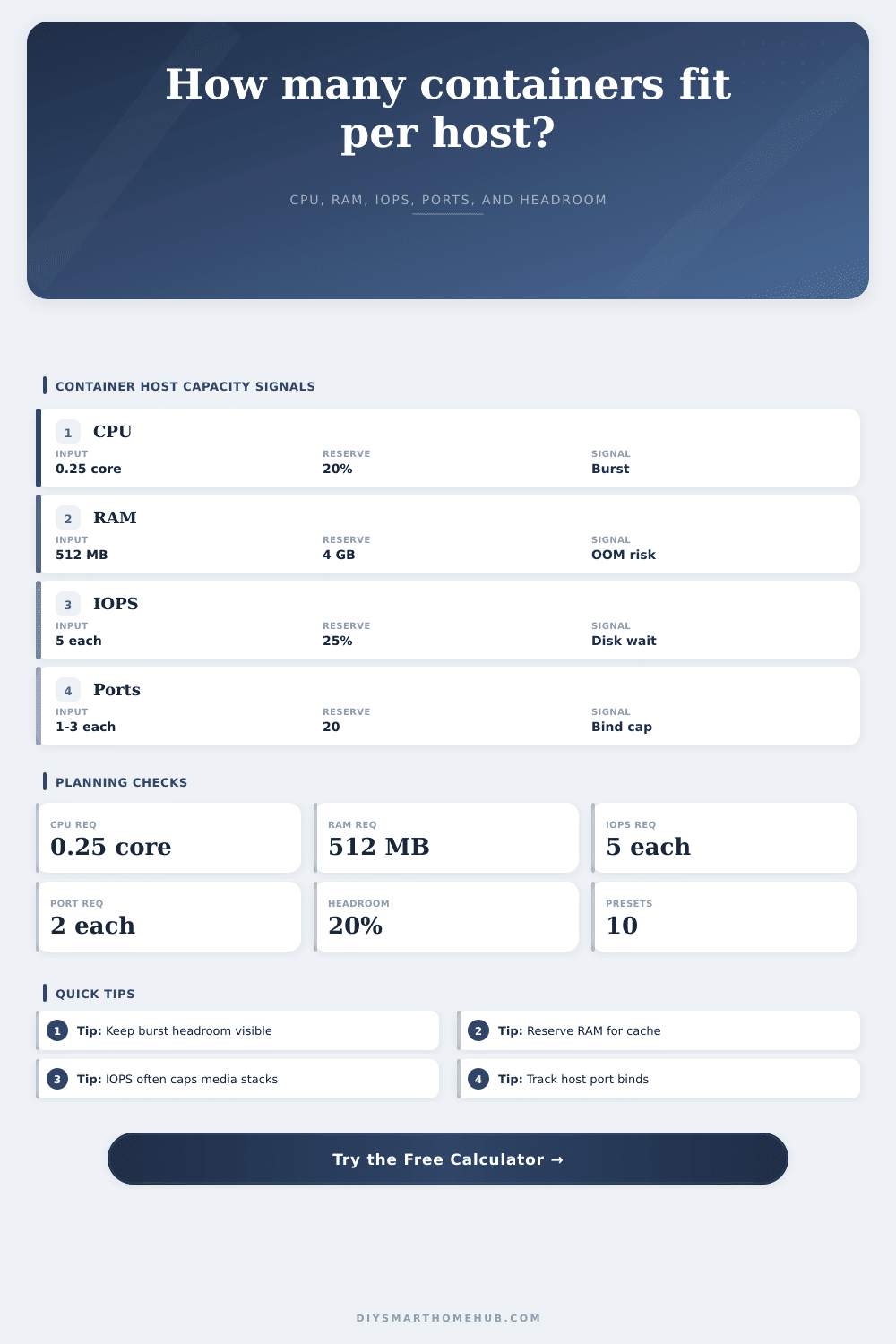
Estimate the safe number of containers a Docker, Compose, or homelab host can run from CPU requests, RAM reserve, storage IOPS, network port binds, runtime overhead, headroom, and the selected stack mix.
After OS reserve, overhead, and headroom.
Host RAM minus reserve and stack cache.
Sustained IOPS after reserve and stack load.
Available published ports after reserve.
Container request starting points
| Service type | CPU request | RAM request | IOPS / ports |
|---|---|---|---|
| DNS, MQTT, small webhook | 0.05 to 0.15 core | 64 to 256 MB | 1 to 2 IOPS, 0 to 1 port |
| Home Assistant, Node-RED | 0.20 to 0.50 core | 512 MB to 1.5 GB | 3 to 8 IOPS, 1 to 3 ports |
| Media helper or indexer | 0.15 to 0.40 core | 256 MB to 1 GB | 4 to 12 IOPS, 0 to 2 ports |
| Database, search, logging | 0.50 to 1.50 core | 1 to 4 GB | 20 to 150 IOPS, 1 to 3 ports |
| NVR and detection service | 1 to 3 cores | 2 to 8 GB | 50 to 300 IOPS, 2 to 5 ports |
Host planning examples
| Host profile | Practical reserve | Often limiting | Planning note |
|---|---|---|---|
| 2-core mini PC, 8 GB RAM | 1 core, 2 GB RAM | RAM or ports | Good for small home automation stacks. |
| 4-core mini PC, 16 GB RAM | 1 core, 3 GB RAM | CPU bursts | Works well with light oversubscription. |
| 8-core home server, 32 GB RAM | 1 to 2 cores, 6 GB RAM | IOPS | NVMe helps many Compose stacks stay responsive. |
| 12-core lab host, 64 GB RAM | 2 cores, 8 GB RAM | Port binds | Reverse proxy keeps exposed ports under control. |
| Camera or logging host | 2 cores, 8 GB RAM | Disk IOPS | Size storage for sustained random writes. |
Compose stack mix multipliers
| Stack mix | CPU factor | RAM factor | IOPS / port factor |
|---|
Common scenarios from presets
| Preset | Host | Stack style | Expected limiter |
|---|---|---|---|
| Tiny Mini PC | 2 cores, 8 GB | Light automation | RAM |
| Media Compose | 6 cores, 32 GB | Media helpers | IOPS |
| Dev Lab Host | 8 cores, 48 GB | Databases and queues | CPU or IOPS |
| Power Host | 16 cores, 128 GB | Mixed services | Ports |
| Camera Services | 8 cores, 64 GB | NVR events | Storage IOPS |
When you turn on your new server and see it booting up containers, it makes you feel accomplished. It’s running a resolver, now Home Assistant, now a Plex helper, now a logging stack. Everything feels under control until you add another service. Your machine grinds to a halt. Your host goes unresponsive, the disk light remains solid, and your UI lags.
Welcome to the world of homelab. Sure, you didn’t fry your hardware, but you’ve used up the resources required to stabilize your virtual environments. You can easily count CPU cores and RAM sticks, and most folks plan their host based off them. Containers don’t care about the specs on the box; they care about what’s available in the moment. Once you plug in your sustained performance numbers into the calculator it does the math for you, no more guessing who’s going to fall over first. It helps you think beyond raw hardware spec and look at actual runtime environment.
How to Plan Your Server Resources
Most people go wrong with the storage layer. That shiny new SSD has five thousand IOPS? You’re not going to get that if you’re running database commits and backups overnight. Instead, you’ll be getting an average over time once wear leveling and cache flushing take effect. And even if all you’ve got are two dozen container spitting out log messages, they’ll start fighting for disk access long before the CPU hits its limit. To account for this, the tool lets you specify a reserve percentage, which isn’t wasted capacity; rather, it’s protection from those times when queuing up requests starts to slow the interface down.
The other big issue is memory. Got a 32-gigabyte instance? Think you can allocate all of it? Nope! There’s filesystem overhead. There’s OS overhead from page caching. If you don’t leave yourself some cushion, the kernel will begin to kill things in order to save its own ass. That’s not a bug; that’s Linux being Linux when it’s under the gun. As the memory usage table (reference) illustrates, your small, simple webhooks app will get by with just a few hundred megabytes; your large database stack will consume many gigs. Know what you’re running and why.
The last bottleneck: Network Ports (Which nobody talks about) Have lots of terabytes of disk? There are cores all over the place. Fine. But what happens when you want to put 10 different services right on the host? Well guess what… port collisions is merciless. They happen instantly.
The calculator treats available ports as a hard cap too (like RAM), and reminds you why a reverse proxy isn’t something you can live without (it’s a capacity multiplier). It is a way to free up your scarce network addresses.
That’s when it gets real: oversubscription. If you’re confident that no service will spike at any given time, just slap a couple of virtual CPU cores on each physical one. That’s fine for automation scripts idling away the night, but not for transcoding videos. You get to tweak this parameter in the calculator, but you’ll need to specify a percentage of headroom as well.
This is headroom for the future. This is for the future update that corrupts its config file and leaves behind a zombie process. This is for the backup job that decides to run at the worst possible moment.
Planning for capacity is about minimizing surprise, not maximizing utilization. An eighty percent full host are a broken host. You need to know you can add another service without poring over all the metrics dashboards. And those numbers on the tool aren’t limits, they’re guardrails. They are guardrails to prevent you from hitting the limits of resource contention. Estimate conservativeley. Add headroom. Verify the performance (IOPS). Add headroom if needed. Repeat until you like the number. Reduce services rather than reserves; a slower but available host is preferable to a fast host that goes down. This isn’t a lab you are building to generate new problems, it’s one you’re using to resolve existing ones. You should of made the headroom obvious and the host will pay you back in uptime.