Home Server CPU Sizing Calculator
Estimate CPU cores, available PassMark, Plex transcode load, VM and container demand, RAM assist, idle and load power, headroom, and a combined workload score for a home server build.
Software transcode planning value per active HD stream.
High-bitrate 4K software transcodes can dominate CPU sizing.
Typical light service allowance before burst multiplier.
Activity factor scales allocated vCPU into real demand.
Service load formula guide
| Service type | Core formula | PassMark formula | Planning signal |
|---|---|---|---|
| Always-on services | Entered base cores | Entered base points | steady |
| Containers | Count × 0.08 cores | Count × points/container | small tasks |
| Virtual machines | VMs × vCPU × duty | VMs × vCPU × points × duty | varies |
| Plex transcodes | Points converted by points/core | 1080p and 4K transcode points | CPU heavy |
| Headroom | Demand × (1 + headroom) | Demand × burst × (1 + headroom) | reserve |
CPU class comparison
| CPU class | Typical cores | PassMark band | Good fit |
|---|---|---|---|
| Low-power mini PC | 4 to 6 | 5,000 to 12,000 | NAS, apps, light Plex |
| Desktop efficiency CPU | 6 to 8 | 12,000 to 22,000 | Media server, a few VMs |
| Workstation desktop | 8 to 16 | 22,000 to 45,000 | VM lab, compile bursts |
| Server platform | 12 plus | 35,000 plus | Many VMs, heavy services |
| GPU-assisted media box | 4 to 8 | 8,000 plus | Plex with media engine |
Plex, VM, and container assumptions
| Work item | Default points | Core assist | Adjustment |
|---|---|---|---|
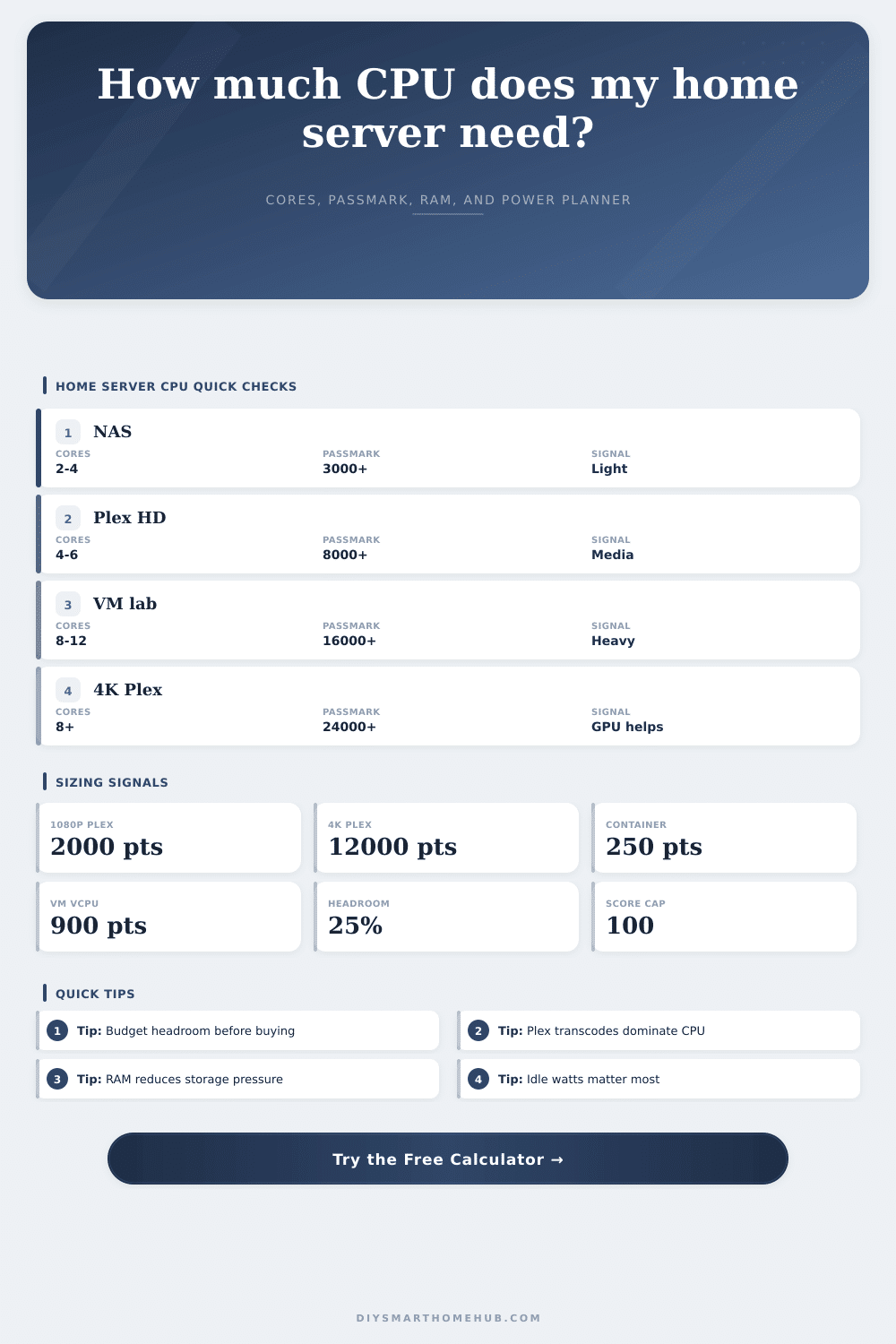
| 1080p Plex software transcode | 2,000 each | Points/core derived | Reduced by hardware assist |
| 4K Plex software transcode | 12,000 each | Points/core derived | Best avoided unless assisted |
| Light Docker container | 250 each | 0.08 cores each | Raise for databases/indexers |
| Active VM vCPU | 900 each | vCPU × duty | Duty scales allocation to load |
| RAM assist | 2% to 12% | Load relief | Only when spare RAM remains |
Common project sizes
| Profile | Suggested class | CPU signal | Power focus |
|---|---|---|---|
| NAS + backup | 4 efficient cores | Light PassMark | Idle watts |
| Plex 1080p family | 6 efficient cores | Transcode budget | Short load bursts |
| Home lab VM host | 8 to 12 cores | vCPU duty | Cooling at load |
| 4K media server | 8 cores or GPU | 4K transcodes | Media engine use |
| All-in-one box | 8 plus cores | Mixed reserve | Balanced curve |
In terms of CPUs, there’s an art to sizing a home lab. You have to balance capability, efficiency, and thermal comfort. There’s nothing like stacking up component in a case for the first time and getting excited.
Don’t assume bigger means better! More power isn’t always better; that thinking will get you to buy a larger processor which does little work while running loud at idle. A decent way to think about it is, “I want enough power so I can sit down and have a movie night on the weekends without feeling like my room has turned into a sauna.”
How to Choose the Right CPU for Your Home Lab
The calculator figure out the math for you. However, knowing what drives the number will help you build something that works with your life. People typically begin their build with storage since it’s plentiful and inexpensive. They make mistake of making the CPU an afterthought.
You can get away with very little CPU if you just have a network-attached storage drive. However, that changes if you add virtual machine, containers, or a media server. Transcoding Plex streams is a common pain point. If you’re transcoding on the fly, then decoding and re-encoding every 1080p stream take a lot of overhead.
As you’ll see in the reference table, PassMark points accumulate pretty fast. This might seem like a minor detail but it will add up when it comes time to pay your bill of materials.
Secondly: What will you be running in the background? Running a few containers doesn’t weigh much on a single dual core chip, but when it’s a dozen and there’s traffic, it get heavy. But virtual machines require exclusive resources so they’re even heavier.
To reflect this, the tool comes with an activity factor that takes into account how much of your virtual machine is actualy doing work. After all, a lab server is never 100% busy. Only some of the time it spikes (e.g., while indexing) and other times it sits quiet. If you don’t take these bursts into account, you’ll start throttling, making your system seem slow.
A big consideration for any home server project is power consumption. You may have a workstation-class processor that smokes in benchmark tests, but when idle it’s consuming more watts then a frugal mobile chip. Multiply those wasted watts and before long your fun side-project becomes an unwanted item on your electric bill.
The power calculator helps you get a sense for how much electricity your rig will consume each day (it averages idle hours against peak usage). That lets you understand the trade-off between raw processing power and leaving the thing running all the time.
This also subtly involve memory. More RAM won’t increase your clock speed, but it will keep your CPU from burning cycles waiting for storage bottlenecks to clear up. If you’ve got enough memory, the system can cache commonly used files with plenty of headroom. That means that the processor isn’t constantly ferrying information back-and-forth from the drive; it’s keeping its nose down focusing on what you’re actualy doing. A little trick but it helps maintain responsiveness when you need it most.
You aren’t building the fastest machine off the shelf. You’re building the right machine for whatever it is you need to do. If you’re looking for a simple backup server, that is one thing. If you want something more complex like a media hub, headroom typicaly makes all the difference between having a good experience and a frustrating one.
Plan accordingly and leave yourself some wiggle room. The rest will take care of itself. You’ll end up with an efficient and quiet server that gets job done.