Smart Display Viewing Distance Calculator
Calculate a practical viewing range from screen diagonal, resolution, visual angle, readable text size, counter or desk placement, and camera framing.
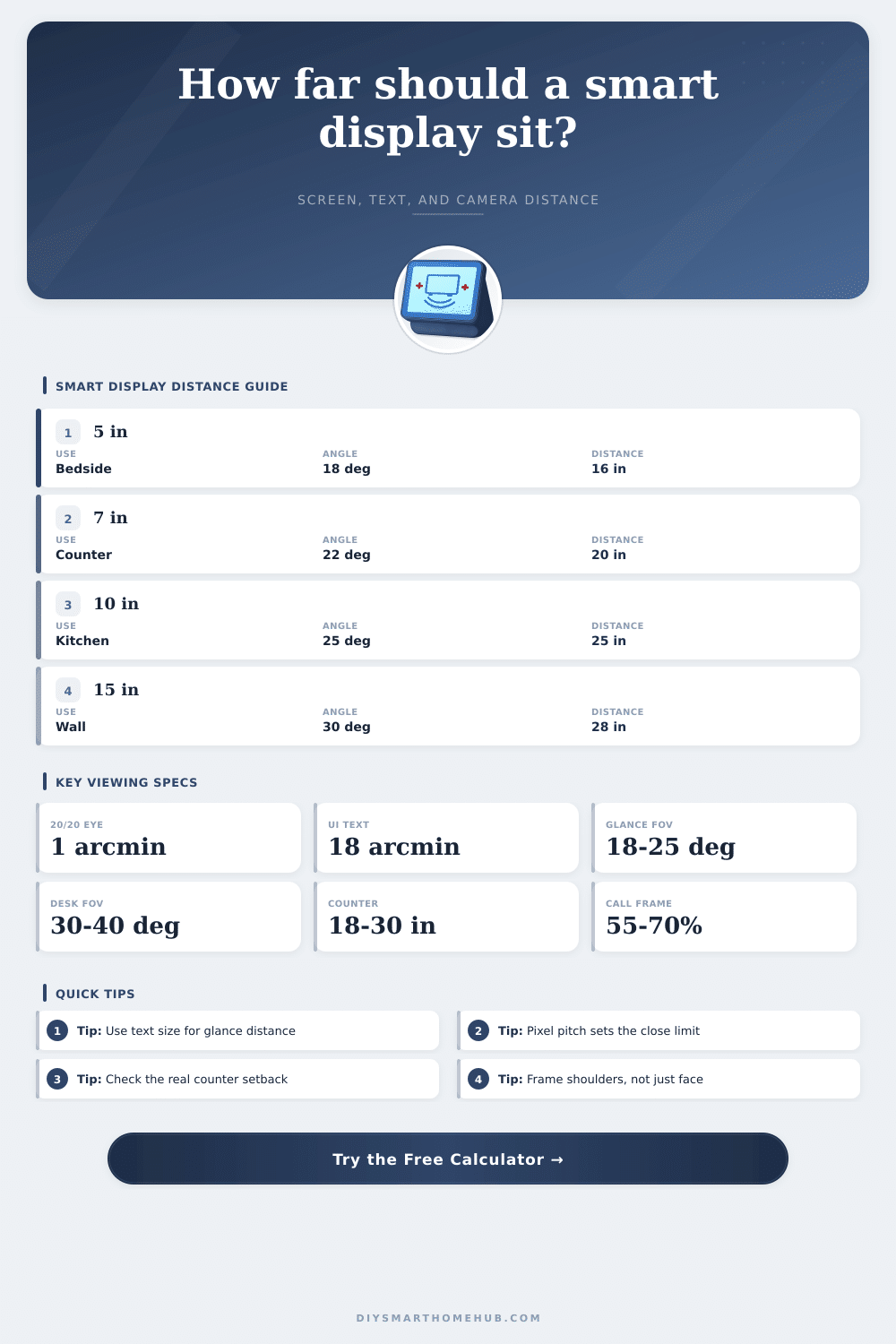
| Use case | Horizontal visual angle | Text x-height target | Placement check |
|---|---|---|---|
| Bedside clock or weather glance | 14 to 20 degrees | 20 to 28 arcmin | Prioritize large type over pixel density |
| Kitchen counter recipe and timers | 20 to 30 degrees | 18 to 24 arcmin | Measure from standing eye point to screen center |
| Desk dashboard or video controls | 28 to 40 degrees | 14 to 20 arcmin | Closer placement is fine if pixels remain clean |
| Wall hub across a small room | 10 to 22 degrees | 24 to 36 arcmin | Large widgets matter more than small UI text |
| Display class | Typical resolution | 20 degree distance | 30 degree distance | Best-fit task |
|---|---|---|---|---|
| 5 to 5.5 inch compact display | 960 x 480 | 24 in / 61 cm | 16 in / 40 cm | Clock, timers, quick voice feedback |
| 7 to 8 inch hub | 1024 x 600 to 1280 x 800 | 34 in / 86 cm | 22 in / 57 cm | Kitchen counter and bedside control |
| 10 to 11 inch smart display | 1280 x 800 to 1920 x 1200 | 48 in / 122 cm | 32 in / 81 cm | Recipes, calls, room dashboard |
| 15 to 16 inch wall display | 1920 x 1080 | 76 in / 193 cm | 50 in / 127 cm | Shared calendar and whole-home panel |
| 21 to 24 inch dashboard screen | 1920 x 1080 to 2560 x 1440 | 103 in / 262 cm | 68 in / 174 cm | Across-room status or desk dashboard |
| Placement constraint | Recommended check | Typical threshold | Why it matters | Adjustment |
|---|---|---|---|---|
| Small text readability | x-height angular size | 16-24 arcmin | Dashboards fail when labels are below readable angle. | Increase font size or move the display closer. |
| Video call framing | Face width inside camera FOV | 18-32 in at seat | Too close crops users; too far makes faces tiny. | Tilt mount or choose a wider FOV device. |
| Touch reach | Arm reach from standing or seated point | 18-28 in comfortable | A visible display can still be awkward to operate. | Use voice-only mode or mount lower and closer. |
| Glare and vertical angle | Eye height to screen center | 0-15 deg down preferred | Steep viewing angles reduce contrast and camera alignment. | Use a wedge mount or change shelf height. |
| Room status visibility | Horizontal viewing angle | 10-20 deg from far side | Large widgets remain useful across a kitchen or office. | Use a larger diagonal or dashboard layout. |
Why would anyone buy a smart display? Because you expect it to give you information you need and when you need it. You shouldn’t have to squint like a detective trying to make out a license plate from three feet away.
The issue with any smart home set-up is that there’s this invisible variable: how far away the thing is. How far people put their screens depends on where things will fit physically but they never consider if that spot will work opticaly. That small 10 inch panel on your cluttered kitchen counter might end up being a bit far away to read comfortabley. It might also be too close to reach without accidental knocking over that coffee mug.
Why Viewing Distance Matters for Smart Displays
Once you input your screen specs into the calculator above it’ll do the math for you so that you don’t have to guess about what readable realy means in angular terms.
Resolution: Most folks assume this is only about how large the image appears. Nope, not so much about size. It is about acuity. There’s a point of diminishing returns on detail resolution where pixels merge into blurs for human eyes. If the display has insufficient res for viewing distance, text turns to a sorta-gray-smudge. Why? This is why resolution matter more than diagonal size when sitting close to the screen. An ultra-high-pixel-density seven inch screen could appear sharp held at arm’s length. Yet an extra-large but low-res tablet might look blurry even if it fill your view. Know where that blurring threshold is for your own eyes and usage pattern.
To break it down, the tool looks at two types of constraints. The first is visual angle, which is how much of your field of view the screen takes up. That affects comfort and immersion. Too narrow, and the screen will seem small in the room. Too wide, and you’ll constantly have to shift your eyes to look around the content.
Text readability means how big small parts of UI appear to you while standing or sitting. Is it a bedside clock, or a dashboard on your desk? You’re closer to the desk unit and interacting more deeply, so it can have smaller numbers than the bedside clock where you’re farther away and just glancing at it quickly.
There’s also geometry: counters tend to be deep (two feet or even two and a half is not uncommon). Pushing the display back to accommodate space for elbows when I’m chopping vegetables means that my viewing distance just got longer. Are you stirring soup while reading a recipe? Surprise! That reality is shown in the setback input, which measures from center of the screen to your eye level. It takes into account counter depth as well as your position in front of it. What used to feel like “too far” becomes a tangible number you can tweak.
That’s one set of variables; video calls offer another. How do you frame yourself on camera? Well that depends on how far away you are from the camera compared to its field of view. Too close: You only get your nose filling up the frame which is awkward for all parties involved. Too far: You’re a little figure in the corner of the screen. So it calculates what fill percentage should be optimal (shoulders) given the size of the camera vs. It uses your own physical dimensions to help you work out if you need a wider angle lens or if you should of mounted the camera further away instead.
Vertical Viewing Angles: Wall mounted displays face unique challenges regarding how high they are placed. Looking up is awkward and will strain your neck over time. Mounting displays too high often causes glare. This happens when light sources, such as overhead lights, reflect off the screen’s surface. The geometry checks give you an idea whether your eye level matches the center of the display or if you’re going to need to tilt your display down so you can view it more comfortable than on a given surface.
And no, I’m not referring to simply seeing the display. I’m talking about being able to see it without physically being uncomfortable. A smart display works well when it is usable in its context. It doesn’t matter how beautifully designed your interface is if you have to go walking over to press some button each time. Yes, voice control can help, but you should also be able to see the screen clearly from wherever you’re standing.
If you know this ahead of time, you avoid the all-too-common regret of purchasing something that ends up feeling totally useless once you’ve installed it. Nail down the space, and you’ll find yourself forgetting about the tech entirely. That’s the point, after all: for it to dissapear into the background. The relationship between visible and intrusive is ultimately what defines a smart home as “smart,” not merely a mess of gadgets.