Monitor Viewing Distance Calculator
Estimate a comfortable eye-to-screen distance from diagonal size, aspect ratio, resolution, target field of view, visual acuity, and the real desk depth available.
| Viewing Goal | Horizontal FOV | Distance Rule | Best Use |
|---|---|---|---|
| Shared or relaxed viewing | 26 to 30 degrees | Screen width / 0.48 to 0.54 | Reading, calls, dashboards, mixed posture |
| Office focus | 30 to 35 degrees | Screen width / 0.54 to 0.63 | Documents, code, email, general productivity |
| Mixed work and media | 34 to 40 degrees | Screen width / 0.61 to 0.73 | Browsing, editing, light gaming, multitasking |
| Immersive gaming | 40 to 50 degrees | Screen width / 0.73 to 0.93 | Racing, simulation, action games, ultrawides |
| Cinematic desk viewing | 48 to 55 degrees | Screen width / 0.89 to 1.04 | Large-format monitors, controller gaming, movies |
| Monitor Type | Resolution | Approx PPI | 20/20 Pixel Distance |
|---|---|---|---|
| 24 in 16:9 | 1920 x 1080 | 92 PPI | 37 inches / 94 cm |
| 27 in 16:9 | 2560 x 1440 | 109 PPI | 32 inches / 82 cm |
| 27 in 16:9 | 3840 x 2160 | 163 PPI | 21 inches / 55 cm |
| 32 in 16:9 | 3840 x 2160 | 138 PPI | 25 inches / 65 cm |
| 34 in 21:9 | 3440 x 1440 | 110 PPI | 31 inches / 81 cm |
| 49 in 32:9 | 5120 x 1440 | 109 PPI | 32 inches / 82 cm |
| Desk Situation | Usable Eye Distance | Fits Best | Watch Point |
|---|---|---|---|
| Compact desk | 22 to 26 inches | 24 in FHD, 27 in 4K, laptops | Large screens can exceed 40 degree FOV |
| Standard 30 inch desk | 27 to 32 inches | 27 in QHD, 32 in 4K, 34 in ultrawide | Monitor stand depth can steal space |
| Deep desk or arm mount | 33 to 40 inches | 32 in QHD, 42 in 4K, 49 in ultrawide | Text size may need scaling farther back |
| Wall-set monitor | 40 to 55 inches | 42 in to 55 in large-format displays | Mouse and keyboard distance must still work |
| Aspect Ratio | Width From Diagonal | Height From Diagonal | Distance Impact |
|---|---|---|---|
| 16:9 widescreen | 87.2% of diagonal | 49.0% of diagonal | Balanced width and vertical comfort |
| 16:10 productivity | 84.8% of diagonal | 53.0% of diagonal | Slightly less width for same diagonal |
| 21:9 ultrawide | 91.8% of diagonal | 39.4% of diagonal | Needs distance by width, not height |
| 32:9 super ultrawide | 96.3% of diagonal | 27.1% of diagonal | Curvature and side visibility dominate |
The distance at which you place a monitor on your desk affect your posture and the way your eyes function at the monitor. Many individuals place their monitors at a distance due to habit, but placing a monitor based off habit can cause individuals to develops neck pain or experience difficulty in reading the text on the screen. The monitor can become either comfortable or uncomfortable for an individual based upon specific measurement of that individual’s monitor and desk.
The size of the screen that you are to use is the first measurement that should be considered for comfort. For instance, 27-inch and 32-inch monitors may appear to be the same size, but the 32-inch monitor will contain more width then the 27-inch monitor. Because there is more width to 32-inch monitors, there will be more movement of the eyes and the head to view all of the content that is displayed on the screen.
How Far to Place Your Monitor for Comfort
An individual can use a calculator to enter the diagonal size of the screen, the aspect ratio of the screen, and the resolution of the screen to determine the monitor distance that are recommended. Resolution is another important measurement for determining the comfort of an individual using the monitor. For instance, 27-inch monitors with 1440p resolution allow individuals to sit closer to the screen without viewing the individual pixel of the monitor than 27-inch monitors with 1080p resolution.
Distance calculations for field of view and pixel visibility can assist individuals in understanding whether immersion into the screen or clarity in viewing the screen is a more important aspect of their monitor use. The depth of the desk that is used can impact the distance at which an individual can place their monitor. For instance, a 30-inch deep desk will not provide 30 inches of space for the monitor for the individual to place their monitor; the monitor and arm will take up that space.
Thus, the individual will have to adjust the distance of the monitor accordingly to ensure that the monitor will not extend beyond the depth of the desk. Conversely, individuals with deep desks and monitor arms can place larger monitors far from their point of viewing. The target field of view for the monitor can change depending upon the tasks that the individual performs at their desk.
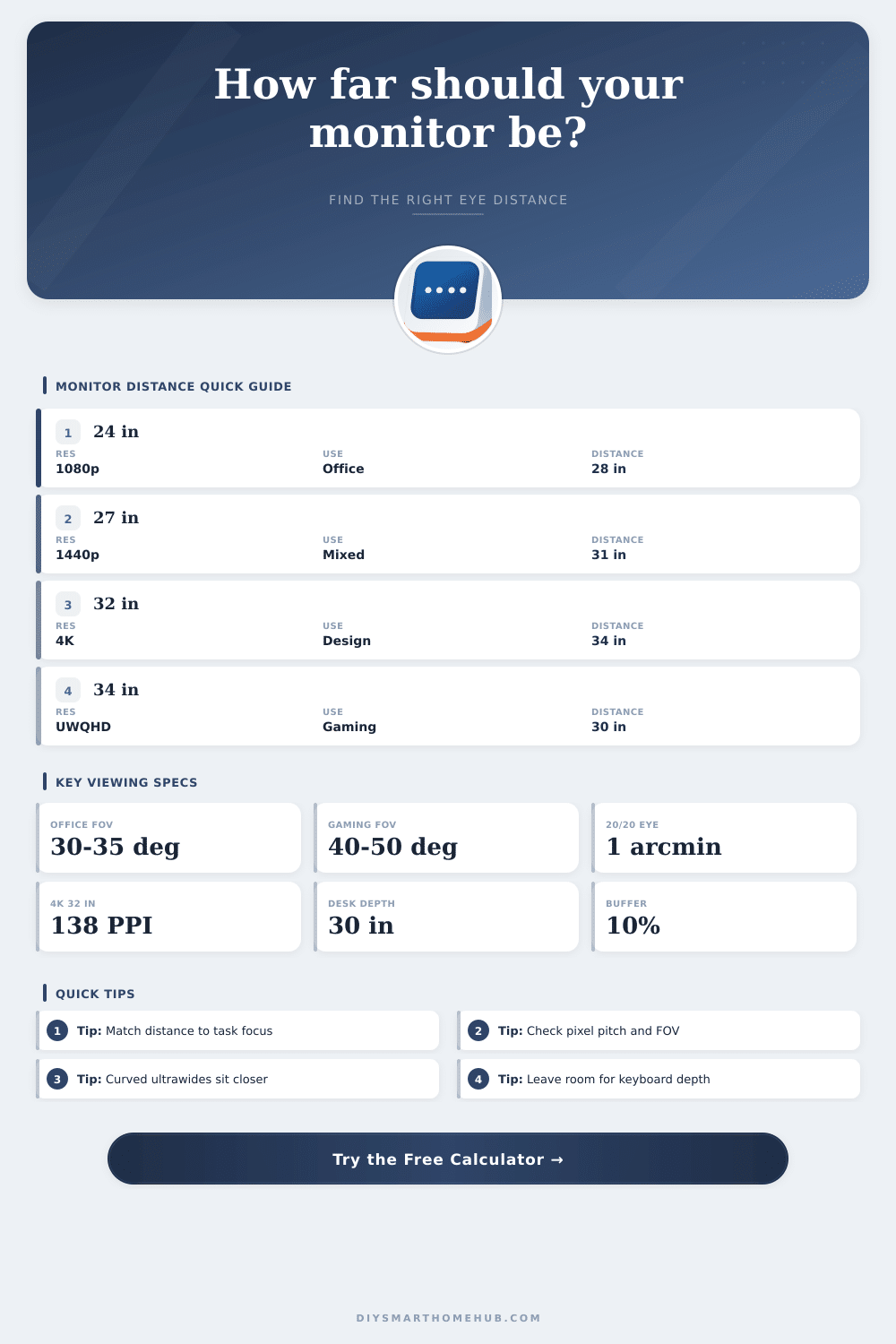
For instance, individuals using text-based tasks at their desks may require a field of view of between 30 and 35 degree. Gaming and viewing media tasks, however, may require fields of view between 40 and 50 degrees. Some monitor distance calculator allow individuals to enter a custom field of view for their monitor for more personalized viewing comfort.
Individuals can adjust the visual acuity of their monitor calculations to account for the vision of the individual. For instance, the standard 20/20 setting will be appropriate for individuals with standard vision, but individuals with stronger vision settings could adjust the monitor calculations to reflect that they can read smaller print at farther distance from the screen. Conversely, individuals with soft vision will require the monitors to be placed farther from the individual.
The aspect ratio of the monitors can play a role in determining the width of the monitor. For instance, ultrawide monitors provide more horizontal viewing without adding to the vertical viewing of the monitor. Thus, calculators use the width of the monitor rather than the diagonal measurement of that monitor.
Therefore, a 34-inch ultrawide monitor might have the same viewing angle as a 32-inch monitor with a 16:9 aspect ratio. Many individuals make mistakes when determining the distance for their monitors. For instance, many individuals may believe that if two monitors have the same diagonal measurement then they are the same monitor.
The resolution and the aspect ratio, however, may create difference in the viewing distance for each monitor. Similarly, individuals may measure the depth of their monitor from the front of their desk. However, where an individual’s eyes is positioned relative to the desk may change that distance by several inches.
Beyond the measurements of the screen and the desk, environmental factor can impact viewing of the monitor. For instance, the lighting in an area can change how individuals view the screen, or the curvature of some monitors may impact the way that individuals view the width of the screen. Finally, the individual should also balance the position of the monitor with the position of the keyboard and the mouse to ensure that the monitor does not create strain on the individuals wrists.
Prior to purchasing a monitor, individuals should calculate the distance that will provide comfort to the individual when viewing the screen. These calculations can assist individuals in determining if their pixel visibility is within their available space, or if immersion into the screen is more important than reading the screen. Furthermore, these calculation will provide individuals with a range of distances at which they may place the monitor.
Thus, by understanding these variable, an individual will understand if the monitor will be comfortable for viewing or if it may lead to adjustments in their posture.