DIYSmartHomeHub media storage planner
Blu-ray Rip Size Calculator
Estimate a Blu-ray or 4K UHD rip from video bitrate, runtime, audio tracks, subtitle overhead, source disc size, collection count, and optical drive read speed.
Estimated rip size
0 GB
Video plus audio, subs, and overhead
Compression ratio
0:1
Source size divided by final rip size
Collection storage
0 TB
Includes selected free-space reserve
Estimated rip time
0 min
From drive speed and effective read rate
Calculation breakdown
Good for smaller H.264 or H.265 encodes when keeping file size modest matters.
Common range for strong 1080p Blu-ray rips with fewer visible artifacts.
Typical high-quality 4K UHD encode range, depending on grain and HDR complexity.
Near-source UHD remux rates can land here before audio and subtitle tracks.
1080p and 4K Blu-ray typical sizes
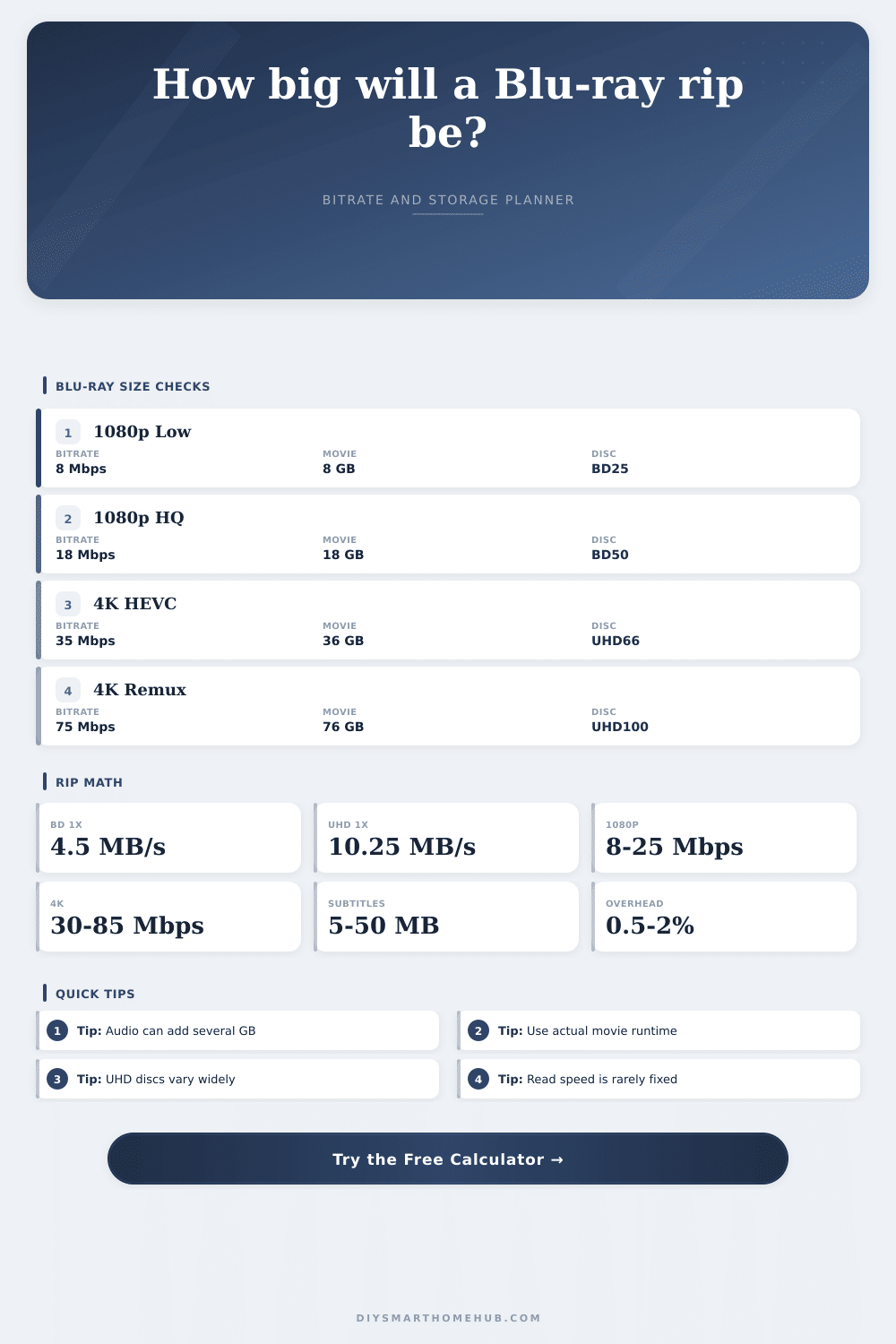
| Rip type | Typical video bitrate | 2 hour video only | Typical final size |
|---|---|---|---|
| 1080p compact encode | 8 to 12 Mbps | 7.2 to 10.8 GB | 8 to 13 GB |
| 1080p high quality encode | 15 to 25 Mbps | 13.5 to 22.5 GB | 15 to 26 GB |
| 1080p remux | 25 to 40 Mbps | 22.5 to 36 GB | 25 to 45 GB |
| 4K efficient HEVC | 30 to 45 Mbps | 27 to 40.5 GB | 30 to 48 GB |
| 4K high quality HEVC | 45 to 65 Mbps | 40.5 to 58.5 GB | 45 to 70 GB |
| 4K UHD remux | 60 to 85 Mbps | 54 to 76.5 GB | 60 to 90 GB |
Disc and drive read references
| Reference | Nominal value | Formula use | Practical note |
|---|---|---|---|
| BD25 | 25 GB | Source size | Often 18 to 24 GB used |
| BD50 | 50 GB | Source size | Often 35 to 46 GB used |
| UHD66 | 66 GB | Source size | Common for many 4K discs |
| UHD100 | 100 GB | Source size | Used by larger UHD titles |
| Blu-ray 1x | 4.5 MB/s | Drive x speed | 6x is about 27 MB/s peak |
| UHD BD 1x | 10.25 MB/s | Drive x speed | Real reads vary by zone |
Common collection examples
| Library | Avg rip | Count | Storage before reserve |
|---|---|---|---|
| Small 1080p shelf | 10 GB | 75 | 0.75 TB |
| Mixed HD collection | 18 GB | 250 | 4.5 TB |
| 4K favorites | 45 GB | 80 | 3.6 TB |
| 4K remux archive | 75 GB | 150 | 11.25 TB |
Formula reference
| Result | Formula | Inputs | Meaning |
|---|---|---|---|
| Video size | Mbps x seconds / 8 / 1000 | Bitrate, duration | Decimal GB from video stream |
| Audio overhead | Tracks x Mbps x seconds / 8 / 1000 | Audio count, bitrate | Extra GB from audio tracks |
| Compression | Source GB / final GB | Disc used, rip size | How much smaller than disc data |
| Collection | Rip GB x count x reserve | Rips, buffer | Storage to allocate |
| Rip time | Source MB / read MB/s | Disc size, drive | Estimated optical read time |
So you sit down to rip that brand-new 4K UHD movie. High-visual-fidelity, right? Except now all of your storage has dissapears. Your portable drive can’t hold it. Even your main server are barely big enough. You have to consider how much it will cost in space first.
And then there is the hidden costs, the audio tracks, the subtitle files. There’s container overhead to consider as well. That’s why most folks concentrate on video bitrate. It’s understandable, as it represents the bulk of final file size. A good quality 1080p encode are between 15 and 25 megabits per second. A 4K HEVC remux? More like 60 megs or higher.
How to Save Space on Your Drive
Audio tracks also eat into your space. Compressed tracks like AC3 is smaller than lossless ones such as TrueHD. Multiple language dubs will consumes several gigabytes. Use the calculator to see how that tradeoff work. Tinker with the count of audio track. See whether it’s worthwhile to keep all those languages in a set.
Now, know that a BD50 disk holds 50 gigabytes, but not all of it are used. For example, maybe your movie occupy just 35 gigabytes of disc. If so, enter how many GBs of the disc is actualy being used. Enter that into the tool as the “occupied space.” This will give you an idea of what size file you’re saving from compression. Is it a lean source? Or is it bloated? That tell you something about bitrate. If it’s lean, save more; if it’s already big, cut it back.
One big file isn’t a problem. A hundred of them are a project. Plan for terabytes. Think about the size of your growing library. There’s an option on the calculator to add a reserve percentage. That way, it’ll help you plan for what else you might want to buy later on. It’s good practice to leave some free space on your file system. A filled drive will slow down and may becomes corrupted. Set aside 15 or 20 percent as a cushion. Save yourself headaches later. As your collection expand, your drive will have some breathing room.
It doesn’t read at full speed. That’s just how optical drives work. Some places on the disc reads faster, others slower. It has to do with physics. There is an efficiency percentage that goes into calculation. It provides an estimate of time that is reasonably accurate. Conservatism is better then optimism. You don’t wonder why it takes so long. You know when to plan for a rip during a period of downtime. An hour or more could of been required for a 4K remux. It is perfect for a late night.
Common scenarios are found in reference tables. These range from small 1080p encodes to huge 4K archives. The benchmarks lets you set your expectations. How does a 2-hour movie scale across the different qualities? Lossless remuxes increases file sizes exponentialy. That gives you some context so that big file size isn’t a surprise. There’s no free lunch, and quality comes at a price. It is a price of storage and transfer time.
Storage is about balancing what’s right for you. Want the highest quality? What fits in your library? How long are you willing to wait? Eliminate the guesswork. Let the numbers do the talking. Don’t waste time wondering if it’ll all fit. Don’t worry about if you should keep that one. Enjoy the film instead. Make clear plans and end up with a clean collection. Avoid a storage meltdown based off a simple calculation.