Document Scan Storage Calculator
Estimate file size for scanned PDFs and image archives from page dimensions, DPI, color depth, compression factor, page count, OCR layer overhead, monthly scan volume, backup copies, and retention period.
Physical page dimensions multiplied by the selected DPI in each direction.
Uncompressed per-page image data before PDF or TIFF compression.
Searchable text layer, page map, and document structure overhead.
Twelve monthly scan batches multiplied by the backup-copy setting.
Your preset comparison grid
| Preset | Pages/mo | Mode | Per page | Protected/mo |
|---|---|---|---|---|
| Home Office | 400 | Gray | 0 MiB | 0 GiB |
Compression factor reference
| Profile | Factor | Best fit | Storage signal |
|---|---|---|---|
| G4 mono | 0.04x | Clean black text | Smallest files |
| Text PDF | 0.08-0.14x | Letter/A4 forms | OCR-friendly |
| Mixed PDF | 0.16-0.28x | Text plus graphics | Balanced quality |
| JPEG PDF | 0.24-0.40x | Color pages | Photo detail |
| Lossless | 0.50-0.80x | Archival masters | Large files |
| Raw bitmap | 1.00x | Uncompressed export | Maximum size |
DPI and color depth guide
| Use case | DPI | Color mode | Bitmap effect |
|---|---|---|---|
| Receipts and notes | 200-300 | Grayscale or mono | Low pixel count |
| Text archive with OCR | 300 | Mono or grayscale | Good search quality |
| Forms with highlights | 300 | Color | 3x grayscale BPP |
| Photos and keepsakes | 600 | Color | 4x pixels vs 300 DPI |
| Archival master | 600-1200 | Color or deep color | Storage grows fast |
Page size reference
| Page | Dimensions | Area | Size signal |
|---|---|---|---|
| Receipt | 3 x 8 in | 24 in² | About 26% of letter |
| US Letter | 8.5 x 11 in | 93.5 in² | Baseline page |
| US Legal | 8.5 x 14 in | 119 in² | 27% over letter |
| A4 | 210 x 297 mm | 96.7 in² | Near letter |
| A3 | 297 x 420 mm | 193.4 in² | About 2x A4 |
In the back of your closet sits a cardboard box full of old contracts and receipts. It’s gathering dust, but digital shadow of that box is likely eating your hard drive space right now. Those scanned docs probably take up room on your computer hard drive.
The problem is that most of us scan our docs with best intentions: We’ll keep them small! But we’re mistaken. Even a few pages of an image-heavy magazine scan at high resolution can clock in at multiple megabytes. That doesn’t sound too bad, until you multiply that size by three hundred pages over five years of storage. Suddenly, the numbers aren’t so abstract anymore (they’re a storage nightmare).
How to Scan Files to Save Space
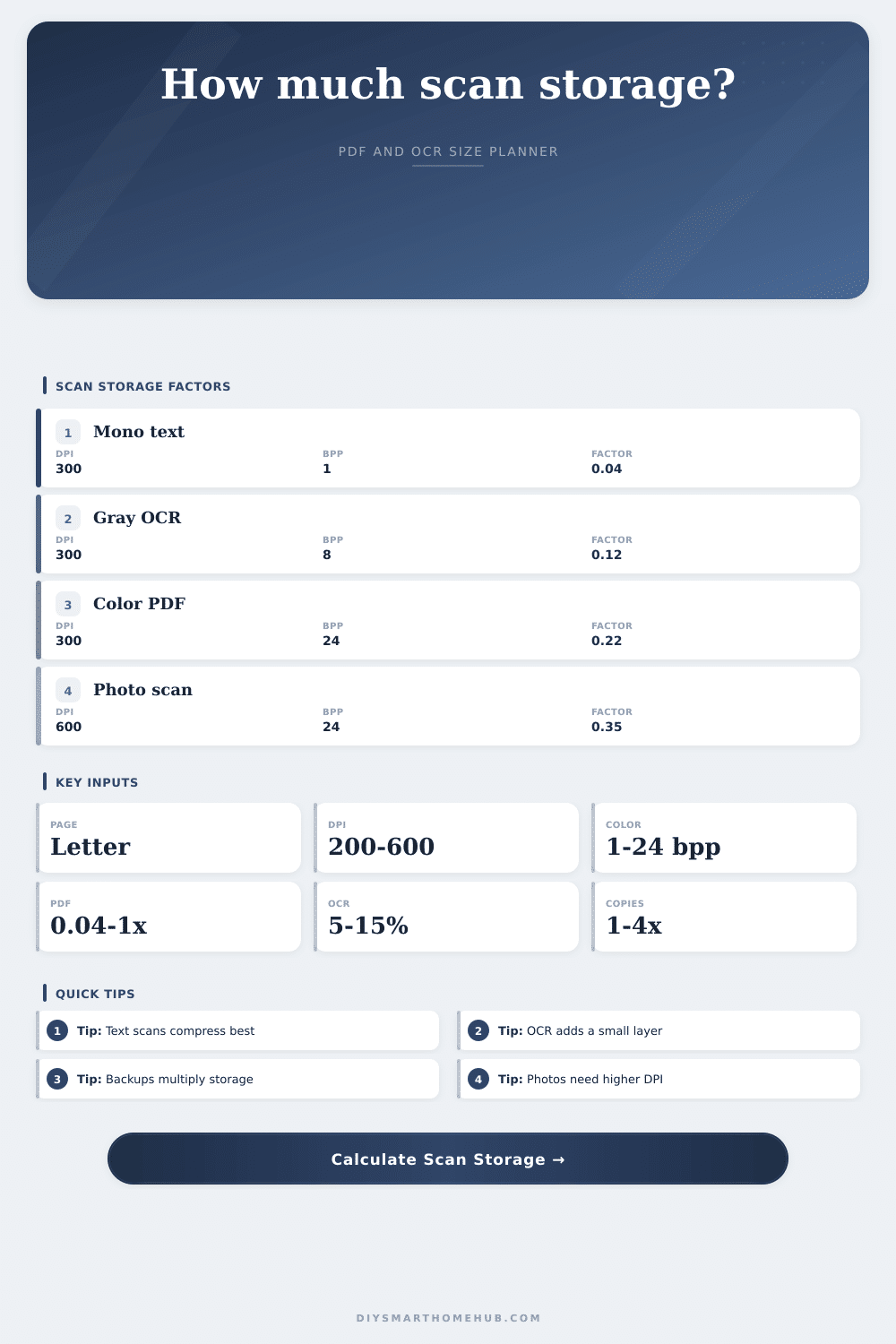
The first thing to blame is usually resolution. Sounds like a good number, six hundred DPI. But that’s squaring the pixels. That makes it four times larger then the usual three hundred DPI scan. Unless you’re scanning something like a delicate map or perhaps a watercolor painting, do you really need all of that detail? Text scans… Particularly in monochrome mode. Compress like a dream. So when you enter your settings and dimensions into the calculator above, it does the math for you. And it spares you the guesswork about if your cloud plan can take it. All you have to know is what you’re going to feed it.
Color depth is another factor. Full-color images generate three times as much raw data as a grayscale image. That’s before any kind of compression has even been applied to the file. And if most of what you’re scanning consist of black text on a white background, you might want to consider staying with black and white. It can be highly compressed; often a page reduces down to just fractions of a megabyte.
Next comes grayscale. Use that for faded ink and other details like signatures, but it will weigh more heavily than black and white.
Finally, there’s Optical Character Recognition. That’s the added layer of searchable text, on top of the image itself. Usually it’s a modest addition, something between five and fifteen percent. But again, over thousands of pages, it’ll add up.
That’s when most home offices fall down: retention policy. Everything gets archived under some blanket “I’ll get around to sorting that sometime” policy. And then you don’t. In order to store all those documents for seven years (just in case), you have to plan for seven years worth of expansion. And what about backing it up? Chances are most people want two sets of their data… One locally and another in the cloud. So now you double your storage requirements there.
The table on the page spells that out. It shows how different compression profiles affect the end result. For example, an archival scan might save every single pixel so nothing ever gets lost. That requires lots and lots of storage space. But then a more standard JPEG-based PDF does something different. It gives up the tiniest bit of detail while making the file size much smaller. And even at that small file size, they’re still perfectly legible onscreen.
Think about how much you’re scanning. Maybe your business only scans forty pages per day. Or maybe your house scans fifty pages a month. That’s a huge difference in terms of annual storage. Fifty gigabytes of storage could be enough for one person. Five terabytes of storage could be enough for another person. Knowing that range will help you decide: Do I just need something like an external drive? Or do I need something stronger, like a dedicated network-attached storage solution?
If you know where you stand, it’ll help you have the talk with yourself (or other family members) about what to keep. High-res color scans of all your grocery receipts from 2019? Probably not that necessary. Low-res grayscale scans instead can free up some space. Deleting them completely can free up even more space. This leaves space for the truly important stuff, like legal agreements and tax documents.
That’s the trick. You’re not storing pictures; you’re storing history. But it doesn’t have to be perfect to be useful. It just needs to be accessible and readable. After you set the right color settings and the right resolution for your content, it will start behaving predictably. You’ll know how much storage you need. You’ll be able to make a backup plan confidently. You’ll be able to pick a cloud plan confidently. It is not out of panic.
The stack of paper in that cardboard box in the closet has limited space. But its digital copy knows no bounds. Scan only what you need from the start so your records and memories stay intact. Not one bit more than needed is stored on your device, not that it needs to be buried by extra data anyway. It’s about clarity, not just capacity. Store less, scan smarter. Preserve what matters. If you need it, it’ll still be there in the box in the closet. Your hard drive may not.