Movie Transcode Time Calculator
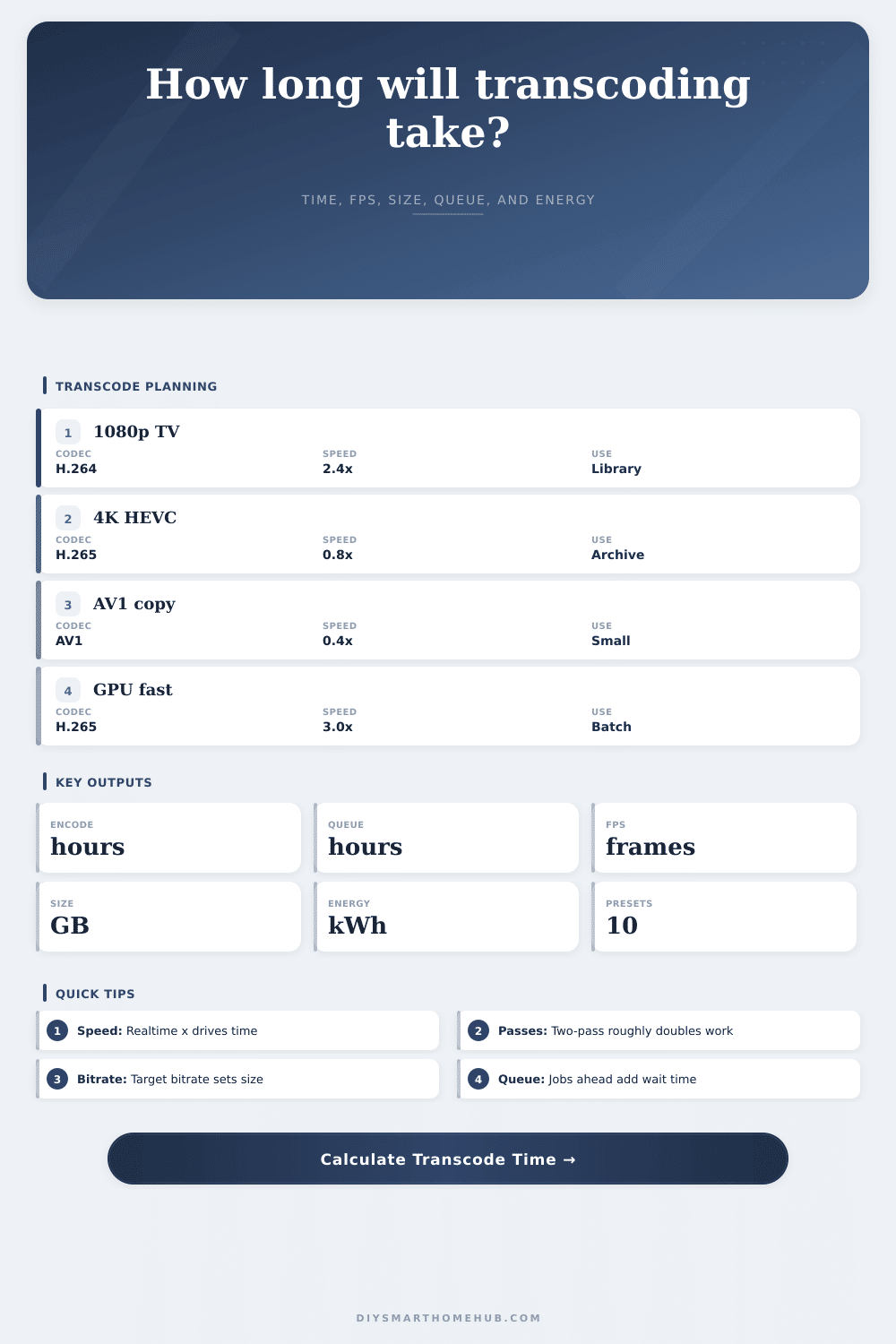
Estimate movie transcode time from source duration, resolution, codec complexity, bitrate, CPU or GPU speed, hardware acceleration, encode passes, queue count, and power draw.
| Video bitrate | 90 min movie | 2 hr movie | 3 hr movie | Typical use |
|---|
| Effective speed | 90 min source | 2 hr source | 3 hr source | Interpretation |
|---|
| Preset | Duration | Codec | Effective speed | Encode time | Output size | Energy | Status |
|---|
| Jobs ahead | Queue time | Finish after | Energy total | Energy cost |
|---|
The 4-hour movie starts streaming, and then it buffers, again, the tenth time in ten minutes. If you have ever operated a home media server, you know that feeling. And it’s not usually an issue with the internet. It’s always a middle-bottleneck: something has to be converted on the fly from one codec language to another so your TV can understand what your downloaded file say.
The calculator above estimates how long this conversion will take, and once you get a feel for how it all adds up, you’ll never look at your library the same way. You’ll suddenly have a game plan.
How to Calculate Transcoding Time
That’s what transcoding is: a hardware translation. You’re taking a file, which is encoded as H.264, say, and re-encoding it into something else. You might use H.265 to compress it even more, or you might scale it down to 720p instead of 1080p. Your hardware has to computes every single frame.
And here’s the thing: The workload depends on what you give it. What goes in matters.
First up: resolution. That is where multipliers begins. A 4K file contains four times the number of pixels than a 1080p file. Double the resolution? It quadruples the data your GPU or CPU needs to crunch through. That’s why going from HD to UHD slows things down so much. You’re not simply increasing the workload; you’re exponentially increasing the workload.
The second big variable is codec complexity. H.264 has been around for a while… It’s a very efficient codec that also happens to encode fairly fast. H.265 offers better compression at the cost of significantly higher computational overhead. And then there’s AV1… It’s super-aggressive on the encoder side. These complexity factors adjust the speed of the tool. Encode AV1 on your CPU? You’re waiting. Moddern GPU with hardware acceleration? Your timeline gets smaller. That’s shown in the hardware acceleration factor in the model. That’s like the difference between using a word processor and writing stuff down with a pencil.
Finally, while the actual encoding time isn’t related to the file size (that’s determined by bitrate), it does relate to the amount of space you’ll save. For example, a high bitrate means a smaller compression ratio, which leads to a bigger filesize. So if your goal is to archive movies and save space on your drives, you’re looking for a low target bitrate, but not so low as to look blocky. Generally speaking, the sweet spot for 1080p is somewhere in the six- to twelve-megabit-per-second range.
That’s where the output size calculation comes into play. It allows you to visualize that tradeoff: How many gigabytes will I get back for every hour of video?
Most folks under-appreciate how much effort goes into queue management. It’s not hard to transcode one movie in an afternoon. Fifty movies is a lifestyle change. To help you plan, the calculator has a field to count your queue. Assuming that your five jobs take two hours apiece, that means you’re waiting ten hours. And that’s what most folks miss: they think “oh this thing can do one file per second,” but don’t account for the cumulative time of all those files. This is key when dealing with overnight batch jobs: you’d like to know whether the queue finishes by the time you wake up.
There’s also the issue of energy use: You’re using power when your server is encoding. If it takes twice as long to encode because it runs on the CPU and not a hardware-accelerated GPU, then you’ve used double the amount of energy by keeping a full-throttle CPU going for twice as long. That’s where the energy cost output comes in. It shows the difference between efficient process and the wasteful one, again, a tiny detail, but it adds up if you’re converting a big library over a few weeks. More efficient means less overall energy used… even if peak usage was higher.
This is a better way to encode. Two-pass encoding analyzes your video first. Then it encodes using a consistent bitrate distribution, which generally improves quality. This takes about twice as long. One pass is enough for most streaming content, unless you are archiving something that you will watch 100+ times. Perfection isn’t the objective; playability is.
These are the factors that let you understand what’s going on. When it comes time for the hardware/software decisions; when you want to sit down at your machine and do something, you’ll have those options in front of you and can make an informed choice rather than guessing. That way when the stream makes your server choke, you know if it requires upgrading some hardware, changing the codec, or waiting awhile.
You hit play, and the movie begins, this time.