DIYSmartHomeHub storage planner
Media Library Storage Calculator
Estimate how much NAS storage a movie, TV, music, and photo library needs after RAID parity, monthly growth, 3-2-1 backup copies, and drive cost per usable TB.
Current library
0 TB
after safety buffer
RAID usable
0 TB
after filesystem overhead
Growth runway
0 mo
at entered monthly growth
Cost per usable TB
0
array drive cost only
Formula breakdown
The calculator converts gigabytes to terabytes with 1024 GB per TB for library math.
RAID 5 and RAIDZ1 reserve one equal drive for parity capacity.
RAID 6 and RAIDZ2 reserve two equal drives for parity capacity.
Two backup copies means three total copies, matching the storage part of 3-2-1 planning.
Average media size examples
| Media type | Small | Typical | Large |
|---|---|---|---|
| Movie file | 2 to 4 GB | 6 to 12 GB | 25 to 80 GB |
| TV episode | 0.4 to 1 GB | 1.5 to 4 GB | 8 to 25 GB |
| Music track | 3 to 8 MB | 8 to 12 MB | 25 to 80 MB |
| Photo | 2 to 5 MB | 5 to 12 MB | 25 to 80 MB |
RAID usable capacity rules
| Array type | Usable formula | Parity overhead | Planning note |
|---|---|---|---|
| No RAID / JBOD | N x drive TB | 0 drives | Capacity only, no RAID redundancy. |
| RAID 1 | 1 x drive TB | N - 1 drives | Mirror capacity equals one drive. |
| RAID 5 / RAIDZ1 | (N - 1) x drive TB | 1 drive | Needs at least three drives. |
| RAID 6 / RAIDZ2 | (N - 2) x drive TB | 2 drives | Needs at least four drives. |
| RAID 10 | floor(N / 2) x drive TB | about half | Needs an even drive count for clean pairs. |
Common home library sizes
| Profile | Library signal | Array target | Backup target |
|---|---|---|---|
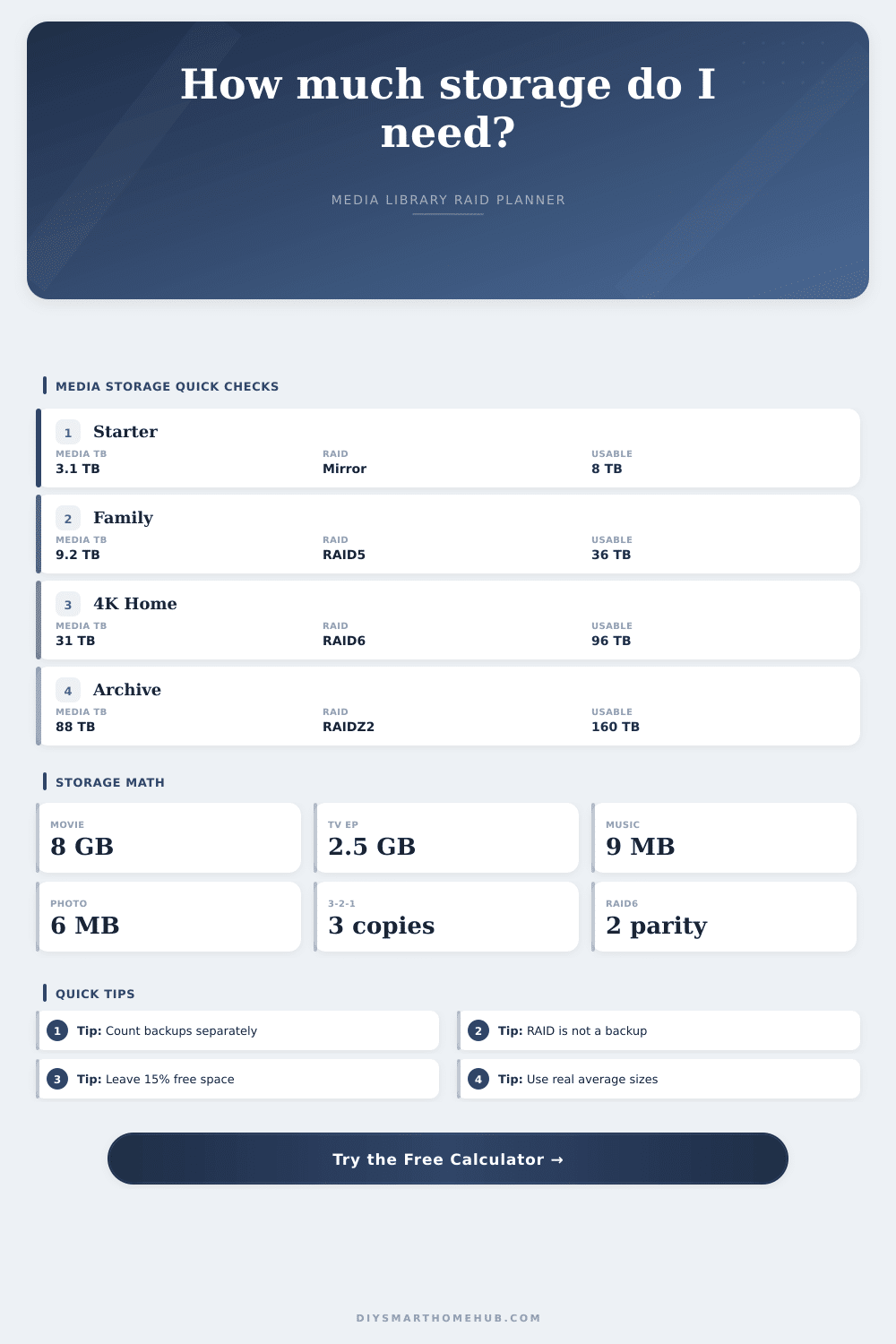
| Starter server | 2 to 5 TB | 8 to 16 TB usable | Primary plus one or two copies. |
| Family NAS | 6 to 15 TB | 24 to 48 TB usable | Use offsite copy for photos. |
| 4K theater | 25 to 60 TB | 60 to 120 TB usable | Separate archive backup planning. |
| Deep archive | 80 TB+ | 120 TB+ usable | Confirm restore paths and cataloging. |
Growth and reserve checks
| Check | Formula | Good signal | Watch signal |
|---|---|---|---|
| Monthly growth | new counts x avg size | Known import pace | Unknown photo or 4K bursts |
| Reserve | usable x reserve % | 10% to 20% | Near-full arrays |
| Backup TB | library x total copies | 3 total copies | RAID counted as backup |
| Cost/TB | drive cost / usable TB | Compared by usable TB | Compared by raw TB only |
You get one movie, then another, rip some DVDs to clear out your shelf, backup those phone pics. Next thing you know, the hard drive lights is flashing red. Sound familiar? Anyone who has stored digital media with no plan knows that panic. It snowballs, and it keeps on piling up. Before you know it, you need more drives.
But first: how do you know what your measuring? It’s the math the calculator does, but we have to enter the right numbers into it. It won’t total up files. You have to weigh them. And a movie isn’t a single thing; instead it’s something that changes according to its bitrate, resolution and codec. That means you can’t count movies. Instead, the calculator ask for the count plus average size. If you don’t, the estimate will be off because your collection includes both standard definition TV rips and some larger 4K versions. The reference table illustrates that there is a gap between a small MP3 and a large FLAC file; it’s quality versus space, not volume.
Stop Guessing Your Storage Needs
This leads into a confusion: many people think that RAID = backup, but it doesn’t. RAID protect against drive failure by keeping the array up and running, it doesn’t protect against ransomware or any other sort of data corruption or deletion. The calculator differentiates between the two by asking how much spare capacity to devote to backups. How many copies do you want? You’ll need to account for space in the main array as well as two copies somewhere else (on site or off). This is the most common error; you can create an enormous NAS without any room for necessary copies.
It’s silent, but it eats space: RAID overhead. RAIDZ2 (aka RAID 6) or other dual parity arrays eat up two drives of space for redundant storage. That’s good insurance in an array that grows large, and it’s a fair trade off, but it’s eating raw terabytes just for safety. The calculator deducts for this; it also deducts some for filesystem overhead and a safety buffer. Because write speed falls off when a disk is full, most NAS systems benefits from leaving at least a safety margin, caching, snapshots, etc. These require free space, and you don’t want a rebuild to take forever if one drive fails while your primary drive are full. Fifteen percent free isn’t wasteful; it’s insurance.
It’s the growth runway that counts, not how much capacity you have now A library is a living thing; every week you’re adding new episodes. You’re importing photos from your vacation. The tool estimates its growth, in months, as you use it. So if you’ve got two months of headroom, but you’re growing at forty gigabytes per month, then you’re already playing catchup. Plan for growth so that you don’t play this game of constantly expanding. This also forces you to think past what you need today and see the end state.
When evaluating drive deals, a handy yardstick is cost per usable terabyte. A bargain drive might sound great, but when you account for overhead and parity, things change. By breaking down the price tag into what’s really needed, the calculator divides the overall drive cost by how much usable space you get, which eliminates marketing noise from the sticker price. Now you can evaluate a large amount of cheap drives or a few expensive drives on an apples-to-apples basis. Usually, you’ll find the drive with most usable space costs about the same as the others.
That’s where the magic is, the presets. Once you’ve picked a profile (such as Deep Archive or Family NAS), it pre-fills all of the fields with reasonable averages. From here, you can adjust for your own behavior. Is your photo collection unedited? Raise those numbers. Got a lot of music? Increase the track density. Bump up number of tracks per disc. It will fit most differences.
It’s not about purchasing storage equipment, it’s about understanding what you can store, and then managing those expectations. There’s no point in getting a terabyte of storage if you don’t have a finite collection to go with it. A terabyte won’t hold infinity. Storage isn’t about fitting as many movies into a drive as possible; it’s about figuring out where your patience lies, and then matching your collection to your wallet. Once you understand your actual needs (i.e., a copy plus a buffer), the rest falls neatly into place. The decision-making becomes easy.
No more guesswork, just build. No more red drive notification, just the soothing hum of a system that, for once, makes sense. You should of checked the math earlier. Everything looks naturaly good now.