Multi-Camera Bandwidth Aggregation Calculator
Total the live stream load from mixed 1080p, 2K, and 4K cameras, add network overhead, compare Wi-Fi or Ethernet throughput, check the NVR uplink, and estimate storage for continuous or motion recording.
Group A
Group B
Group C
Network path
Calculation breakdown
| Camera profile | Typical bitrate | Continuous GB/day | Planning use |
|---|---|---|---|
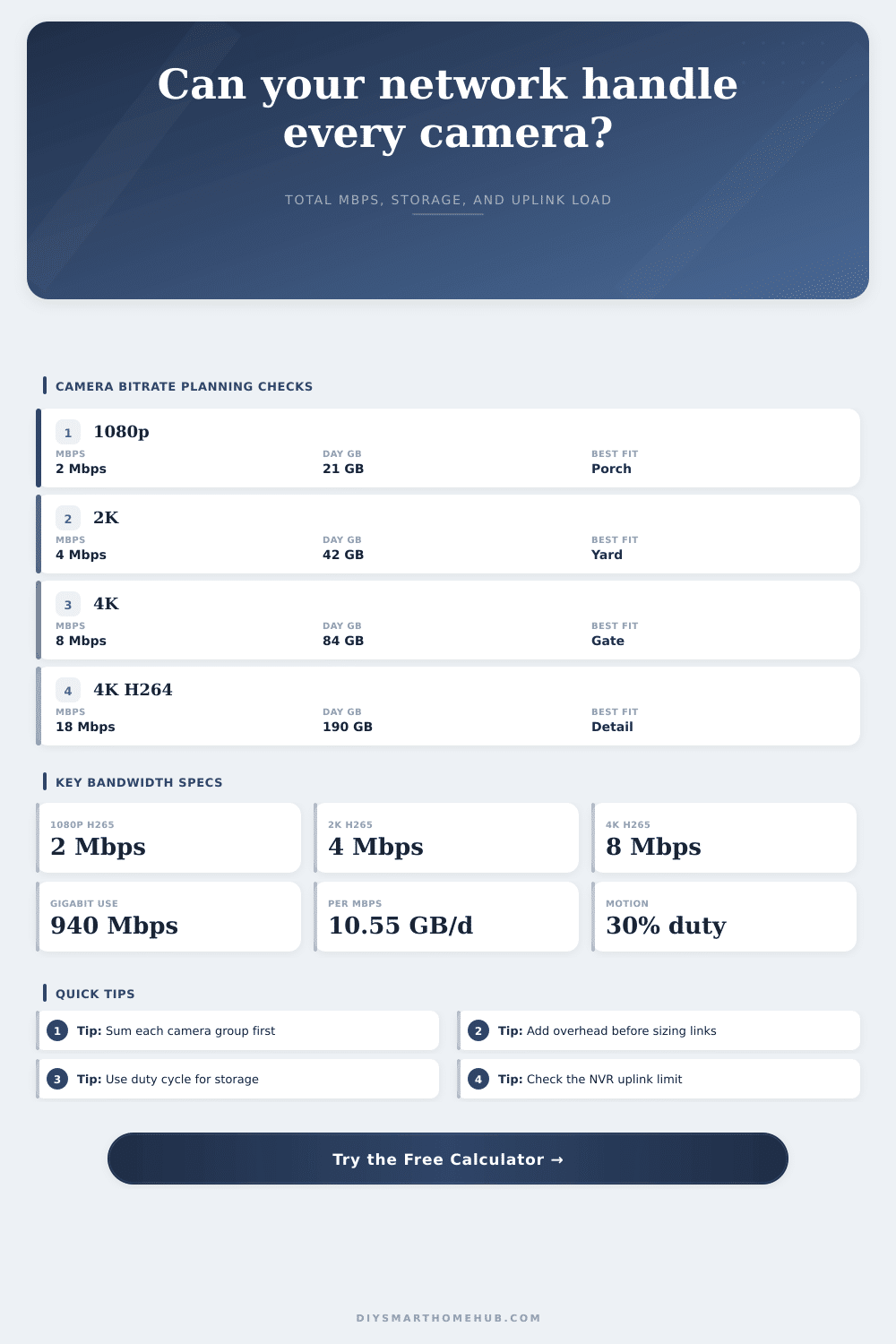
| 1080p, 15 fps, H.265 | 2 Mbps | 21 GB per camera | Porches, halls, side yards, and general detection zones |
| 1080p, 30 fps, H.264 | 5 Mbps | 53 GB per camera | Smoother motion where storage and uplink are not tight |
| 2K, 20 fps, H.265 | 4 Mbps | 42 GB per camera | Balanced driveway, backyard, and front entry detail |
| 2K, 30 fps, H.264 | 8 Mbps | 84 GB per camera | Older NVRs or cameras that do not encode efficiently |
| 4K, 15 fps, H.265 | 8 Mbps | 84 GB per camera | High-detail outdoor views with modern encoding |
| 4K, 30 fps, H.264 | 18 Mbps | 190 GB per camera | Maximum detail plans that need strong wired uplinks |
| Network path | Usable throughput | Suggested camera load | Aggregation note |
|---|---|---|---|
| 2.4 GHz Wi-Fi | About 70 Mbps | Keep below 35 Mbps with overhead | Shared airtime, interference, and distance make this the tightest path |
| Wi-Fi 5 mesh hop | About 180 Mbps | Keep below 90 Mbps with overhead | Backhaul sharing can reduce stable camera capacity |
| Wi-Fi 6 access point | About 350 Mbps | Keep below 175 Mbps with overhead | Better airtime efficiency, but cameras still stream constantly |
| Fast Ethernet | About 94 Mbps | Keep below 70 Mbps with overhead | Can bottleneck older NVRs or uplink ports with many 4K cameras |
| Gigabit Ethernet | About 940 Mbps | Keep below 700 Mbps with overhead | Comfortable for most home PoE camera aggregations |
| System size | Camera mix | Raw Mbps | Motion storage at 30% |
|---|---|---|---|
| Small apartment | 4 x 1080p H.265 | 8 Mbps | 25 GB/day, 0.34 TB for 14 days |
| Suburban home | 4 x 1080p plus 2 x 2K | 16 Mbps | 51 GB/day, 0.71 TB for 14 days |
| Perimeter detail | 4 x 2K plus 4 x 4K | 48 Mbps | 152 GB/day, 2.13 TB for 14 days |
| Large NVR | 16 x 4K H.265 | 128 Mbps | 405 GB/day, 5.67 TB for 14 days |
| Overhead item | Planning factor | Where it appears | Why it matters |
|---|---|---|---|
| IP, TCP/UDP, and stream wrapping | 10% | Wired LAN | Real traffic is larger than the encoded camera payload |
| Mixed switches and live viewing | 20% | Common home LAN | Good default when cameras also serve apps or displays |
| Wi-Fi retransmits and airtime sharing | 35% | Wireless cameras | Camera streams compete with client devices and backhaul |
| Weak Wi-Fi or mesh repeat hops | 50% | Conservative plan | Extra headroom helps avoid choppy live view and dropped frames |
PoE switch to NVR
Best for steady multi-camera ingest. Check whether the switch uplink and the NVR LAN port are Fast Ethernet, gigabit, or 2.5GbE.
Wi-Fi camera cluster
Works for light totals, but aggregate airtime is the limit. Use the overhead setting aggressively when several cameras share one AP.
Mixed resolution plan
Use 4K only where target detail matters. Keeping porch or indoor views at 1080p often saves more bandwidth than lowering all frame rates.
Motion-only storage
Duty cycle reduces stored data, not the peak network load during active streaming. Keep sizing links for the simultaneous live stream total.
Ever installed those fancy new security cameras, pressed record… then realized your whole WiFi network just died? It’s happened to more people than you’d expect. A security camera feels like this little lightweight thing. It is barely a blip on today’s broadband scales for one HD stream. Video surveillance are an aggregate problem. The problem isn’t even really the camera. The problem is math of adding them up. Six cameras going simultaneously is a huge data firehose on your network. That’s where people miss. They buy the cameras first and check network capacity later, usually it’s too late.
This means you won’t have to try and guess what aggregation math will be, the calculator up top does it all for you. Simply input your unique blend of codecs and resolutions; it’ll sum them up to give you a total load. And if your system has more than one camera type, you can group those together, too, just like real systems is set up. For example, maybe you’ve got two high-end 4K units for reading license plates at the front gate and four standard 1080p cameras for general perimeter coverage. The tool models that exact configuration.
How to Plan Your Network and Storage
Then it applies a realistic overhead factor for things like IP headers, protocol wrapping and general mess of wireless retransmissions. That tells you if your Wi-Fi mesh or gigabit switch will be able to handle the traffic; or choke on it.
The other hidden cost is typically storage. Bitrate and storage is closely related. Recording in H.264 at 4K produces a huge amount of data per day. When you record that raw video, those hard drive get filled up quickly. To help with storage, most moddern systems have motion triggered recording. This allows you to specify a duty cycle on the calculator so it can account for that. Let’s say that only thirty percent of the day has motion. That reduces your storage requirements greately.
You want to size your network based off your peak live stream, but only your hard drives need to store what was recorded. Knowing that difference will keep you from buying too little or more storage or bandwidth.
There’s another wrinkle with wireless cameras that doesn’t exist with wired ones. Wireless cameras shares the airtime between them. In a wired configuration, each camera gets its own dedicated pipe back to the switch. So if you’ve got three Wi-Fi cams hooked up to one access point, they’re all vying for a piece of the pie. That’s why the tool applies more overhead percentage to wireless paths, it recognizes that there will be some amount of interference and contention on your Wi-Fi network, and it factors that into math. It is not a huge deal, but it still matters. Something that appears great on the theoretical side for wired Ethernet could come crashing down on wireless due to dropping usable throughput as multiple devices speaks at once.
You also have some control over this load via codec lever. The newest video format, H.265, is much more efficient then its predecessor, the older H.264. It delivers similar image quality at about half the bitrate. So if you’re starting fresh with a new system, using H.265 (or newer versions of it) will cut storage and bandwidth requirements in half while preserving image detail. Check the spec on your cameras to see if they supports H.265. Enabling the appropriate compression setting in camera app makes all the difference between a smooth-running network and a congested one.
Basically, you just don’t want to go overboard on hardware. You want storage that can holds the footage as long as you’d like. You also need enough bandwidth to handle all those streams while leaving a bit of room for everything else running in your network. If you don’t look at the big picture, it’s easy to spend too much on a camera system. When you get the aggregation right, though, your security system will work whenever you need it, and wouldn’t slow down anything else in your home.