Mesh Node Count Calculator
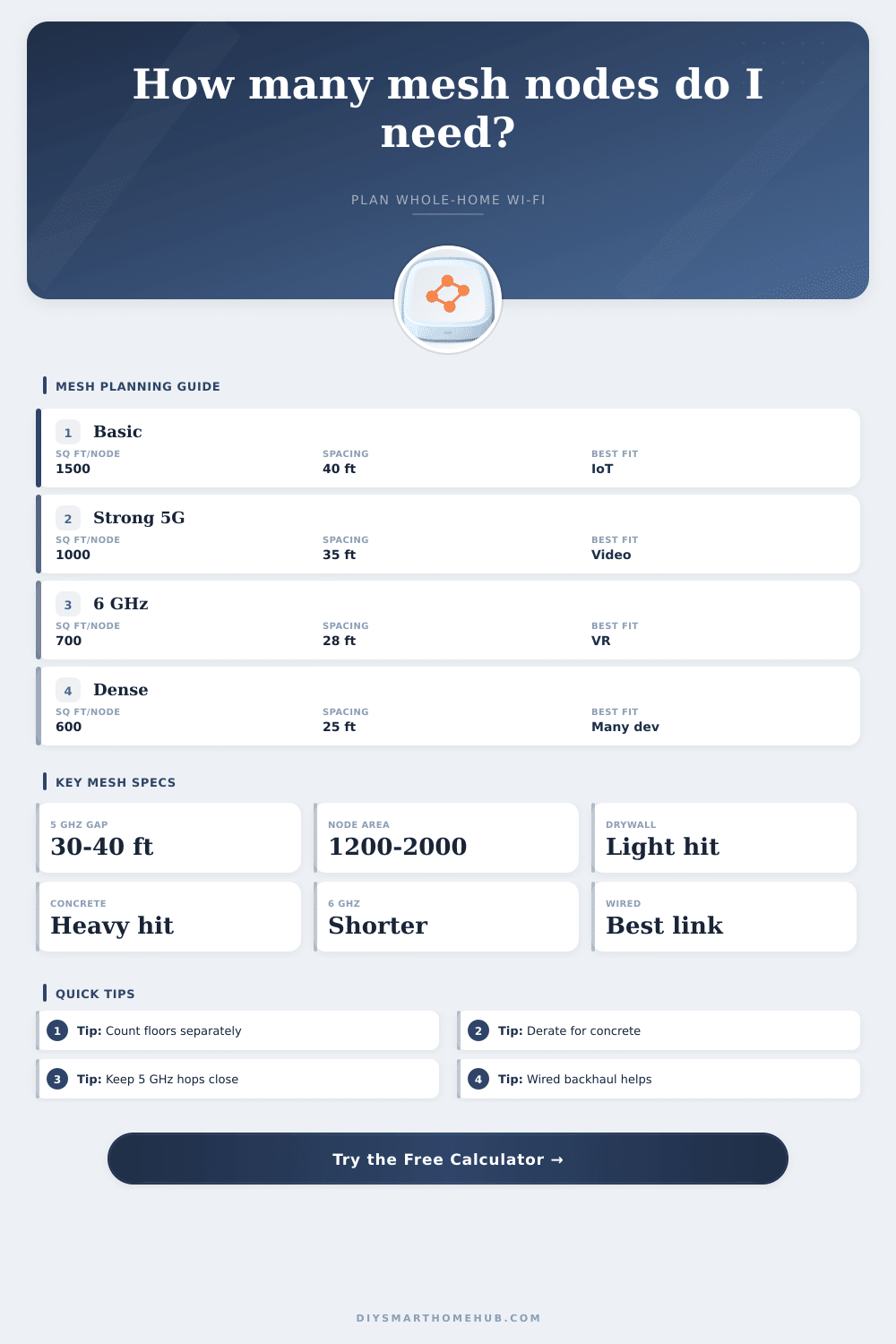
Estimate how many mesh Wi-Fi nodes a home needs from floor area, floors, wall and ceiling losses, Wi-Fi class, backhaul type, spacing target, and device density.
📶Mesh Planning Presets
⚙Coverage And Load Inputs
Mesh node estimate
Calculation breakdown
📊Mesh Spec Grid
🖥Wi-Fi Generation Comparison
📐Reference Tables
| Mesh class | Planning coverage | Wireless spacing | Planning note |
|---|
| Obstruction | Planning effect | 5 GHz impact | Calculator factor |
|---|---|---|---|
| Open space | Best-case node coverage | Longest spacing | 100% baseline |
| Light interior wall | Small to medium loss | Keep more overlap | 8% coverage hit each |
| Brick, tile, plaster, masonry | Large signal loss | Often needs a closer node | 18% coverage hit each |
| Concrete floor or ceiling | Large vertical loss | Prefer one node per floor | 15% coverage hit each |
| 6 GHz priority rooms | Shorter practical range | Needs closer same-floor nodes | 35% target reduction |
| Home scenario | Area | Typical nodes | Reason to add a node |
|---|---|---|---|
| Apartment or studio | 500-900 sq ft / 46-84 m² | 1 node | Concrete walls, far office, or 6 GHz target |
| Single-floor ranch | 1200-1800 sq ft / 111-167 m² | 1-2 nodes | Long hallway, garage edge, or segmented rooms |
| Two-story home | 1800-2800 sq ft / 167-260 m² | 2-3 nodes | Floor loss, office room, cameras, or shared wireless backhaul |
| Large or dense home | 3000-4500 sq ft / 279-418 m² | 3-5 nodes | Masonry, additions, 6 GHz rooms, or high device load |
| Home office / studio | 1000-2500 sq ft / 93-232 m² | 2-4 nodes | Video calls, NAS clients, low-latency work zones |
| Coverage target | Use case | Spacing guide | Coverage multiplier |
|---|
🔧Mesh Planning Tips
The frustrating moment: You’re standing right next to your router yet watching a video buffer on the other side of hallway. There’s no such thing as bad luck; there’s only physics battling your floor plan. Mesh systems are the compromise solution that lets us live with this.
By plugging in your real-life situation into the calculator above, you’ll cut through all the marketing noise and know precisely how many nodes will be enough for your setup, not just your square footage. Most of us fall victim to buying a two pack since it comes in the same box as “enough,” while forgetting how each hurdle Wi-Fi has to jump degrades its signal.
How Many Nodes Do You Need?
Raw area is where the math begins, but real-world considerations such as floors and walls soon turn this into something else entirely. Brick and concrete are closer to a wall of water than a drywall partition is to a signal; radio waves must swim their way across these obstacles. Heavy masonry crossings will cause the tool to dramaticly lower its projected coverage, since high-frequency bands don’t punch effectively through denser materials. Two otherwise-identical floor plans could therefore require vastly different numbers of nodes based off which type of building material was used (plaster mesh versus simple gypsum board). It’s a minor difference in construction, but a huge variable in networking.
It gets more complicated still if you’ve got vertical separation: If your house has a suspended ceiling (with all its ducts and insulation) or a slab foundation, Wi-Fi signals don’t like crossing floors… And they really don’t like it. Sending signals across multiple floors are notoriously unreliable for getting good speeds; the calculator treats each floor as a separate zone. In many cases, it’s going to be less expensive in the long term to throw up a single node per floor rather than try to bridge two stories by placing a single powerful unit somewhere smack dab in the middle of the home.
Construction materials has an effect on radio waves, but gravity does not. And then there’s what happens between your own nodes: backhaul. You want to avoid using the same airtime between your nodes that you use for your devices, otherwise you’re halving your available bandwidth with each wireless hop. Wired Ethernet connections or dedicated tri-band hardware completely change the setup by providing another lane for node-to-node communications. This is where the tool will adjust its spacing recommendations accordingly. In other words, if you don’t have a dedicated path, nodes must be closer together in order to get a healthy link, requiring additional nodes to cover same physical space. It’s a trade-off many buyers miss out on until they realize their video call starts to stutter.
Coverage area isn’t everything, it’s also important to think about device density. Is this a one-bedroom apartment? Or is it a five-bedroom vacation rental where guests might all have their own 4K TV, gaming console and VR headset going at the same time? A few high-demand apps will suck up airtime fast, so if you’re looking to light up a bunch of smart bulbs (50, for example), that’s very different than lighting up a handful of 4K TVs (four). You don’t want to overcrowd a single node; that would be a bottleneck, even if the signal were strong. The calculator consider load to recommend headroom because it knows if your nodes are active and if they are performing useful work when they arrive.
To understand how that plays out, you don’t need to be a network engineer, you can watch it happen by walking from your home office to the kitchen and noticing where signal starts to drop. All of those variables (hardware class, device hunger, wall types, number of floors) gets combined into an understandable estimate. It is not a guarantee of perfect coverage, mind you, but it is a road map for minimizing dead zones.
A mesh system is only as good as its weakest link in the chain. Skip some nodes for budget reasons? You’re inviting instability and latency into your most important spaces. It’s not about connectivity: It’s about consistency. And when you get to know how Wi-Fi physics interact with the structure of your home, the buffering spinners fade away, replaced by a network that’ll work just as hard as you do.
You should of checked the coverage first.