WiFi Devices Per Router Calculator
Estimate practical router WiFi capacity from client classes, radio bands, airtime utilization, Mbps demand, IoT chatter, streams, interference, and wired offload.
🎯Smart Home Router Presets
📶Router, Radios, and Planning Target
🔌Client Counts by Class
⚙Traffic, IoT Chatter, and Offload
Capacity Breakdown
📊Device and Spec Grid
📘Reference Tables
| Router profile | Practical clients | Typical PHY model | Best fit |
|---|---|---|---|
| Basic dual-band WiFi 5 | 40 to 70 clients | 2.4 GHz plus 5 GHz, lower efficiency | Apartments, light IoT, few cameras |
| WiFi 6 dual-band router | 80 to 140 clients | OFDMA-capable 2.4 GHz and 5 GHz | Most mixed smart homes |
| WiFi 6 mesh node | 55 to 100 clients per node | Shared backhaul may reduce usable airtime | Large houses with several rooms |
| Tri-band WiFi 6E or WiFi 7 | 160 to 320 clients | Separate 6 GHz or extra 5 GHz capacity | Dense media, many laptops, high throughput |
| Device class | Client weight | Typical demand | Capacity note |
|---|---|---|---|
| Sleepy IoT sensor | 0.35 client | 0.005 to 0.05 Mbps | Low Mbps, but many clients add contention |
| Chatty plug, bulb, or speaker | 0.65 client | 0.02 to 0.2 Mbps | Usually 2.4 GHz and management-heavy |
| Phone or tablet | 1.0 client | 2 to 8 Mbps when active | Best steered to 5 GHz or 6 GHz |
| Laptop or desktop | 1.6 clients | 5 to 30 Mbps when active | Can drive airtime during calls and sync |
| WiFi camera or doorbell | 2.8 clients | 2 to 8 Mbps continuous | Continuous upload exposes weak channels |
| TV, streamer, or console | 2.2 clients | 8 to 25 Mbps during video | First class to wire when possible |
| Airtime band | Channel feel | Router capacity meaning | Planning response |
|---|---|---|---|
| 0% to 45% | Light | Plenty of burst and roaming headroom | Client count can usually grow |
| 45% to 65% | Busy but stable | Good practical target for homes | Watch cameras and backup traffic |
| 65% to 80% | Heavy | Latency and retries become visible | Wire TVs, split bands, or add AP capacity |
| Above 80% | Saturated | Client count is less important than airtime | Reduce continuous streams or redesign WiFi |
| Scenario | Typical clients | Main limiter | Helpful offload |
|---|---|---|---|
| Apartment starter | 25 to 45 clients | Neighbor interference | Move TV to Ethernet if possible |
| Dense IoT home | 90 to 180 clients | 2.4 GHz contention and association load | Use hubs or separate IoT APs |
| Camera-heavy house | 45 to 90 clients | Continuous upload airtime | Wire cameras or move them to 5 GHz |
| Power user lab | 140 to 300 clients | Radio airtime and router CPU | Multiple APs, wired docks, and VLANs |
🔧Capacity Planning Tips
How many things will connect to your router? You probably know the number of device on your network. Most phones display a little counter that says forty-two clients connected. But how many of those are actualy doing anything?
Half of them might be smart light bulbs, sending out a single packet an hour. The other half may be inactive sensor keeping a reservation on the radio. The number of devices connect to your router isn’t the real issue. What you want to know is whether there’s room left for the video call you have to take at this very moment.
Wi-Fi Airtime Is More Important Than Device Count
The issue is that Wi-Fi is a shared medium. That means that any given second, all radios is allocated a limited amount of time in which they can sends data, and each client simply existing takes up some of that time. Beacons, management frames, and keep-alive signals all use airtime; even a sleepy thermostat use some airtime. Now throw in ten cameras streaming video constantly and they’re gobbling up a big chunk off the available airtime (they don’t ever shut up).
Increasing clients isn’t always better, even though you might have a gigabit internet plan. The line from outside your house are not the bottleneck. It’s the conversation going on inside your router’s antennas that no one sees.
After plugging in what kinds of devices is on your network, the calculator does all that math for you so you don’t have to guess at conversions and coefficients. Why try to figure out whether your gaming console consume more airtime then your doorbell camera? Instead, the tool segments your network up by categories such as media streams, cameras, phones, chatty plugs, sleepy IoT and more. Then it assign some realistic weight to those categories.
Browsing on a laptop? That’s worth one point of load. Syncing your cloud files or downloading updates? That jumps it a bunch. Cameras? Those are heavy because they’re streaming all the time. Knowing what those weights look like can help you understand why four 4K cameras could choke your router while a hundred smart bulb might not.
This also depends heavily on interference. In an apartment building where walls is thin, your router competes with your neighbor’s router for the same airspace. That means collisions and retries occur, which doubles or triples your airtime to send each packet of data. To account for this, the calculator has you pick an interference environment. Whether your channel is clean or noisy with high retry rates could make the difference between a router that handles eighty clients comfortabley and one that only handles half that number. And while it’s a little thing, when video freezes right in the middle of your presentation, it matters.
When the numbers gets tight, use Wired Offload. Plugging something like a gaming console or a TV into an Ethernet port mean that device no longer needs to shares airtime over WiFi. This completely removes its demands from the wireless spectrum. Before estimating capacity, the calculator will subtract number of wired clients from the wireless load. By doing this, you free up a little more airtime for your tablets and phones to roam without a hitch. Why? Because wires don’t compete for channel access. They simply deliver data. If your network seem congested, consider checking out your media devices first. Removing one high-bandwidth client to Ethernet could noticeable affect the stability of the rest of your network.
Another common mistake is assuming that newer hardware automatically means more capacity. While routers based off Wi-Fi 6 (and now Wi-Fi 7) has broader channels and do a better job of scheduling access across multiple clients, there’s no getting around the laws of physics. There’s only so much airtime on a radio band; you can’t serve more than the total amount without trading off either throughput or latency. That said, as table on the page shows, it maps different classes of routers into practical numbers of clients.
For example, while fifty clients should of been fine on a simple dual-band Wi-Fi 5 router, a half dozen active ones may push it over the edge. Adding another lane of traffic onto the 6 GHz band, using a tri-band Wi-Fi 6E router, can effectively double your usable capacity in compatible devices. But a terrible layout won’t be helped by new hardware, nor will really bad interference from adjacent buildings.
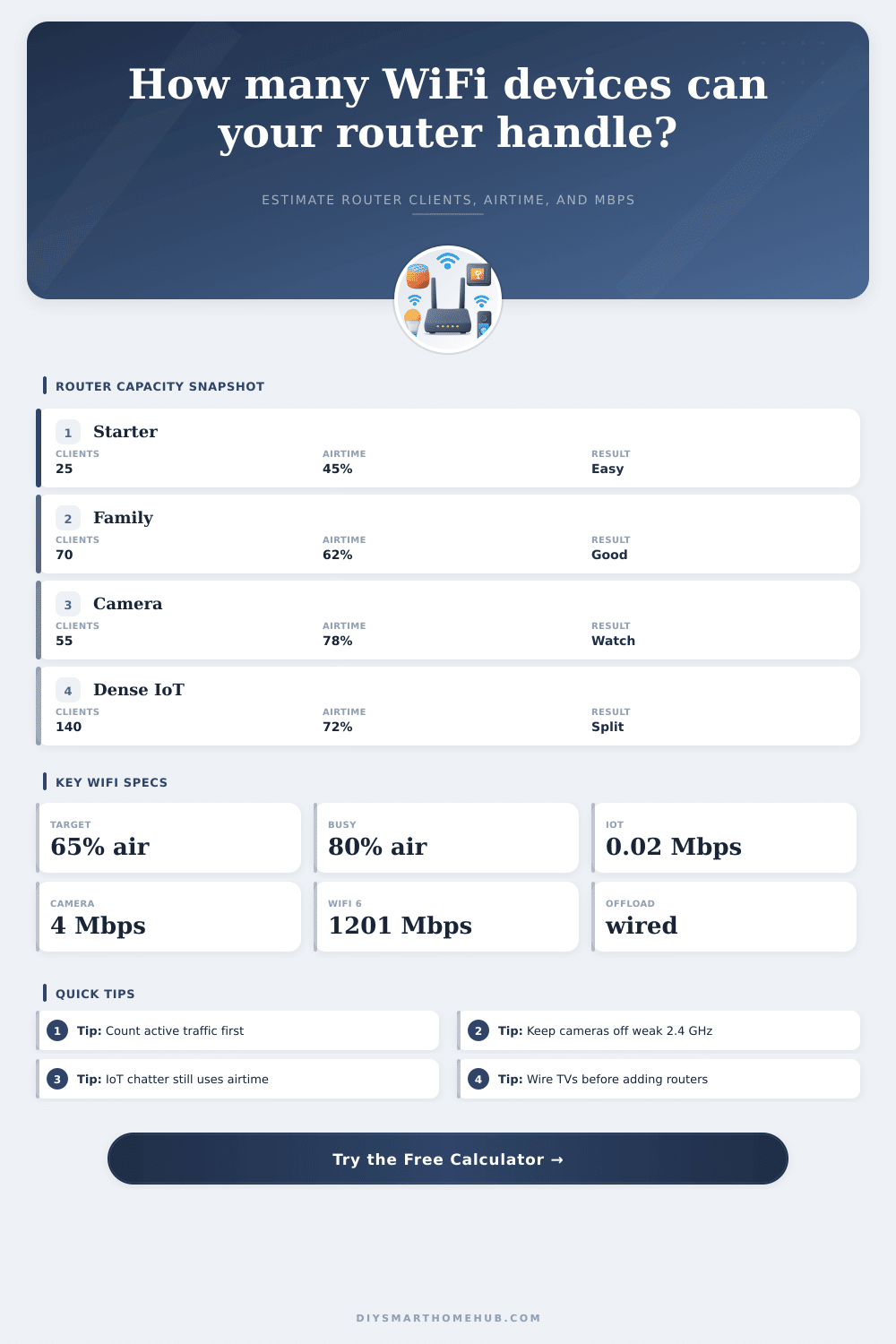
To sum up: maintaining a home network is a balancing act. Most people find that their networks are roughly 65% full before it becomes uncomfortable. They want a little breathing room for things like guests arriving or firmware updates. The calculator lets you know where you are today, and how you might prepare for tomorrow.
Now if you’re close to capacity, don’t despair, you’ve got some choices. Move those IoT gadgets to their own network segment, connect some of those heavy devices with wires, or even add an access point to distribute the load. But remember: the point isn’t to hook up everything. It’s to ensure everything works when it really matters.
And that is what people miss. They focus on the number connected, without considering the cost of airtime.