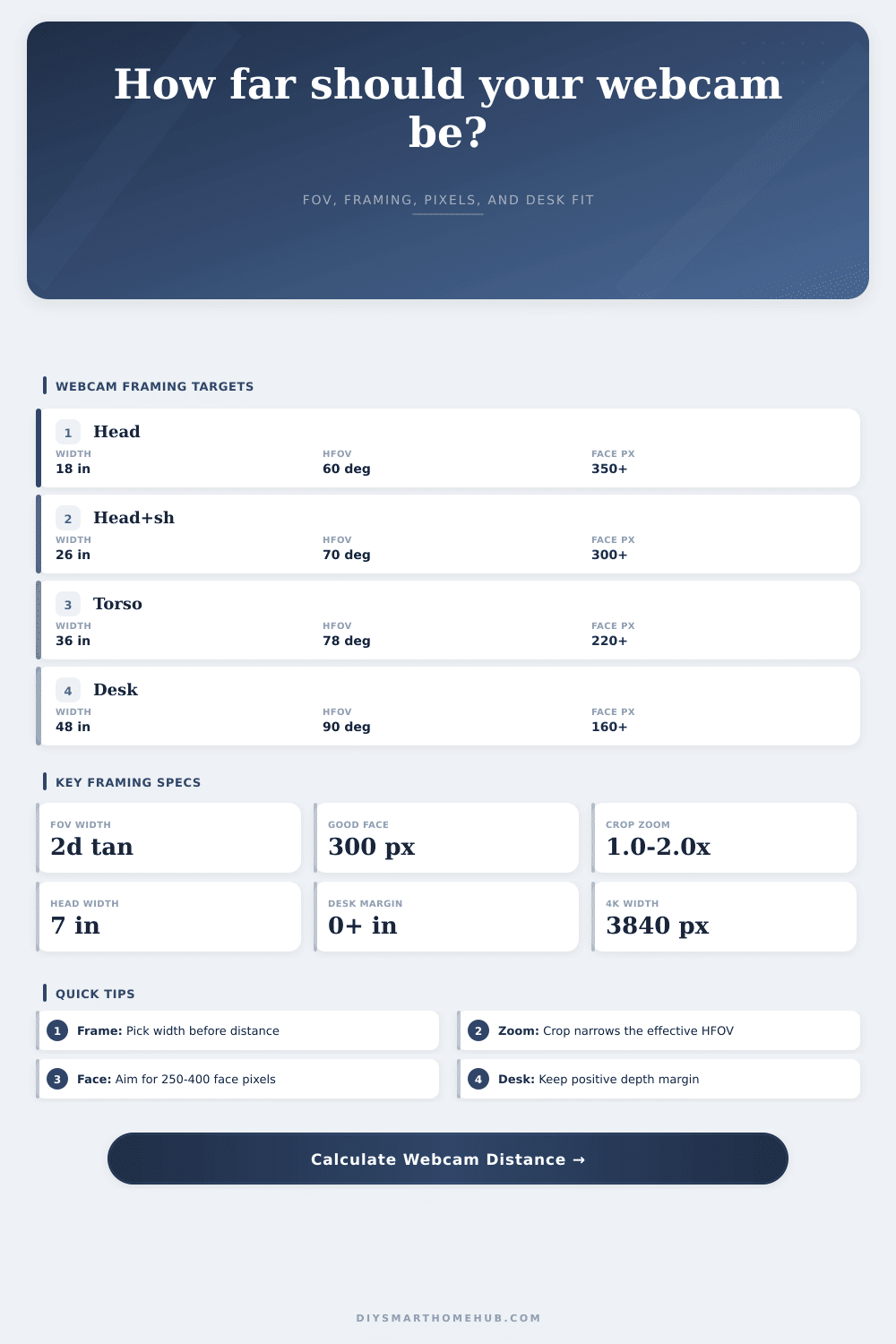
Webcam Framing Distance Calculator
Estimate webcam field-of-view width, required sitting distance for head or torso framing, face pixel detail, crop or zoom impact, monitor offset, and remaining desk depth margin.
▣ Framing Presets8 common desk and camera setups
▱ InputsGeometry and camera detail
◉ ResultsDistance, pixels, and desk fit
▦ Preset Comparison GridCalculated with each scenario
▧ Webcam Formula Spec GridCore relationships used here
▨ Framing Width ReferenceTypical horizontal targets
| Framing style | Desired frame width | Subject width cue | Face pixel target | Best use |
|---|---|---|---|---|
| Head close-up | 16-20 in / 41-51 cm | Face only or narrow shoulders | 350+ px | Small laptop view, interviews, and profile-style video calls. |
| Head and shoulders | 24-30 in / 61-76 cm | Shoulder width around 16-20 in | 300+ px | Most desk webcams and monitor-mounted call setups. |
| Upper torso | 34-42 in / 86-107 cm | Chest and arm movement visible | 220+ px | Teaching, presenting, keyboard demos, and seated gestures. |
| Two-person frame | 44-60 in / 112-152 cm | Two seated people or a wide desk | 160+ px | Shared rooms, conference bars, and sofa-side calls. |
▩ HFOV Distance TableDistance needed for 26 in framing
| Horizontal FOV | Distance for 18 in frame | Distance for 26 in frame | Distance for 36 in frame | Framing character |
|---|---|---|---|---|
| 50° narrow | 19.3 in / 49 cm | 27.9 in / 71 cm | 38.6 in / 98 cm | Good for face detail on typical desk depths. |
| 65° standard | 14.1 in / 36 cm | 20.4 in / 52 cm | 28.3 in / 72 cm | Balanced head-and-shoulders webcam framing. |
| 78° wide | 11.1 in / 28 cm | 16.0 in / 41 cm | 22.2 in / 56 cm | Easy to fit on shallow desks, lower face detail. |
| 90° ultrawide | 9.0 in / 23 cm | 13.0 in / 33 cm | 18.0 in / 46 cm | Useful for two people or desk demos, often needs crop. |
▪ Resolution and Face Detail TableApproximate face pixels
| Output width | 7 in face in 26 in frame | 7 in face in 36 in frame | Detail planning note |
|---|---|---|---|
| 720p / 1280 px | 345 px | 249 px | Usable close framing, soft if the frame gets wide. |
| 1080p / 1920 px | 517 px | 373 px | Strong for calls when compression is moderate. |
| 1440p / 2560 px | 689 px | 498 px | Gives crop room while preserving face detail. |
| 4K / 3840 px | 1034 px | 747 px | Excellent source detail before app compression or crop. |
▫ Crop and Desk Margin TableHow zoom changes fit
| Crop / zoom | Effect on effective HFOV | Desk margin effect | Detail note |
|---|---|---|---|
| 1.0x full sensor | No HFOV change | Needs the least distance for a given frame | Maximum source pixels and widest room view. |
| 1.25x mild crop | Moderately narrower | Requires sitting farther back | Often cleans up background without large detail loss. |
| 1.5x crop | Noticeably narrower | May need a deep desk or monitor arm offset | Good for ultrawide webcams on shallow desks. |
| 2.0x crop | Telephoto-like view | Distance need roughly doubles on wide webcams | Works best with 4K or 5K sources. |
◈ Practical TipsUse after reading the results
There’s something off about how remote meetings are framed today. You’re trying to present something, or run a meeting, and it look like your little head floating on a white background. Or maybe you’re zoomed too closely, and your nose is bigger then your eyeballs.
The issue of framing isn’t always an accident. Typicaly it’s because someone guessed at where to put the camera while not knowing the geometry of lenses.
How to Frame Yourself in Video Calls
What’s the problem? The field of view of the camera aren’t fixed. It depends on where you sit. And most people think: “I’ll treat distance as flexible and resolution as fixed.” That’s backward. Resolution is fixed; distance is flexible.
Your distance determine how much of the physical scene fits in front of lens. Move closer and the frame gets wider. Move back and it shrinks.
The calculator does all this math for you. It converts those lens angles into a real-world sitting distance. It makes those abstract spec numbers concrete, right on your desk.
It starts with inputs, and that’s where you get the shots right. So we start with horizontal field of view. If your angle is narrow then you see less room. That means you show off more of the subject. If your angle is wide then you capture the whole desk. That can make one person look small.
And that brings us to cropping. Lots of people uses digital zoom in their streaming software. Digital zoom actualy shrinks down what they’re showing so it effectively narrows field of view. Think of it as if you had a telephoto lens.
The tool allow you to set a crop factor to compensate. When you set a 2x crop on your wide lens then think of it as your narrow lens. In order to get the same width of the frame you need to sit further back from subject.
But another key factor is resolution. More pixels = higher res. And if you crop into something at a higher res it’ll still be sharp, whereas if you crop into something at say 720p, then you’re quick going to lose the detail. So the calculator approximates the number of pixel that get covered by your face. In general it’s safe to say that anything over 300 pixels wide will tend to look nice and clean. Anything less starts to fuzz up, particaly once you add compression on top off this for the call itself.
With a lower resolution camera you can’t count on digital cropping to rescue your framing. You need a lens whose native field of view are narrower. Or you need to physically move closer.
The desk’s depth. The next thing people don’t think about until it’s too late is how far they want to sit from their desk. They may say they want to be three feet away, but then they realize their desk is just two feet deep. You’re now limited physically by the shape of your desk.
That’s when the calculator look at the distance between what you need and what you have. What distance is that? Where do you put your monitor? Is it mounted behind your screen? Now that costs you some depth. Do you clip it to the front? Now you have more depth. That simple subtraction informs you whether or not you require a monitor arm. And does that inform you if you should of get a deeper desk? Or should you get a taller stand?
We want it all in the frame? No. We want it to look naturaly. Go a little wider for gestural shots. Use a tighter shot for facial expression. One size doesn’t fit all. Use only the one that fits your situation and your intent.
Knowing how wide you need will tell you where the camera needs to be for that. And then everything else becomes a matter of placement. Understanding what’s being measured is the trick. It’s not about getting more expensive equipment. It’s about putting the equipment you have in proper position. Get it far enough away and the frame takes care of itself.