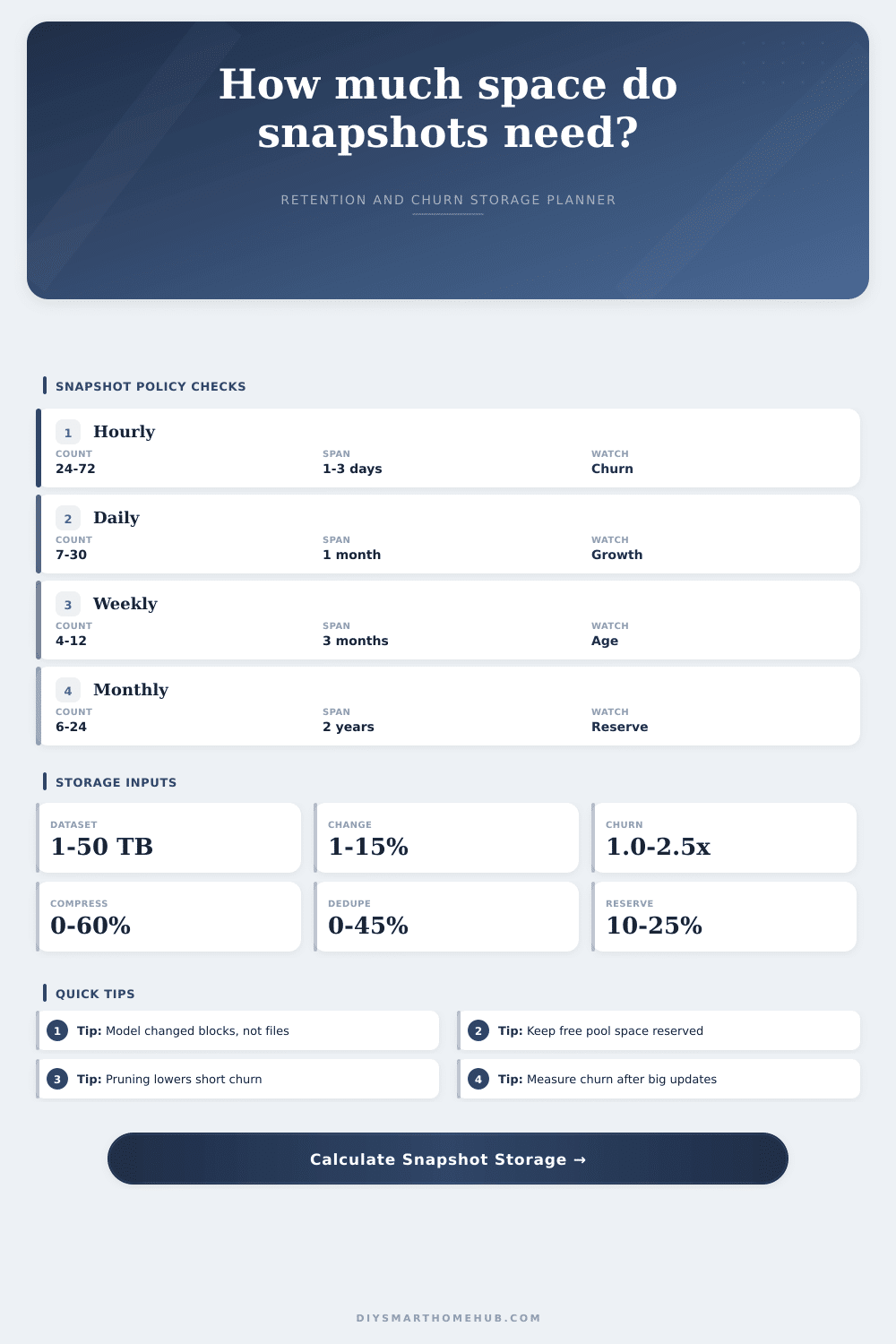
Snapshot Retention Storage Calculator
Estimate snapshot storage for a home NAS, server, VM host, or smart home recorder from the base dataset plus changed blocks retained by hourly, daily, weekly, and monthly policies, with copy-on-write churn, compression, dedupe, pruning, and free-space reserve.
Dataset size times daily change rate times copy-on-write churn.
Combined compression and dedupe applied to base plus retained blocks.
Approximate retained interval total across hourly, daily, weekly, and monthly buckets.
Capacity held back from the pool for snapshots, rewrites, and healthy pruning.
Your retention storage grid
| Bucket | Count | Interval | Raw retained | After reduction |
|---|---|---|---|---|
| Hourly | 0 | 1 hour | 0 TB | 0 TB |
Policy reference table
| Policy style | Typical counts | Best fit | Storage signal |
|---|---|---|---|
| Short rolling | 24 hourly, 7 daily | Small configs and documents | Low span, easy reserve |
| Balanced GFS | 48 hourly, 14 daily, 8 weekly | Home NAS and shared folders | Watch daily churn first |
| VM-heavy | 24 hourly, 30 daily, 12 weekly | Virtual disks and lab hosts | High CoW amplification |
| Long archive | 14 daily, 12 monthly | Photos, media, and old projects | Long span, slower pruning |
| Dense history | 72 hourly, 30 daily, 24 monthly | Audit trail style retention | Needs large free margin |
Reduction and churn guide
| Dataset type | Daily change | Churn x | Compression | Dedupe |
|---|---|---|---|---|
| Home automation configs | 2-8% | 1.1-1.4x | 40-70% | 5-20% |
| Documents and photos | 1-4% | 1.0-1.3x | 5-35% | 0-15% |
| Virtual machine disks | 5-20% | 1.5-3.0x | 10-45% | 10-40% |
| Camera video clips | 8-35% | 1.0-1.2x | 0-8% | 0-5% |
| PC image backups | 2-12% | 1.2-2.0x | 15-45% | 15-55% |
Reserve margin signals
| Free above reserve | Status | Meaning | Next calc check |
|---|---|---|---|
| More than 20% | Comfortable | Snapshots can absorb churn spikes. | Test longer monthly counts. |
| 10% to 20% | Good | Normal home NAS safety band. | Check weekly growth. |
| 0% to 10% | Tight | Pruning and large rewrites matter. | Lower high-frequency counts. |
| Below 0% | Overfilled | Reserve target is consumed. | Add capacity or prune. |
You probably think you’re running out of diskspace on your NAS, but you’ve actualy run out of headroom. Running out of headroom are worse than having to little raw capacity.
Consider what happens after you begin snapshotting. Filling up a pool become trivial if it’s filled with data you can’t see. The base size appear unchanged on the filesystem. However, any changes cause copy-on-write events where new blocks gets allocated and the old version is kept around. Over time these ghost blocks adds up until your reserve margin are gone. Now backups fails and performance suffer.
Why You Lose Disk Space on Your NAS
You can plug in the numbers into the calculator here and have it do the math for you. So, what do these numbers mean? First off, most people pays attention to their dataset size. So they enter the number of base terabytes and go on there way. But this isn’t so much about how much disk space you’re using as much as the rate of change and what that means.
Every day, if there is a little config file change, that might cause an entire block to be rewritten. So if you have a churn multiplier of one point three, that means you’re paying for thirty percent more data then you logically modified. Why? Because filesystem can’t split blocks efficienty enough. It just takes the whole chunk and moves it.
How long do your old chunks linger? That’s where your retention policy comes into play. This calculator assume a grandfather-father-son architecture, which balance short-term recovery with long-term archives. Recent mistakes gets captured as an hourly snapshot. Those go away quickly, which means that they’re usually less costly to store then you’d think. Longer histories is kept via daily and weekly points. Monthlies secures the archive. The reference table on page explains the usual length of each bucket.
Keeping, say, seventy-two hourly snapshots represent three days of high-churn data. In a lab full of virtual machine where disks re-write all the time, this adds up quickly.
If you can compress the data, great. Configuration files and text logs will shrink like mad. Photos and already-compressed video won’t. Ditto deduplication is also a thing. That’s great if you’re backing up many laptop that have identical copies of the operating system files. It is not as useful if you have unique photo collection.
You don’t want to set these too aggressively because then you get lulled into a false sense of security. Use the calculator to dial in these percentage numbers based off your own workloads. Err on the side of being conservative. Better to underestimate how much something grows than overestimate how much it’ll save you.
This brings us back to that other workhorse: pruning. The unique blocks for a given snapshot gets released when that snapshot has expired. Keeping a full history mean delaying that release. By comparing what would of been saved if you only retained an hourly history (a hypothetical), to what you’re actually doing based on your GFS policy, the tool give you a rough estimate of the cost of keeping older points by pruning less frequently. It also shows why you should limits how often you keep data. Last month’s hours aren’t all necessary. You want just enough to get yourself un-borked from whatever happened today.
This is the rule of reserve. You can’t negotiate with copy-on-write filesystems on this one. Deduplication, compression and snapshots all requires free space because they rewrite blocks. If you run out of free space in the pool, everything grind to a halt.
To give you some breathing room, the calculator adds a reserve margin to your calculated totals. Too small a reserve result in fragmentation and slow writes. A comfortabley reserve means the system will self-optimize.
The key with planning for storage isn’t how many files there is, it’s how fast things change. Your data expand, but so does the overhead of snapshots. Measure your churn post-major update to get a realistic starting point. Model the worst case scenario with the tool. Put in a buffer.
Don’t find yourself running out of space when the lights go out. Know precisely when the pool fills up.