Incremental Backup Size Calculator
Estimate daily incremental size, weekly and monthly retained storage, transfer time, repository growth, restore set size, and verification overhead from protected data, change rate, compression, dedupe, chain length, and effective throughput.
Protected data multiplied by the full backup factor.
One full set plus seven daily incrementals.
Retention total plus the selected reserve.
Extra read or hash data tied to each run.
Local NAS
Usually favors a higher effective Mbps and shorter transfer window.
0 hrAt twice the entered effective speed.
Offsite Link
Useful for checking whether slower WAN replication stays practical.
0 hrAt one quarter of entered effective speed.
Verify-Heavy Run
Shows a stricter job with a larger post-backup verification pass.
0 hrAt 50% verification overhead.
Change Rate Patterns
| Data type | Typical daily change | Compression factor | Dedupe factor |
|---|---|---|---|
| Documents and small files | 1% to 5% | 0.45 to 0.70 | 0.60 to 0.85 |
| Photo libraries | 2% to 12% | 0.80 to 0.98 | 0.75 to 0.95 |
| Camera or NVR clips | 10% to 100% | 0.92 to 1.00 | 0.90 to 1.00 |
| VM and lab images | 3% to 20% | 0.55 to 0.85 | 0.45 to 0.80 |
Retention Size Shortcuts
| Retention set | Base formula | Best for | Watch item |
|---|---|---|---|
| Daily incrementals | Daily size x retained days | Recent rollback points | Long restore chains |
| Weekly retained size | Full + 7 increments | Short repositories | Full backup growth |
| Monthly retained size | Full + 30 increments | Capacity planning | New source data |
| Grandfather sets | Fulls + increment pool | Long retention | Duplicate fulls |
Transfer Time Examples
| Increment size | 25 Mbps | 100 Mbps | 500 Mbps |
|---|---|---|---|
| 10 GB | 0.91 hr | 0.23 hr | 0.05 hr |
| 50 GB | 4.55 hr | 1.14 hr | 0.23 hr |
| 150 GB | 13.65 hr | 3.41 hr | 0.68 hr |
| 500 GB | 45.51 hr | 11.38 hr | 2.28 hr |
Restore Chain Checks
| Chain length | Restore set size | Risk level | Planning note |
|---|---|---|---|
| 1 to 7 increments | Full + small chain | Low | Usually simple to test |
| 8 to 21 increments | Full + medium chain | Medium | Verify chain health |
| 22 to 45 increments | Full + large chain | Medium | Watch restore duration |
| 46+ increments | Full + long chain | High | Consider synthetic fulls |
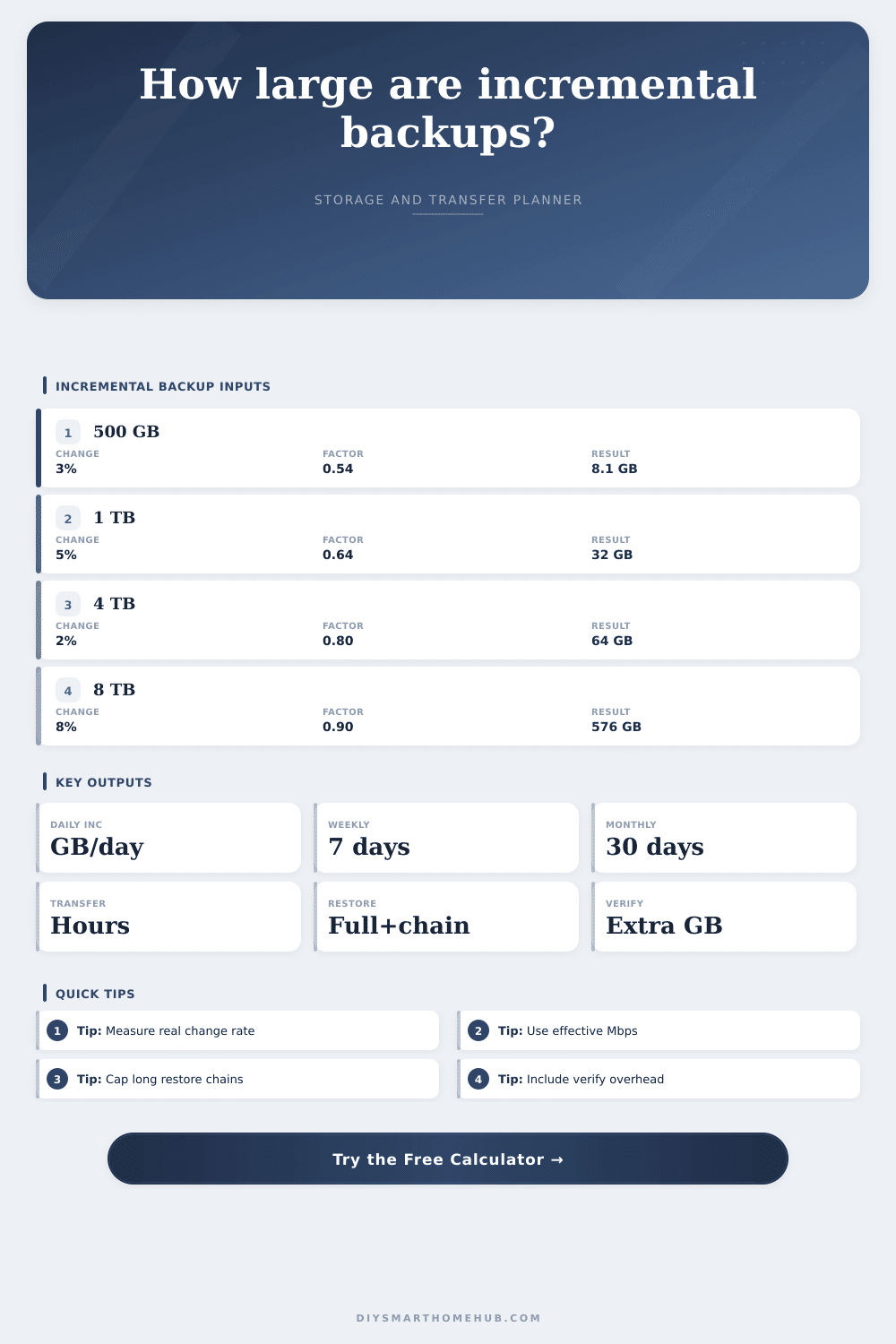
Incremental backups are supposed to make storage requirements modest, right? Not according to the math. You have a full backup plus one day of changes, and then another day, and another. There’s nothing intuitive about it.
That’s why we built a calculator to do the cumulative math for you, and stop you from guessing when you’ll run out of space on that external drive by March. We eliminated vendor marketing and told you exactly how much those daily snapshots consume in hours and gigabytes.
How to Calculate Your Backup Storage Needs
But here’s the problem: Change rates aren’t constant. Maybe they sits dormant for weeks while you wait for a project, then spike to twenty percent when you import a vacation trip. Or maybe it spikes to twenty percent when you import a vacation trip.
That’s why you want a tool that lets you enter a reasonable change rate by day, along with the deduplication/compression factors. Deduplication removes duplicate block within different files. Compression squeezes down databases and text files. Without accounting for these factors, you’ll wildly overestimate or underestimate your requirements. Knowing which factor matter most to your data type helps you know what you should of expect.
Then there’s the restore chain. That’s the series of backups you have to go through to get your system back to any particular point in time. Starting from the most recent full backup, it include all the incremental snapshots leading up to the point of failure.
When disaster hits, most people only think about the duration of their backup job… How long does it take to run? They don’t think about how long it will take to recover from the disaster. That longer chain mean reading more files in sequence, and thus having a longer window of vulnerability while recovering from the problem.
On the page, the risk associated with each chain length is categorized into a nice little reference table. Twenty or fewer increments is generally good; beyond that, things start getting complex and the possibility of having one of those links break increases.
There’s also another time bottleneck: transfer time. Even if you have a speedy link, backups don’t operate at maximum line speed. Your available bandwidth gets consumed by background processes, protocol overhead, and Wi-Fi interference. The effective speed is never as high as what your ISP advertises. Putting in a conservative number here avoids any surprises with an overtime run.
Say the calculation tells you the daily job takes six hours, but you have only four hours for the backup window. Now you have a problem… Before you’ve even bought the drive. Changing the window means having to compress more aggressively (or accepting that the job bleeds over into your day).
Until you run into a restore problem, most people ignore the verification overhead. That’s the extra data written during a write operation to confirm that everything wrote correctly. It sounds minor, but over a month of daily runs, it adds up. Then that’s several gigas. Consider it the premium you pay for your peace of mind.
Don’t enable it if you want to save a couple of gigs. But when you can’t find one of your files because something went wrong during the restore process, it becomes a catastrophic failure. These days, most have a switch for this; flipping it on won’t hurt you too much but will help out quite a bit with reliability.
Planning storage space takes into account the big picture. It is not just current data. What will the repository grow to within the next year? Factor in a reasonable month-over-month rate of growth for new projects and you have even more. To accommodate this, the calculator includes estimates for both total repository target and size retained each month. And it builds in a buffer for temporary buffers and index files.
A buffer is essential; stuffing a drive to maximum capacity makes it sluggish and increases the risk of corruption. Keeping twenty percent headroom, a standard best practice, avoids headaches down the road.
There are also some presets to get started with. Presets represent common use cases such as office documents, camera archives, or home servers. That way, you can learn what is possible, adjust your expectations. How much better does a document system with good deduplication perform compared to a media archive with bad compression but low change? Those insights will apply across various other systems.
Data retention and data reduction follow the same rules. In short, it’s all about balance (between size and time), between simplicity and security. Size your system correctly from the beginning so you don’t have to painfully upgrade halfway through the year.
Don’t get something that requires babysitting; you want an unobtrusive system running in the background. Get something you understand and can trust, the inputs and the output. Create a repository where you know that when you hit restore, the data will be ready and waiting, just like it was. Knowing that makes the planning effort worth it.