Backup Window Duration Calculator
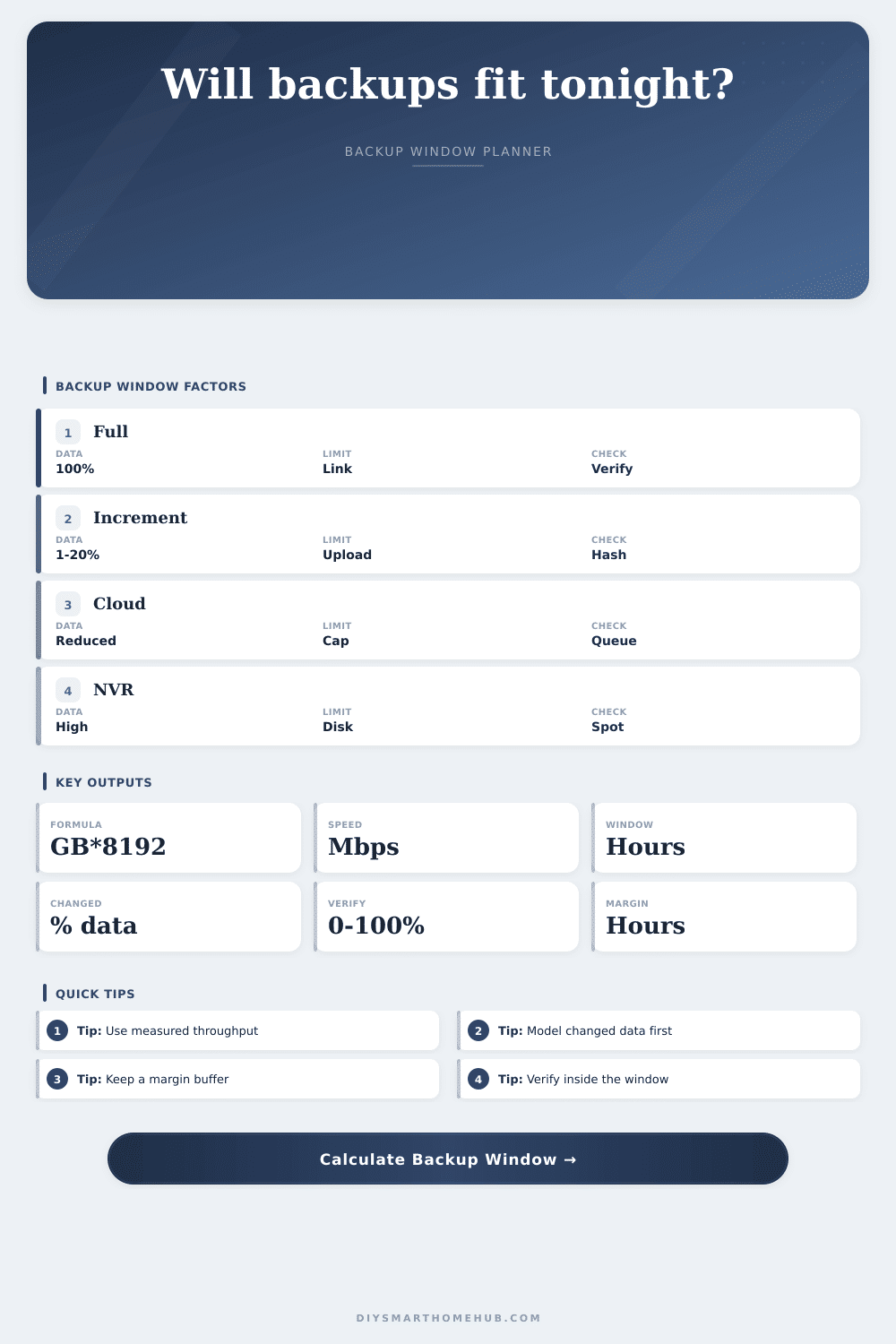
Estimate whether a full, incremental, NAS, NVR, or cloud backup can finish inside your available window after changed data percentage, compression, dedupe, effective Mbps, verification time, upload limits, and safety margin.
Decimal GB converted to megabits for Mbps time estimates.
Typical home increments vary by photos, cameras, VM images, and sync folders.
Text and logs reduce well; already compressed media usually does not.
Common reserve for retries, metadata, encryption, and contention.
Backup data profiles
| Source type | Changed data | Compression | Dedupe notes |
|---|---|---|---|
| Documents and smart home logs | 1% to 8% | High | Text, CSV, JSON, and database dumps often shrink well. |
| Photos and phone libraries | 3% to 15% | Low | JPEG and HEIC files are already compressed. |
| NVR and camera recordings | 10% to 100% | Very low | H.264 and H.265 video rarely gains much reduction. |
| VM images and PC full images | 5% to 100% | Mixed | Block-level dedupe can help when images repeat. |
Throughput planning table
| Path | Common cap | Best use | Watch point |
|---|---|---|---|
| USB 3 backup disk | 800-2500 Mbps | Large local fulls | Small files reduce real speed. |
| Gigabit NAS | 600-940 Mbps | Whole-home backup target | Wi-Fi clients may be the cap. |
| Wi-Fi backup | 80-500 Mbps | Laptops and light increments | Signal and airtime vary nightly. |
| Cloud upload | 5-200 Mbps | Offsite protection | ISP upload is usually limiting. |
Common backup windows
| Window | Usable with 15% margin | Typical job | Planning note |
|---|---|---|---|
| 2 hours | 1.70 hours | Laptop increment | Good for small changed data and fast LAN. |
| 6 hours | 5.10 hours | Nightly NAS job | Works when verification is partial. |
| 8 hours | 6.80 hours | Overnight home server | Common target for daily backup windows. |
| 12 hours | 10.20 hours | Cloud seed or large media | Still upload-limited on many home links. |
Verification and restore checks
| Check type | Coverage | Speed input | Use when |
|---|---|---|---|
| Metadata only | 0% to 5% | Not critical | Fast daily status checks. |
| Sample verify | 10% to 25% | Read speed | Routine home backups. |
| Full verify | 100% | Target read speed | After first seed or migration. |
| Cloud restore test | Chosen data | Egress limit | Validating recovery time. |
The house is silent; It’s 3 AM. You look at status monitor with sense of sinking dread: the backup job began at midnight and isn’t even close to completion. Oh well, the data set was larger this week, or maybe connection is slowing down… But the backup window has passed anyway.
At dawn it’ll complete (just as you’re logging into your office), and kids are plugging in their tablets. Why does that sound familiar?
Why Your Backups Take So Long
Because too many people plan backups based off not on arithmetic, but on optimism. They believe their gigabit connection will provide gigabit speed, and that magic will shrink it all down by half; they never works out that way.
That’s where this calculator comes into play. It strips out the guessing and forces you to take each bottleneck in the chain into account, it will crunch the numbers for you (see above).
The problem isn’t as simple as “how big is my data?” because backing up have a series of variables that all depend on one another. How much of your data actualy changed? Is it a full initial seed or an incremental backup?
In most cases, only a fraction of files has changed, which saves a ton of time. However, with an initial seed, you’re pushing the whole thing to the cloud. This requires a completely different approach. This helps you distinguish between two so you don’t plan for a full backup while thinking you’re running an incremental job.
Deduplication/compression is a very strong tool, but with a caveat. It behaves well for some file types and poorly for others. Things like documents, text logs, databases all compresses incredibly well, often dropping down to half their original sizes or even less. On the other hand, media tends not to compress much at all. Music files, JPEG photos, video recordings from security cameras: these are all pre-compressed. Compressing it again only saves a small amount of space (and costs you CPU cycles). The table on the page makes it clear why something like camera footage hardly gets reduced.
Underestimating this will lead you to believe your speeds is going to be great on paper. However, you may find that you overestimated the size savings when nothing actualy happens.
The other gap between theory and reality are network throughput. You may have a ISP that advertises gigabit download/upload, but in the real world there’s overhead for protocols, encryption, and the efficiency of the backup software itself. If your destination drive isn’t able to write at the same rate as the network delivers it, then that gigabit Ethernet cable can turn into a bottleneck very quickly. Both network speed and disk speed matter here. The calculator makes you enter both the network path speed and the target write speed, and will tell you which one of those two are the effective limit. (That’s what most people gets wrong.)
It is easy to forget about the extra time spent on verification. If you can’t recover it, what good is a backup? Reading back a sample file or checking the hashes will ensure that the backup is intact, but it takes time and bandwidth. Depending on how often you need to run it, a quick check may be all you need for a nightly job. But maybe a full read-back are required in case of a one-off migration. How much are you willing to compromise for speed vs certainty?
You should of always add some buffer for a margin. Things happen. The server reboots. The connection drops. Having a 15% margin ensures that even with a few bumps, the job won’t spill out and interrupt your morning routine.
Honor these constraints, and what was once a haphazard guess at when backups occur becomes something solid. The night remains quiet; the data remains intact.