PC Power Supply Wattage Calculator
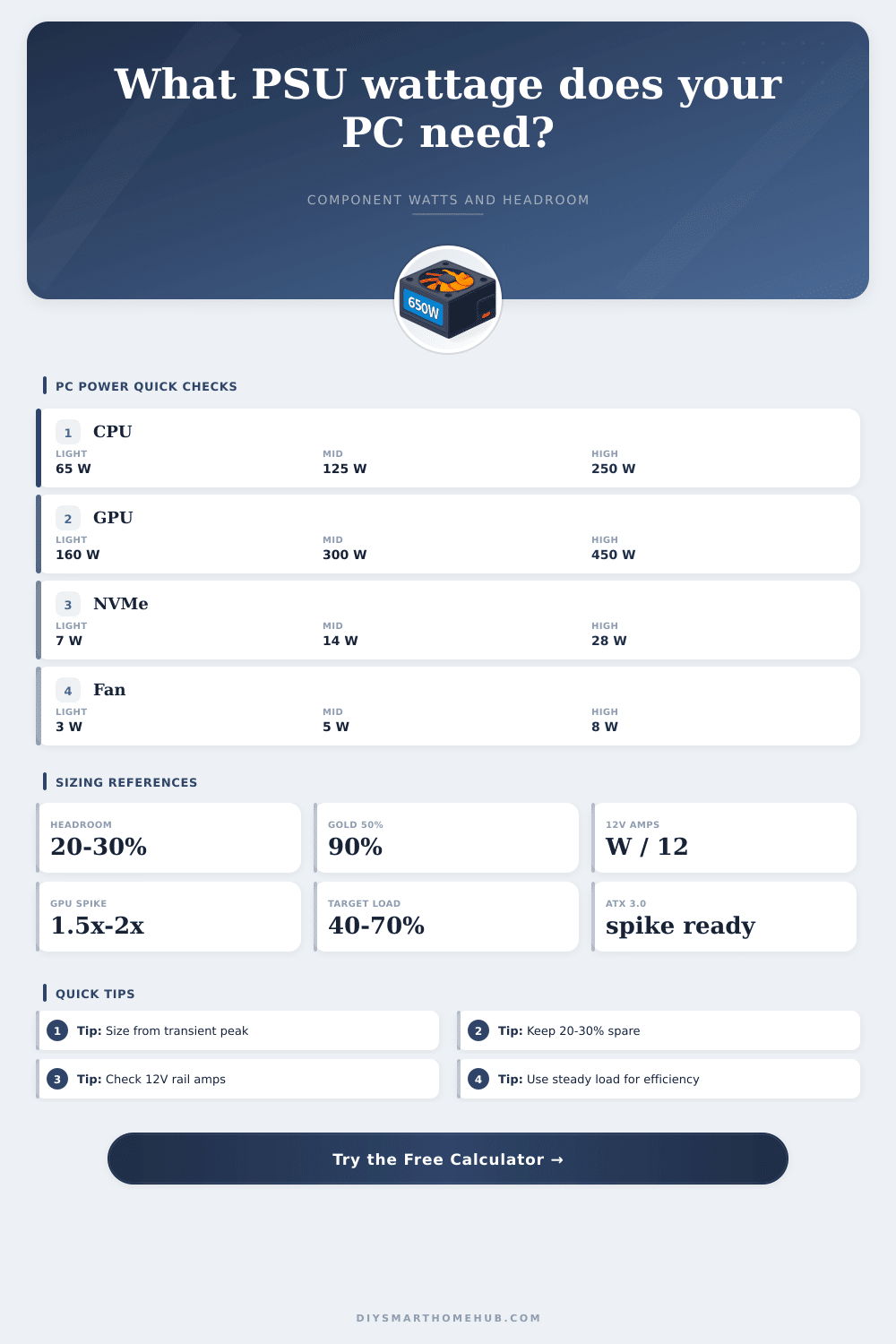
Estimate steady component draw, GPU transient spike allowance, recommended PSU capacity with 20-30% headroom, load percentage, efficiency, AC input, and 12V rail current.
Steady load sums boosted CPU watts, GPU board power, board, memory, drives, fans, pump, USB, and add-in cards.
GPU transient headroom equals GPU watts times the selected spike multiplier minus steady GPU watts.
Recommended capacity multiplies the transient peak by the selected 20%, 25%, or 30% margin.
12V rail amps are estimated from peak 12V loads divided by 12 volts for a conservative rail check.
| Component | Low | Typical | High |
|---|---|---|---|
| Desktop CPU package | 35-65 W | 105-170 W | 250 W+ |
| Discrete GPU board power | 75-160 W | 220-300 W | 450-600 W |
| Motherboard and chipset | 25 W | 35-45 W | 70 W |
| DDR4 / DDR5 memory | 3 W each | 5 W each | 8 W each |
| NVMe / SATA SSD | 4 W | 7 W | 10 W+ |
| 3.5 inch hard drive | 6 W | 9 W | 12 W+ |
| 120 mm / 140 mm fan | 2.5 W | 4-6 W | 8 W+ |
| AIO pump | 5 W | 6-8 W | 12 W+ |
| Multiplier | Meaning | Extra on 300 W GPU | Use case |
|---|---|---|---|
| 1.00x | No extra spike | 0 W | Low-risk or measured stable loads |
| 1.25x | Mild transient | 75 W | Older or efficient GPUs |
| 1.50x | Modern transient | 150 W | Most gaming GPU sizing checks |
| 1.75x | Aggressive transient | 225 W | High boost clocks or raised limits |
| 2.00x | Worst-case spike | 300 W | Very high-end or unknown GPU behavior |
| Rating | 20% load | 50% load | 100% load |
|---|---|---|---|
| 80 Plus basic | 80% | 80% | 80% |
| 80 Plus Bronze | 82% | 85% | 82% |
| 80 Plus Gold | 87% | 90% | 87% |
| 80 Plus Platinum | 90% | 92% | 89% |
| 80 Plus Titanium | 92% | 94% | 90% |
| PSU size | Best steady range | Peak note | Common fit |
|---|---|---|---|
| 450-550 W | 180-385 W | Light GPU spikes only | iGPU, office, compact builds |
| 650-750 W | 260-525 W | Moderate GPU spikes | Mainstream gaming PCs |
| 850-1000 W | 340-700 W | High-end GPU headroom | Strong gaming and creator PCs |
| 1200-1300 W | 480-910 W | Large transient margin | Flagship GPU workstations |
| 1500-2000 W | 600-1400 W | Multi-GPU capacity | Compute and HEDT systems |
In PC builds, we don’t think much about the power supply unit (PSU). It’s tucked away in your case doing its job while everything else gets the glory. This happens until machine won’t start up, restarts randomly when under load, and leaves you scratching your head wondering why. That’s where the difference between constant power draw and sudden spikes matter. Understanding this will help you build a stable PC without spending more then necessary.
The base level for power consumption is set by your central processing unit. Even though the box may rate your chip at 65W, in real world use moddern chips will surge far beyond that number, easily reaching 125 watts or higher during momentary periods. By choosing a CPU profile and boost settings, the calculator does the math for you because it understands the real-world spikes (not idealized average) that happen when you push your system to its limits. No guessing about how much additional headroom should of been included, either; simply plug in your settings and tool uses known multipliers based on what’s happening with today’s silicon. You avoid typical mistake of only considering manufacturer minimums, which hardly reflect actual load conditions.
How to Choose the Right Power Supply for Your PC
That’s the issue with graphics cards. They consume tons of current when they’re at full load and spike far beyond their average power usage in milliseconds. That peak might only be there for milliseconds but it trip those circuit breakers if you don’t have sufficient capacity. To account for that, the calculator requires you to enter a “transient multiplier,” which is generally anywhere from 1.25 to 2 times as much as the average draw. If you’re using a modern AMD or NVIDIA graphics card that has a reputation for aggressively spiking power, this is essential.
If you don’t include the spike, your system will become unstable under load, and the solution is simply to add some margin to your calculation. The small stuff adds up too, beyond the large items. Motherboard circuitry, cooling fans, storage drives, even RGB lighting all represent some number of watts that accumulate. Five NVMe drive plus a dozen case fans can easily push fifty extra watts. The tool parses out those extra loads to show you what’s eating the budget, and it estimates how much current you’re drawing from each of the rails, especially important since most heavy components is sucking from the 12-volt line.
If the maximum sum of all of your components demands more current than the power supply can provide safely, having more wattage won’t help your system. You’d think that all PSU’s were equal, but their efficiency is actualy important. When a PSU is working partially loaded (as most are), an 80 Plus Gold unit is more efficient then an 80 Plus Bronze unit. That translates into fewer watts turned into heat within your case. It leads to lower utility bills as your system runs longer. It also results in potentially cooler running components due to the reduced waste heat. The calculator uses these efficiency curves to reflect actual wall draw so you can see how much it will cost to run in real life.
Higher efficiency usually also pays for itself in reduced thermal output alone; no need for louder fans while your component stay cool. What’s more, headroom isn’t simply a safety cushion… It helps you get better performance. Most power supplies operates at their quietest and most efficient levels between forty and seventy percent of their maximum capacity. Running them beyond eighty or ninety percent can cause them to strain, causing slight voltage drops and making the fans spin faster.
The key here is twenty-five to thirty percent additional headroom so when you’re really pushing it, gaming or doing some intensive rendering; that power supply will be operating in its sweet spot. This also adds longevity to all those components inside (including capacitors) that don’t like being strained constantly at max load. A PC is a balance between price, noise and performance. Get as much performance as required to do your work, but not more then you need; no point spending money on something you’re never going to use.
To show where your build fits in, the page has some reference tables showing what sort of range of consumption different parts might have, which you can use to get an idea of where yours will land. Combine these with your own spec sheets for each component before making any purchases, just to double-check. Your entire system begins with a solid foundation, and ensuring you have a good power supply means everything should go according to plan without hiccups.