Simultaneous 4K Stream Bandwidth Calculator
Estimate the download Mbps, stream overhead, burst allowance, internet headroom, Wi-Fi capacity, and Ethernet fit for multiple 4K screens running at once.
Run the calculator to see simultaneous 4K streaming bandwidth and network fit.
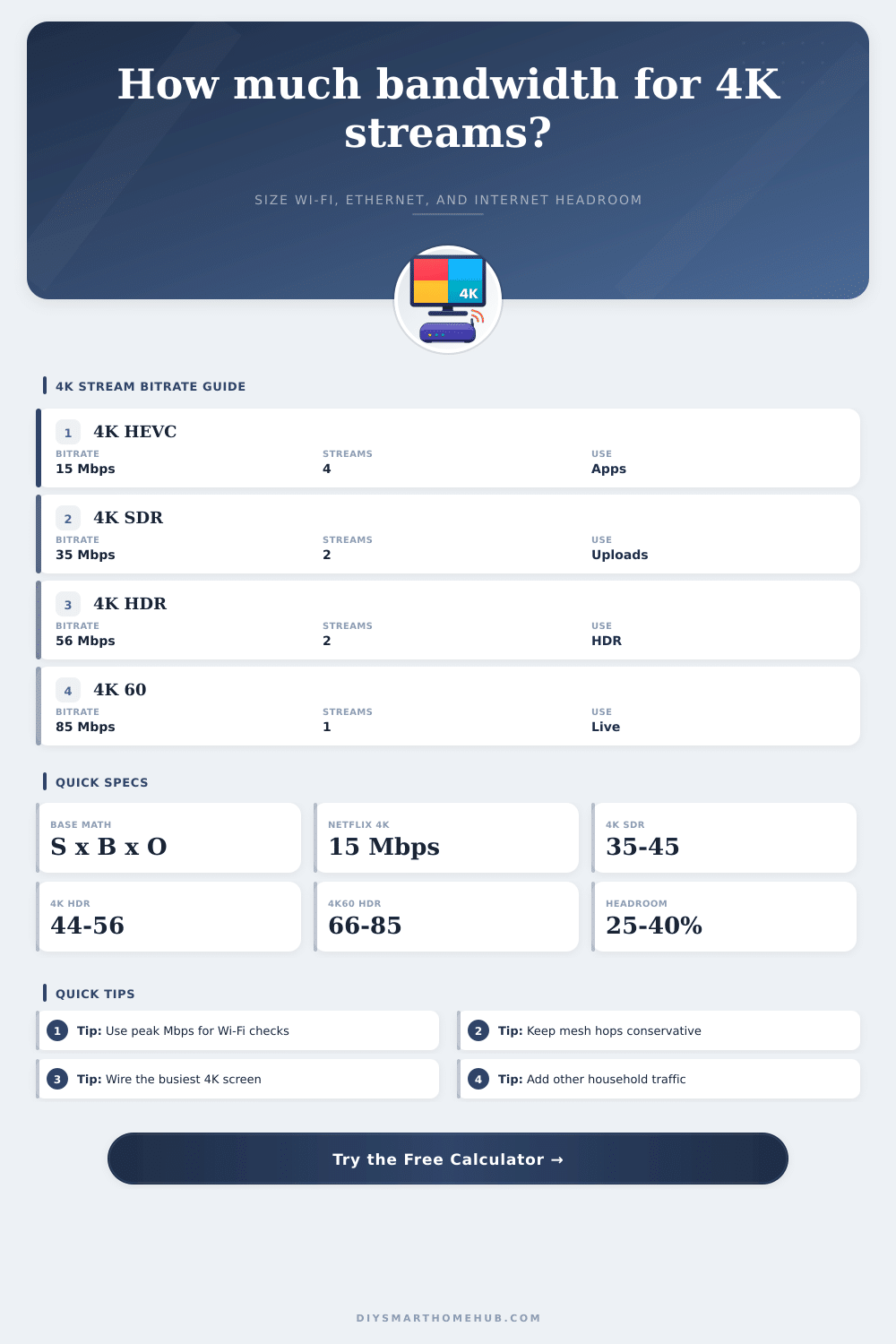
| Video profile | Typical Mbps | Best use | Calculator setting |
|---|---|---|---|
| Adaptive app 4K HEVC/AV1 | 12 to 25 | Movies, shows, streaming boxes | 15 to 20 Mbps |
| 4K SDR standard frame rate | 35 to 45 | Creator uploads, high quality SDR | 40 Mbps |
| 4K HDR standard frame rate | 44 to 56 | HDR movies and showcase content | 50 Mbps |
| 4K SDR 48 to 60 fps | 53 to 68 | Sports, action, smooth motion | 60 Mbps |
| 4K HDR 48 to 60 fps | 66 to 85 | High-frame-rate HDR | 75 Mbps |
| Lightly compressed local 4K | 80 to 150 | Media server or mezzanine files | 100 Mbps |
| Network path | Planning efficiency | Headroom target | Notes |
|---|---|---|---|
| Clean Wi-Fi 6E/7 | 60% to 75% | 25% reserve | Best with strong signal and low contention. |
| Wi-Fi 6 | 50% to 65% | 30% reserve | Good for several compressed 4K streams. |
| Wi-Fi 5 | 40% to 60% | 35% reserve | Plan carefully for high-bitrate HDR. |
| Wireless mesh hop | Apply penalty | 35% to 45% | Backhaul sharing can be the bottleneck. |
| Fast Ethernet | 90% to 95% | 20% reserve | Often tight for 4K60 or high-bitrate files. |
| Gigabit Ethernet | 90% to 95% | 20% reserve | Usually ample for home 4K streaming. |
| Scenario | Streams | Bitrate profile | Stream load with 18% overhead | Suggested network posture |
|---|---|---|---|---|
| One premium TV | 1 | 15 Mbps app 4K | 18 Mbps | Any strong modern Wi-Fi or Ethernet. |
| Two-room movie night | 2 | 15 Mbps app 4K | 37 Mbps | Stable Wi-Fi, modest internet reserve. |
| Family mixed viewing | 4 | 20 Mbps efficient 4K | 94 Mbps | Wi-Fi 6 or wired AP backhaul preferred. |
| Two HDR showcase streams | 2 | 50 Mbps HDR | 118 Mbps | Wire the primary display when possible. |
| Sports and creator preview | 3 | 60 Mbps 4K60 | 212 Mbps | Needs strong Wi-Fi 6/6E or Ethernet. |
| Local media server stress | 4 | 100 Mbps light compression | 472 Mbps | Gigabit Ethernet and wired APs strongly favored. |
This one’s familiar, because it sounds too good to be true. Here you are, sitting on the couch. You’ve got a movie ready to roll, in ultra HD quality. Upstairs, your teen fires up a game. In the bedroom, your spouse begins watching its own show. And then, BAM: All the screens lock up simultaneously, all displaying the hated buffering wheel, taunting you with the cost of your internet service.
No, it’s not because your internet service provider was lazily capping your speed. Nor is it usually your modem. It’s almost always because of a math equation you never solved before purchasing the additional television. You think “high speed” means “infinite bandwidth,” but you don’t realize how much that bandwidth are split up once you actualy start using it.
Why Your Internet Slows Down with Many Devices
Data used by streaming video isn’t a constant river of information, gushing from a spigot at full bore down a pipe. It’s more like a succession of quick snatches and grabs. A few seconds worth of video is gathered quickly enough to preload a buffer, which jumps up and down through different qualities based on how stable the signal is. Multiply that times several device doing it all at once and the traffic requests collides inside your router, fighting for airtime over Wi-Fi (or for an Ethernet connection).
Plug in your own situation, and the calculator above will crunch numbers for you. It eliminates the need to estimate burst multipliers and other overheads by translating raw bitrates into something closer to real life: Can I stream four things at once? Will my plan choke?
Overhead matters most of all, and that’s what casual planning often misses, though it’s the key to good results in the real world. Your raw bit rate for the video (how many megabits per second the content provider is sending) doesn’t reflect TCP/IP protocol headers nor TLS encryption handshake traffic. Neither does it count the additional data needed when a viewer pauses, seeks forward in the timeline, or otherwise causes the stream to refill buffers. To take that into account, the tool multiplies your base bitrate numbers by a burst multiplier and adds overhead percentage.
That’s why when you see something labeled as a fifteen-megabit stream, you’re likely using twenty or more megabits on your network meter. You might underestimate total demand by as much as a third or more if you ignore those hidden expenses. This makes you feel great about doing speed tests, but your movies will stutter during peak use.
After all, internet speed isn’t everything (network topology counts too). Unlike wired connections, which can talk at once, Wi-Fi is a shared space, with each device taking its turn to send data. More devices equals more competition for available speed per user. Using the calculator, you’re able to split streams between wired (Ethernet) vs. Wireless (Wi-Fi) paths, giving you a clearer picture of what’s clean (cables) vs. What’s noisy (radio frequencies). By keeping your main TV hardwired, you’ll free up valuable airtime for mobile devices that won’t be able to handle gigabit speeds in any case.
The input profile is important for avoiding an expensive mistake. In today’s world, streaming services use some pretty extreme compression with their moddern codecs (AV1 or HEVC) to get bit rates down to something reasonable. Lightly compressed local files played off of a media server draw massively larger amounts of bandwidth at the same resolution. If you don’t pick the right baseline, then you’ll either pay extra for an internet package that you don’t need…or realize at the last second that family movie night won’t fit within your existing plan. To give you a sense of how the bit rates compare, the page has a nice set of reference tables that make it clear where you should start based on what you’re streaming, be it from Netflix or a private NAS drive.
Remember: environmental conditions affecting signal strength go well beyond range. Metal, concrete walls will impede your Wi-Fi much more greater than drywall. You might see a great signal on your phone’s screen, but the actual throughput and retransmissions may be very poor. This gives you a false sense of network health. To compensate for this, include some margin of error in your estimates. The buffer will protect against things like background updates or other times when data usage is heavier without hurting your main entertainment activity.
The bandwidth equation is about more than just finding the fastest speed on a speedtest site; it is about knowing how much total traffic all those devices put on your home network. In other words, consider the entire ecosystem of devices competing for attention… Not just the internet connection coming into the home; and once you get that, it’s pretty simple mathematics: Concurrent streams adds to their requests through wireless competition and the overhead of streaming protocols. This makes it easy to see when they have multiplied, so you can also size your network to match.
So that movie night isn’t about staring at a spinning wheel but about… the movie.