Camera Upload Bandwidth Calculator
Estimate required internet upload for cloud cameras, remote viewing, LTE backup, and off-site recording from camera count, bitrate, codec, active duty, concurrent streams, cloud overhead, ISP upload speed, and headroom.
🎯Upload planning presetsPick a camera upload scenario, then tune the assumptions.
⚙Calculator inputsTotal Mbps = cameras x bitrate x duty/concurrency.
📊Bandwidth spec gridCore assumptions used by the calculator.
Upload bandwidth results
🖥Upload mode comparison gridHow mode choices change upstream demand.
📋Camera upload reference tablesBitrates, codecs, overhead, and ISP planning.
| Formula item | Calculation | What it means | Use |
|---|---|---|---|
| Active camera Mbps | Cameras x Mbps x duty | Cloud recording upload before overhead | Motion or continuous cloud |
| Live view Mbps | Viewers x Mbps x substream | Extra upstream remote-view traffic | Apps and web viewers |
| Total camera Mbps | Active + live | Camera traffic before overhead | Bandwidth budget |
| Cloud overhead | Total x (1 + overhead) | Transport, metadata, retries, clips | Cloud camera planning |
| Upload headroom | Required / (1 - reserve) | Recommended ISP upload tier | Avoid saturation |
| Resolution | H.264 Mbps | H.265 estimate | Upload note |
|---|---|---|---|
| 720p HD | 1-3 Mbps | 0.6-1.7 Mbps | Doorbells and low-detail views |
| 1080p Full HD | 2-6 Mbps | 1.1-3.3 Mbps | Common cloud camera setting |
| 2K / 1440p | 4-10 Mbps | 2.2-5.5 Mbps | Driveway and entry detail |
| 4MP camera | 5-12 Mbps | 2.8-6.6 Mbps | Popular PoE camera class |
| 4K / 8MP | 12-25 Mbps | 6.6-13.8 Mbps | High detail needs upload headroom |
| Codec | Factor | Bandwidth behavior | Best fit |
|---|---|---|---|
| H.264 / AVC | 1.00x | Baseline upload estimate | Older cameras and broad support |
| H.265 / HEVC | 0.55x | About 45% less than H.264 | Modern NVRs and cloud systems |
| H.265+ smart codec | 0.45x | Extra savings in stable scenes | Low-motion home cameras |
| AV1 stream | 0.40x | Efficient when supported | Newer end-to-end platforms |
| MJPEG | 4.00x | Very high upload load | Special compatibility cases |
| Planning target | Typical value | Why it matters | Calculator input |
|---|---|---|---|
| Cloud overhead | 5-25% | Accounts for protocol and service extras | Cloud overhead |
| Upload reserve | 20-50% | Keeps the connection responsive | Headroom target |
| Motion duty | 10-60% | Event upload does not run all day | Upload duty |
| Continuous duty | 100% | Worst-case cloud recording load | Upload mode |
| Other upload | 2-20 Mbps | Video calls and backups compete with cameras | Other upload load |
🧮Common camera upload examplesExample outputs from the same formula.
| Scenario | Input profile | Camera upload | Plan note |
|---|---|---|---|
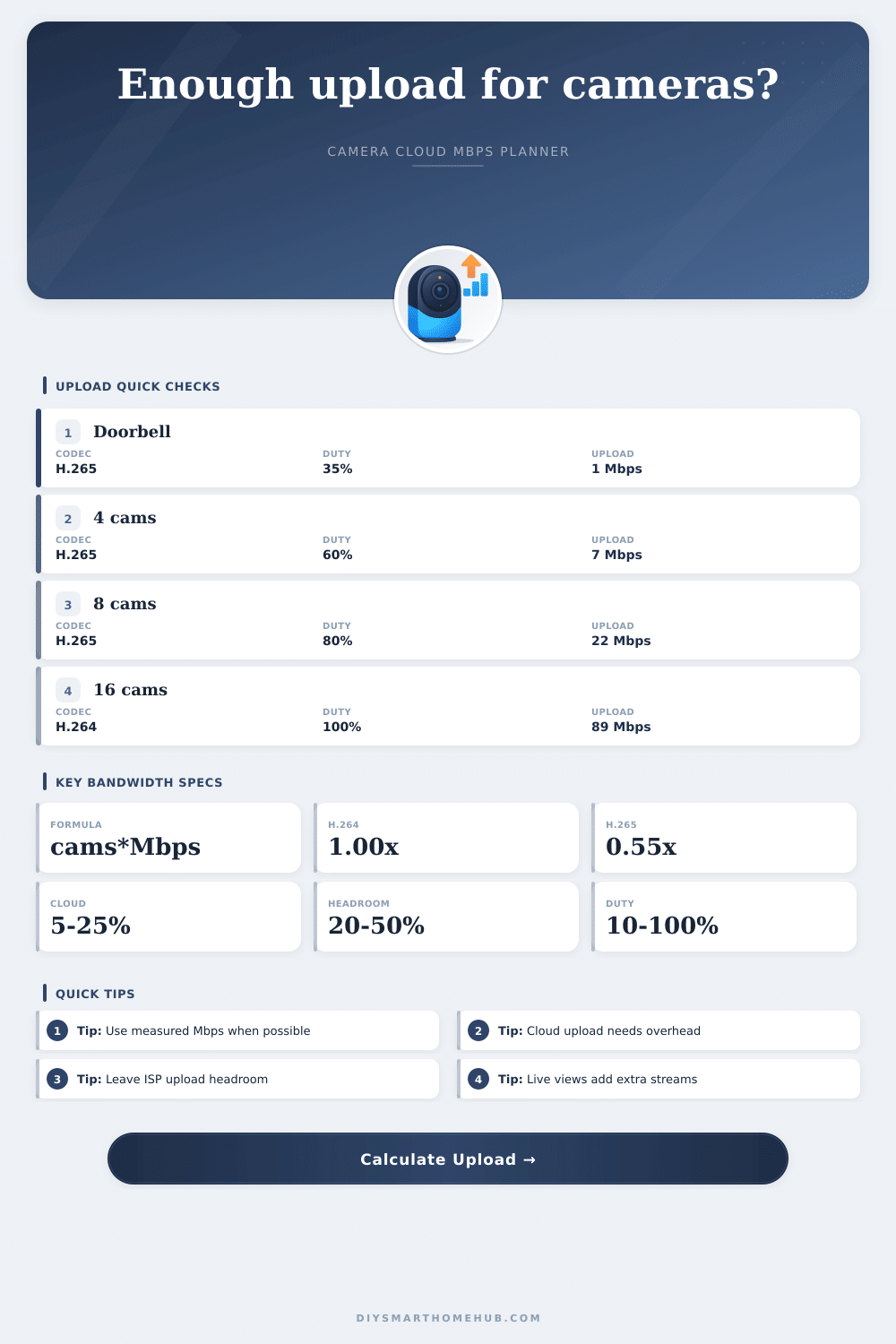
| Doorbell cloud | 1 x 1080p H.265, 35% duty | About 1 Mbps with overhead | Fine on most cable uploads |
| 4 camera home | 4 x 2K H.265, 60% duty | About 7 Mbps with overhead | Needs room for other traffic |
| 8 camera PoE cloud | 8 x 4MP H.265, 80% duty | About 22 Mbps with overhead | Check tested upload speed |
| Remote live checks | 2 viewers at 35% substream | Adds about 1-8 Mbps | Depends on main stream Mbps |
| 16 camera continuous | 16 x 1080p H.264, 100% duty | About 89 Mbps with overhead | Usually fiber-class upload |
💡Camera upload tips
This calculator is for upload planning. Actual traffic varies with camera firmware, variable bitrate settings, audio, snapshots, encryption, cloud retry behavior, router QoS, and measured ISP upload speed.
You probably recall those times when you tried to stream a live video feed of what is happening at your front door while someone else are streaming a movie over Wi-Fi. Your video would buffer and freeze and eventualy turn into a black screen with a spinning wheel. That wasn’t a glitch; it was bandwidth collision.
After all, most home networks aren’t set up to upload anything, they’re made to download. When you throw in security cameras that keeps pushing video to the cloud, you run into tough limits with your internet service provider’s asymmetric connection limits. The one thing everyone forgets about bandwidth is the upload speed bottleneck. You have a big wide download pipe for downloading a movie… but that thin upstream lane gets filled up fast by uploading video from your cameras. And it’s worse if several viewer are all trying to tune into your stream at once.
How to Calculate Your Camera Bandwidth Needs
With this page we can help you calculate how many lanes your cameras will take up with that lane. You don’t want them to choke the rest of the house. It doesn’t makes an estimate based off camera count. It factors in how often motion occur, the codec efficiency, and the hidden overhead of the cloud protocol.
Begin with your codec selection: Most moddern cameras now offer H.265 compression, which is about 45 percent more efficient than the previous-generation H.264 standard. If your system allows switching between codecs, it’s as close as you’ll come to getting the same visual quality on about half the bandwidth. That’s the largest lever you can pull to save upload bandwidth. When you do so, the tool will automatically adjust its estimates. These are based not on theoretical maximums but on what you actualy see in terms of compression gains.
Next, take into account what’s actually being recorded. Most people believe that their camera’s streaming 24/7 (after all, isn’t that the whole point?). In fact, most cloud cameras only uploads when it detects motion, or if you specifically want to watch your camera “live.” That drastically affects the math: a driveway cam looking out on a busy road may be uploading full time; a doorbell cam may only be active ten percent of the day. You can enter those percentages in the calculator. It’ll help ensure you’re not paying for unused bandwidth, and not clogging up your internet during that one moment where everything gets triggered at once.
The human factor, don’t neglect this one. Anytime someone opens up the app to see what’s going on in their house, they’re adding another stream to the load. That live view typically relies on a lower resolution substream, but it still eats megabits per second. And if multiple people is monitoring feeds at once, like three family members and a nanny, that can be a lot of traffic. These simultaneous viewer streams also gets added into the mix by the tool. Instead of an average idle state number, it provides a realistic picture of how much bandwidth would of been consumed during a peak time.
Each packet carries information you can’t see either. These include thumbnails, retry packets, encryption headers, metadata, and more. That is cloud overhead too. Not video, but its bits flowing across your upload pipe. If you ignore it, your pipe will become unexpected congested. By default the calculator estimates a certain amount of invisible traffic, which may be small but becomes important if you’re running near capacity.
Lastly, compare it to your real world ISP upload speed, not what you’re paying for on paper. Your ISP speeds won’t match your plan name; they vary in reality. Leave some room for growth, your connection gets janky at 90%+ capacity when backing up big files, making video calls, etc. Wanting live view to pop right up and cam alerts to be immediate? Give yourself breathing room.
You are not chasing raw spreadsheet numbers but achieving seamless invisibility. Bandwidth planning for uploads always seems like a puzzle with shifting pieces. Once you understand those factors. Whether it’s saving bandwidth with codecs or a spike in viewership, you can plan things quietly in the background. It’ll keep your cameras running without worry because they’ve got the breathing room they need to do their job. A few more megabits on paper isn’t as valuable than that peace of mind.